
How to Upload and Download Character Design Codes
★ Arkveld Gamma Armor | MH Stories 3 Collab
☆ Version 1.041: Sororal α Armor | Shatterseal
★ How to Unlock Proof of a Hero Quest
☆ Omega Planetes | Savage Omega | Builds vs Omega
★ Armor Set Search updated for Ver 1.041
☆ HR50+ Builds | Tier List | Weapon Guides

Design Codes let you share your custom-made Hunters in Monster Hunter Wilds. Learn how to use Character Design Codes and how to create, upload, and download them in this guide!
| Character Design Codes | |
|---|---|
| How to Upload/Download | Design Codes Sharing Board |
List of Contents
How to Download a Design Code
Design Codes can be downloaded through the Character Creation screen when creating or editing an existing hunter. Follow the steps below to download a design, and check out our Design Codes and Sliders Sharing Board for fun codes to try!
| 1 | 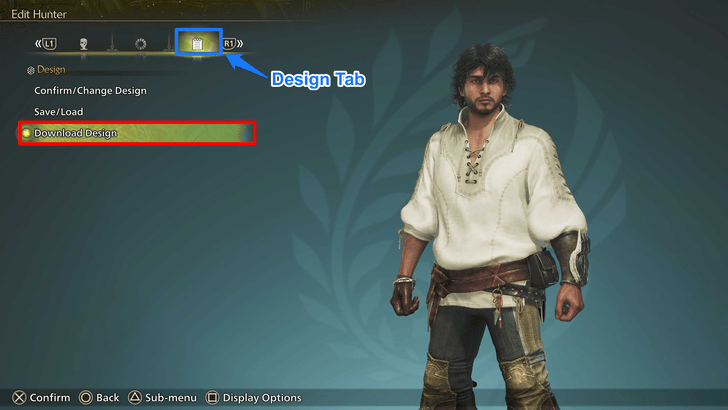 On the Character Creation or Edit screen, navigate to the Design tab and select Download Design. |
|---|---|
| 2 | 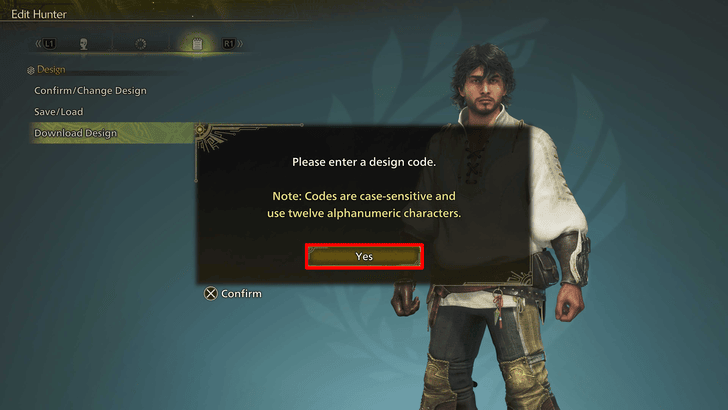 Enter the 12-digit Design Code you would like to apply and hit Confirm. The codes are case-sensitive so be sure to copy them over exactly as they are written! |
| 3 | 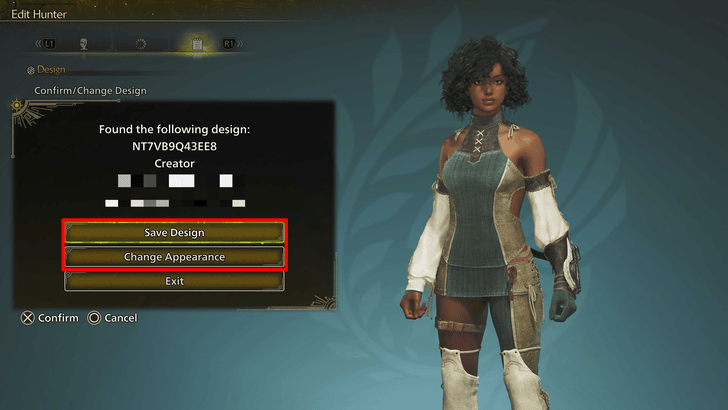 Choose either Save Design to save it in one of your Design slots, or choose Edit Appearance to immediately apply it on your hunter without having to save it first. |
How to Upload a Design Code
Generate a 12-Digit Code
| 1 | 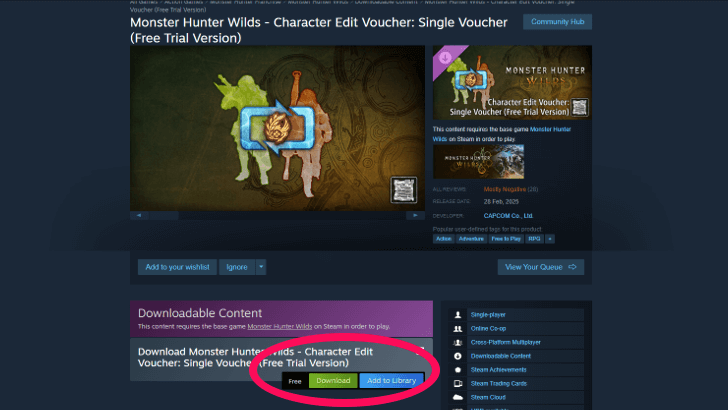 Obtain 1 free Hunter or Palico Edit Voucher through your designated platform's store, and select Start Game on Monster Hunter Wilds' Main Menu. |
|---|---|
| 2 | 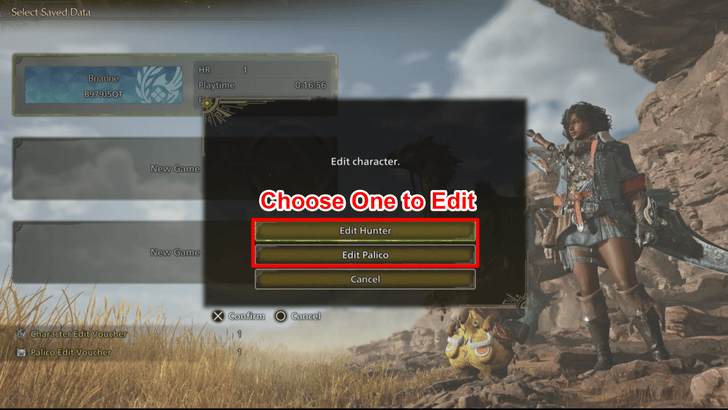 Select any save file you have available and press the corresponding button that prompts Edit Character. Agree to the pop-ups that appear on screen and begin designing your new Hunter or Palico! Don't worry about overwriting your initial Hunter as you can always exit out of the edit character screen once you have generated a Design Code! |
| 3 | 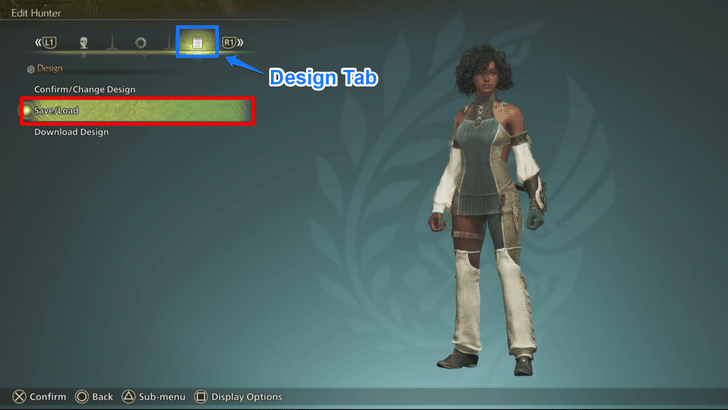 After you are content with your creation, navigate to the Design tab and select Save/Load. |
| 4 | 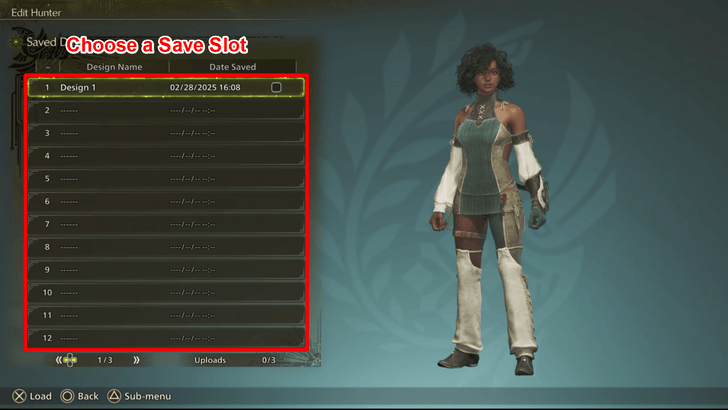 Choose a slot you'd like to save your creation in, and hit save! |
| 5 | 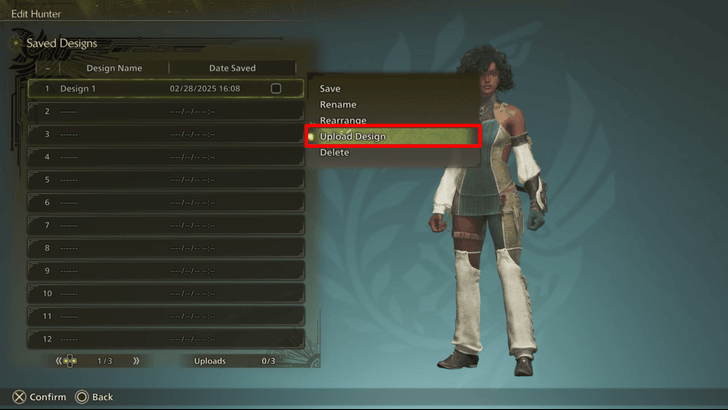 Select the same character save file, open its Sub-menu, and select Upload. |
| 6 | 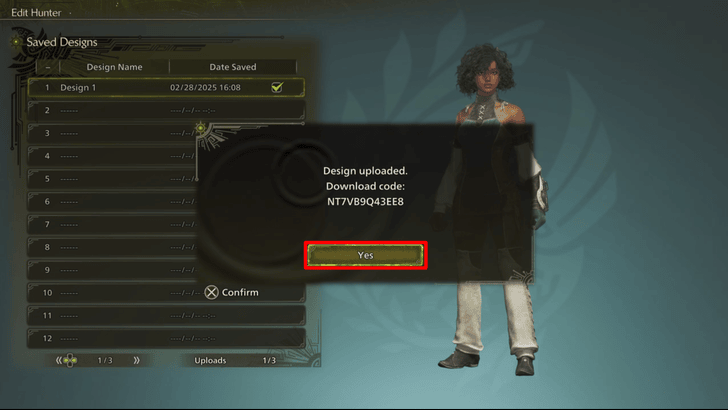 After successfully uploading your Design, the game will give you a 12-Character Design Code which you may now share with other players! Once the process is complete, you can now safely exit out of the character edit screen without overwriting your existing Hunter Design! |
Character Edit Vouchers are the Only Way to Generate Design Codes
A Character Edit Voucher is required to access the Character Editor screen and create a shareable design.
However, you don’t need to overwrite your existing Hunter’s design or spend an Edit Voucher to share a Design Code. Once you have saved and uploaded the design, you may safely exit the editor while still retaining the character data.
How to Get and Use Character Edit Vouchers
Only Three Design Codes Can be Uploaded per Player
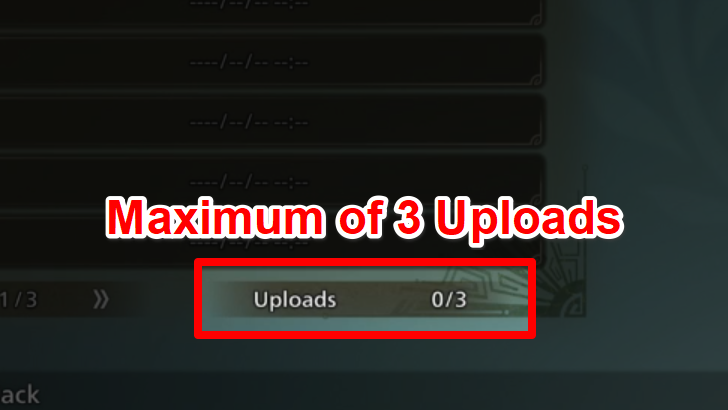
Only three Design Codes per player can be generated at a time! If you want to upload a new one after hitting the maximum threshold, you'll need to delete an existing upload.
But don’t worry—this process only invalidates the deleted Design Code and won’t erase your created design!
How to Upload More Design Codes (PS5 Only)
If you've already exhausted all of your Design Code upload slots, but would still love to share more without unlinking your previous designs, follow the steps below!
| 1 | 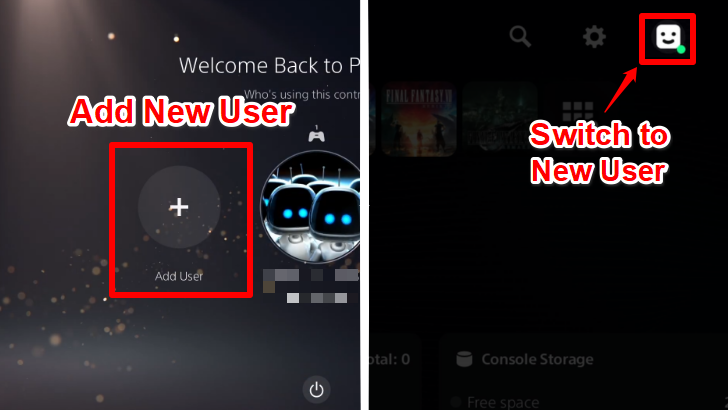 Upon opening the PS5, Select the Add User option on the far left, to add another profile to your console. If you already have your PS5 open, you can navigate toward your profile photo at the top right side of the screen and select Switch User and select Add User. |
|---|---|
| 2 | Sign-in manually to a secondary PlayStation Network account and follow the steps that appear on the screen to set up the profile. If you do not have a secondary PlayStation Network account to sign-in to, you may create a new account using a different email! Having an account is crucial to uploading the Design Codes, so be sure to connect one! |
| 3 | 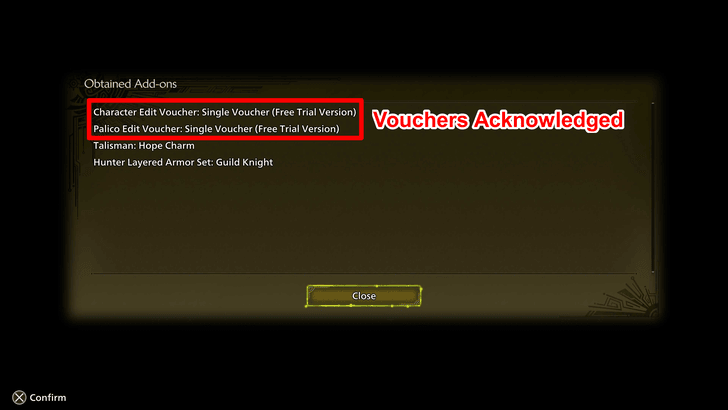 After the new profile is set up, open Monster Hunter Wilds. As this is a new profile, the game will create a new save file and reward you with the same Hunter and Palico Edit Vouchers you have previously obtained. |
| 4 | 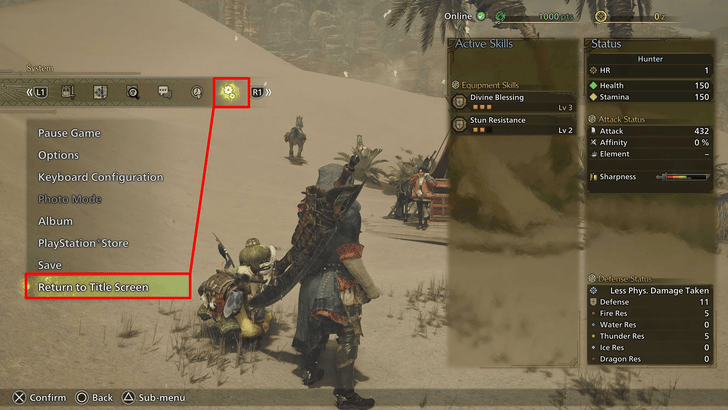 Proceed through the game's initial setup and opening sequences. Once you've made it to the point before Alma asks you about your weapon choice, press the Options button to open the main menu and navigate to --, then select Return to Title Screen. |
| 5 | 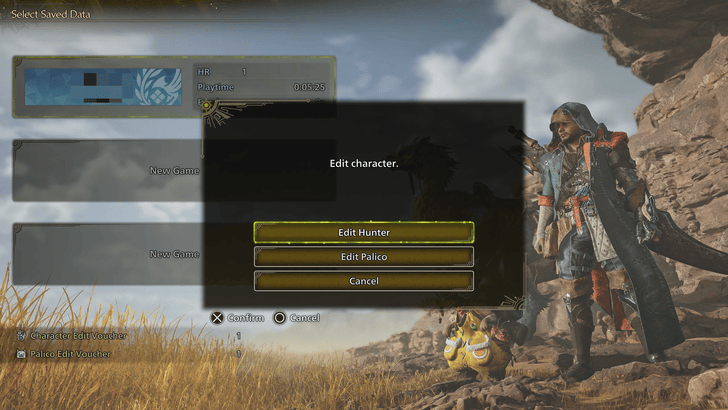 At the Title Screen, select Start Game, press the Square Button on your controller to open the Edit Character Screen, and create more designs with a fresh set of empty upload slots! Do note that if all three slots fill up again, you will have to go through the steps of creating a new profile once more. |
What are Design Codes?
Other Players' Character Creations
Design Codes let players showcase their creativity using the game's highly detailed character customization and share their unique Hunter or Palico designs with others.
Think of them as community-crafted presets—free for anyone to use and bring into their own adventure!
Monster Hunter Wilds Related Guides
All Tips and Tricks Guides
Comment
 TeeDub about 1 year
Beautiful female redhead: 8D9489FL5JG3 Rugged male reddish/blonde: BU6KC6XH7E34 Fox palico: KK7QQ3GG8TN5 Shadow palico: AP3MQ99B8Y97



Author
How to Upload and Download Character Design Codes

Premium Articles
Rankings
Gaming News

![Monster Hunter Stories 3 Review [First Impressions] | Simply Rejuvenating](https://img.game8.co/4438641/2a31b7702bd70e78ec8efd24661dacda.jpeg/thumb)
Popular Games

Genshin Impact Walkthrough & Guides Wiki
Honkai: Star Rail Walkthrough & Guides Wiki
Umamusume: Pretty Derby Walkthrough & Guides Wiki
Pokemon Pokopia Walkthrough & Guides Wiki
Resident Evil Requiem (RE9) Walkthrough & Guides Wiki
Monster Hunter Wilds Walkthrough & Guides Wiki
Wuthering Waves Walkthrough & Guides Wiki
Arknights: Endfield Walkthrough & Guides Wiki
Pokemon FireRed and LeafGreen (FRLG) Walkthrough & Guides Wiki
Pokemon TCG Pocket (PTCGP) Strategies & Guides Wiki







Recommended Games
Diablo 4: Vessel of Hatred Walkthrough & Guides Wiki
Cyberpunk 2077: Ultimate Edition Walkthrough & Guides Wiki
Fire Emblem Heroes (FEH) Walkthrough & Guides Wiki
Yu-Gi-Oh! Master Duel Walkthrough & Guides Wiki
Super Smash Bros. Ultimate Walkthrough & Guides Wiki
Pokemon Brilliant Diamond and Shining Pearl (BDSP) Walkthrough & Guides Wiki
Elden Ring Shadow of the Erdtree Walkthrough & Guides Wiki
Monster Hunter World Walkthrough & Guides Wiki
The Legend of Zelda: Tears of the Kingdom Walkthrough & Guides Wiki
Persona 3 Reload Walkthrough & Guides Wiki










All rights reserved
©CAPCOM
The copyrights of videos of games used in our content and other intellectual property rights belong to the provider of the game.
The contents we provide on this site were created personally by members of the Game8 editorial department.
We refuse the right to reuse or repost content taken without our permission such as data or images to other sites.
Gwiffith : 696X583B4XC8