
How to Use Gestures and Stickers
★ Arkveld Gamma Armor | MH Stories 3 Collab
☆ Version 1.041: Sororal α Armor | Shatterseal
★ How to Unlock Proof of a Hero Quest
☆ Omega Planetes | Savage Omega | Builds vs Omega
★ Armor Set Search updated for Ver 1.041
☆ HR50+ Builds | Tier List | Weapon Guides

Use gestures and stickers in Monster Hunter Wilds to communicate with other hunters. Learn how to use gestures and stickers and how to customize stickers and shoutouts!
List of Contents
How to Use Gestures and Stickers
Use the Radial Menu
| Open Radial Menu | ||
|---|---|---|
| PlayStation | Xbox | PC |
 |
 |
 |
Open the radial menus by holding the L1 button/LB button/V key. Use the keys on the D-Pad if using a controller or the corresponding function key (F1-F8) if using a keyboard to select which radial menu to access. Use the right joystick if using a controller or the corresponding key (0-9/-/=) if using a keyboard to select which Gesture/Sticker/Shoutout to use.
Radial menus can be customized by selecting Customize Radial Menu under the Items & Equipment tab in the Start Menu. Here, you can select which radial menu you would like to edit.
Use the Communication Menu
Access the Start Menu and go to the Communication tab. Select Communication. Recently used gestures, stickers, and shoutouts can also be seen here!
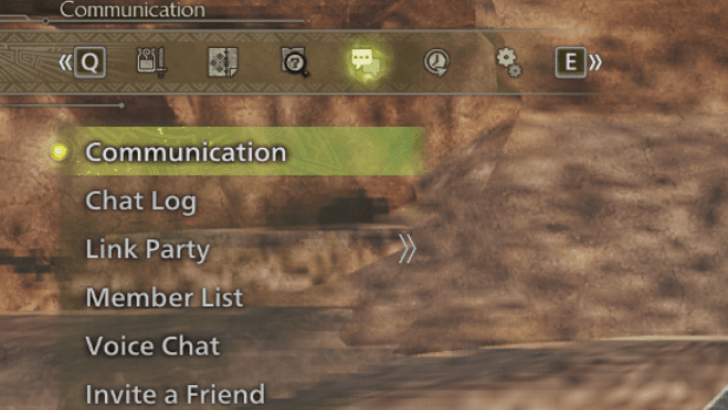
How to Set Gestures and Stickers
Configure in Options Menu
You can change gestures and stickers saved in a radial menu by going to the Communication tab in the game's options.
| # | Steps |
|---|---|
| 1 |
 Open the Main Menu and go to the Items & Equipment tab. Select Customize Radial Menu. |
| 2 |
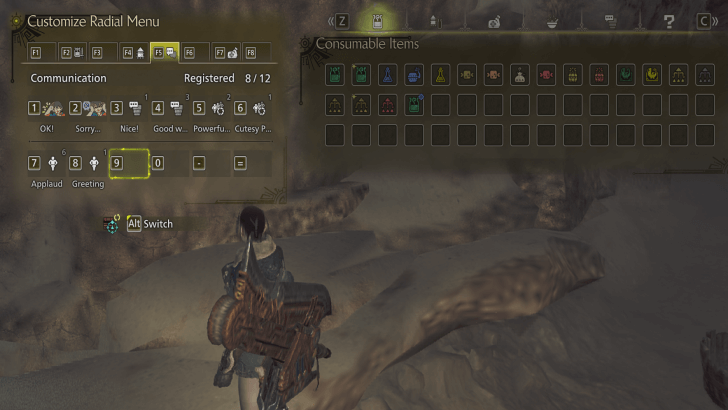 Select the radial menu and the slot on that radial menu that you want to edit. |
| 3 |
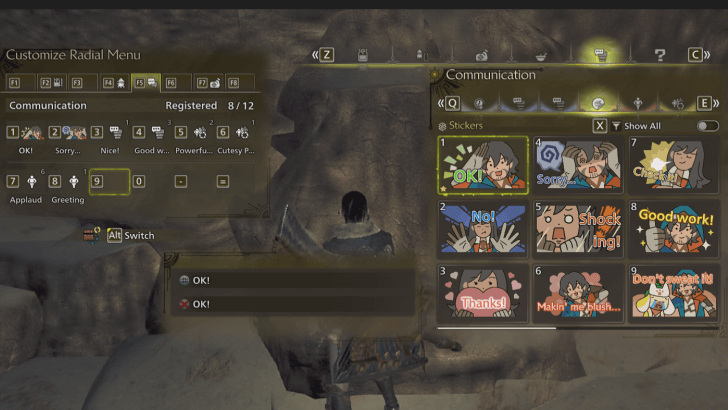 You can then cycle through the tabs to find the Communication tab (speech bubble icon). Once on the tab, cycle through the smaller window to find the gesture/sticker/shoutout you want to register on that radial menu slot. |
| 4 | After you finish customizing the radial menu's options, you can now easily access the communicative options that you like by opening and selecting them from the radial menu you just edited! |
How to Customize Stickers and Shoutouts
Change Text in Edit Shoutout
Text seen in stickers and shoutouts can be customized to whatever you want to say. This is useful if you want to quickly communicate with other hunters in your party.
| # | Steps |
|---|---|
| 1 |
Open the Main Menu and go to the Communications tab. Select Communication. |
| 2 |
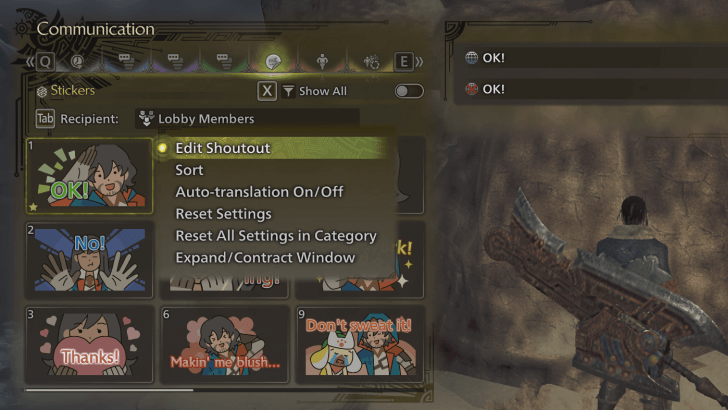 Hover over the sticker/shoutout you want to edit. Open the sub-menu by pressing the △/Y button if using a controller or R key if using a keyboard. Select Edit Shoutout. |
| 3 |
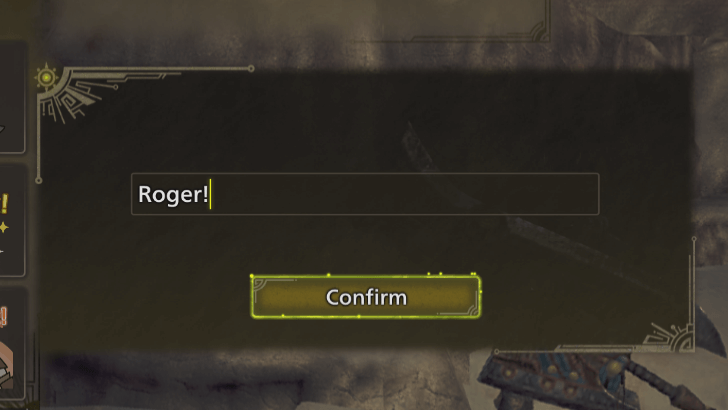 Type in your custom message. Press Confirm when done. Only a maximum of 40 characters is allowed. |
| 4 |
 Your custom message should now be reflected on the sticker/shoutout. |
Monster Hunter Wilds Related Guides
All Tips and Tricks Guides
Comment



Author

How to Use Gestures and Stickers

Premium Articles
Rankings
Gaming News



![Monster Hunter Stories 3 Review [First Impressions] | Simply Rejuvenating](https://img.game8.co/4438641/2a31b7702bd70e78ec8efd24661dacda.jpeg/thumb)
Popular Games

Genshin Impact Walkthrough & Guides Wiki
Honkai: Star Rail Walkthrough & Guides Wiki
Umamusume: Pretty Derby Walkthrough & Guides Wiki
Pokemon Pokopia Walkthrough & Guides Wiki
Resident Evil Requiem (RE9) Walkthrough & Guides Wiki
Monster Hunter Wilds Walkthrough & Guides Wiki
Wuthering Waves Walkthrough & Guides Wiki
Arknights: Endfield Walkthrough & Guides Wiki
Pokemon FireRed and LeafGreen (FRLG) Walkthrough & Guides Wiki
Pokemon TCG Pocket (PTCGP) Strategies & Guides Wiki








Recommended Games
Diablo 4: Vessel of Hatred Walkthrough & Guides Wiki
Cyberpunk 2077: Ultimate Edition Walkthrough & Guides Wiki
Fire Emblem Heroes (FEH) Walkthrough & Guides Wiki
Yu-Gi-Oh! Master Duel Walkthrough & Guides Wiki
Super Smash Bros. Ultimate Walkthrough & Guides Wiki
Pokemon Brilliant Diamond and Shining Pearl (BDSP) Walkthrough & Guides Wiki
Elden Ring Shadow of the Erdtree Walkthrough & Guides Wiki
Monster Hunter World Walkthrough & Guides Wiki
The Legend of Zelda: Tears of the Kingdom Walkthrough & Guides Wiki
Persona 3 Reload Walkthrough & Guides Wiki










All rights reserved
©CAPCOM
The copyrights of videos of games used in our content and other intellectual property rights belong to the provider of the game.
The contents we provide on this site were created personally by members of the Game8 editorial department.
We refuse the right to reuse or repost content taken without our permission such as data or images to other sites.