
How to Use Navigation
▲ Get Pristine Weapons from the depths!
△ All 1000 Koroks | All 4 Great Fairies
▲ 81 Addison Signs | 147 Caves | 58 Wells
△ Tips: Farm Rupees | Starting Armor
▲ Best Weapons | Best Armor | Best Food
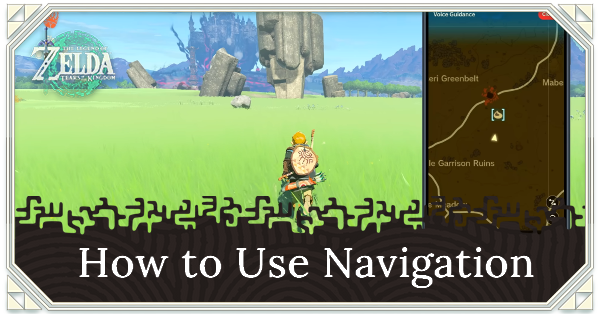
Navigation is a Zelda Notes feature that lets you help find shrines and Korok Seeds in The Legend of Zelda: Tears of the Kingdom (TotK) Switch 2 Edition. See how to use Navigation in this guide.
List of Contents
How to Use Navigation
Tap Categories to Choose a Point of Interest to Track
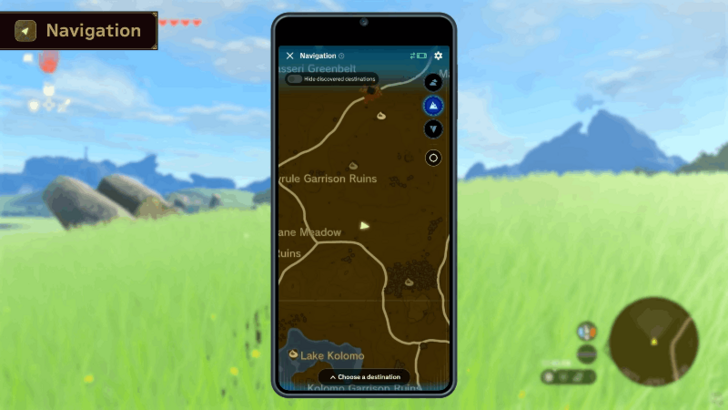
Open the Zelda Notes app and choose Navigation. Tap the Categories button below to show a list of locations, Koroks, and enemies.
Select a point of interest to have the map display all instances of it on the Zelda Notes map.
Categories Show Completion Progress
The Categories screen also shows your completion progress for locations, enemies, quests, Voice Memories, and Koroks. Use this as a way to track your progress for 100% completion.
Tap Activate Voice Guidance
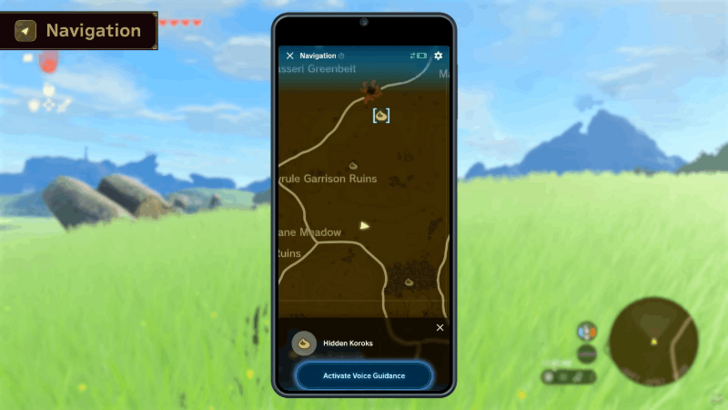
On the Zelda Notes app, tap a point of interest and tap Activate Voice Guidance. This toggles the voice guidance mode where a GPS voice will point you to the direction of the selected point of interest.
Note that you need to have your phone on while playing for Voice Guidance to work. Navigation will not continue if you put your phone to sleep.
The Legend of Zelda: Tears of the Kingdom (TotK) Related Guides
All Zelda Notes Guides
| All Zelda Notes Guides | |
|---|---|
| How to Access Voice Memories | How to Use Navigation |
| How to Use Photo Studio | How to Share Autobuild Designs |
| Item Sharing Guide | |
Comment



Author

The Legend of Zelda: Tears of the Kingdom Walkthrough & Guides Wiki
How to Use Navigation

Rankings
- We could not find the message board you were looking for.
Gaming News





Popular Games

Genshin Impact Walkthrough & Guides Wiki
Umamusume: Pretty Derby Walkthrough & Guides Wiki
Pokemon Pokopia Walkthrough & Guides Wiki
Honkai: Star Rail Walkthrough & Guides Wiki
Monster Hunter Stories 3: Twisted Reflection Walkthrough & Guides Wiki
Arknights: Endfield Walkthrough & Guides Wiki
Wuthering Waves Walkthrough & Guides Wiki
Zenless Zone Zero Walkthrough & Guides Wiki
Pokemon TCG Pocket (PTCGP) Strategies & Guides Wiki
Monster Hunter Wilds Walkthrough & Guides Wiki









Recommended Games
Fire Emblem Heroes (FEH) Walkthrough & Guides Wiki
Diablo 4: Vessel of Hatred Walkthrough & Guides Wiki
Cyberpunk 2077: Ultimate Edition Walkthrough & Guides Wiki
Yu-Gi-Oh! Master Duel Walkthrough & Guides Wiki
Super Smash Bros. Ultimate Walkthrough & Guides Wiki
Pokemon Brilliant Diamond and Shining Pearl (BDSP) Walkthrough & Guides Wiki
Elden Ring Shadow of the Erdtree Walkthrough & Guides Wiki
Monster Hunter World Walkthrough & Guides Wiki
The Legend of Zelda: Tears of the Kingdom Walkthrough & Guides Wiki
Persona 3 Reload Walkthrough & Guides Wiki









All rights reserved
© Nintendo. The Legend of Zelda and Nintendo Switch are trademarks of Nintendo.
The copyrights of videos of games used in our content and other intellectual property rights belong to the provider of the game.
The contents we provide on this site were created personally by members of the Game8 editorial department.
We refuse the right to reuse or repost content taken without our permission such as data or images to other sites.