
 Main Quests
 Side Quests
 Factions
 Faction Quests
 Daedric Quests
 Interactive Map
 All Daedric Shrine Locations
 Shivering Isles Quests
 Weapons
 Armor
Armor Spells
 Tips and Tricks
 Skills
 Classes
 Outfits & Clothing
 Items
Items Console Commands
 Choices
 Houses
 Dungeons
 NPCs
NPCs Trainers
 Companions
 News
News


This survey will take about 1 minute.
Your answers will help us to improve our website.
The Elder Scrolls IV Oblivion Remastered
Best and Recommended Settings
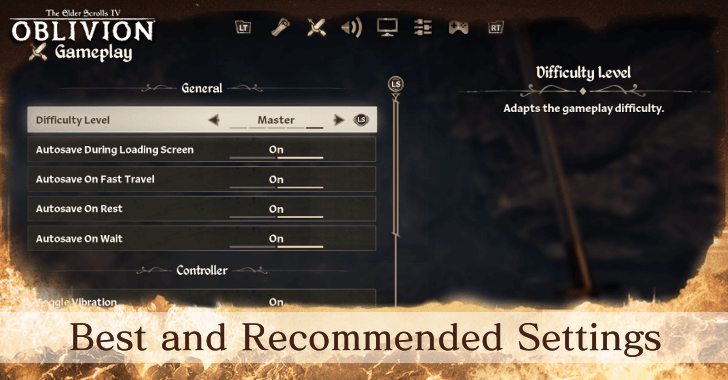
Here are the best and recommended settings to play The Elder Scrolls IV Oblivion Remastered. See the best gameplay, sound, and interface settings, as well as the most optimal graphics settings here!
List of Contents
Best and Recommended Settings for Oblivion Remastered
| Jump to a Setting! | |
|---|---|
| Gameplay | Sound |
| Graphics | Interface |
Best Gameplay Settings
| General Settings | |
|---|---|
| Difficulty Level | User Preference Difficulty levels of Expert and Master are recommended for experienced Elder Scrolls players. |
| Autosave During Loading Screen | On |
| Autosave On Fast Travel | On |
| Autosave On Rest | On |
| Autosave On Wait | On |
| Keyboard and Mouse Settings | |
| Invert X Axis | Off |
| Invert Y Axis | Off |
| Horizontal Sensitivity | User Preference Recommended to match your Vertical Sensitivity. |
| Vertical Sensitivity | User Preference Recommended to match your Horizontal Sensitivity. |
| Relative Aim Sensitivity | 60–80 Set to lower than 100 for easier fine-aiming. |
| Relative Zoom Sensitivity | 60–80 Set to lower than 100 for more precise aiming while zoomed in. |
| Controller Settings | |
| Toggle Vibration | User Preference |
| Vibration Strength | User Preference |
| Invert X Axis | Off |
| Invert Y Axis | Off |
| Horizontal Sensitivity | User Preference Recommended to match your Vertical Sensitivity. |
| Vertical Sensitivity | User Preference Recommended to match your Horizontal Sensitivity. |
| Aim Assist | On Recommended to turn on especially for ranged builds. |
| Relative Aim Sensitivity | 50–75 Set to lower than 100 for easier fine-aiming. |
| Relative Zoom Sensitivity | 50–75 Set to lower than 100 for more precise aiming while zoomed in. |
| Accessibility Settings | |
| Blood Splatter Visibility | User Preference |
| Low Health Vignette Visibility | On Gives immersive feedback when low on HP. |
| Camera Motion | Off Removes camera motion for smoother gameplay. |
Best Sound Settings
| Sound and Audio Settings | |
|---|---|
| Audio Output | User Preference Set to match your current audio setup. |
| Audio Mode | Default Default offers the most crisp audio experience, although set the Low Frequency or Night Mode if needed. |
| Master Volume | 10 |
| Music Volume | 10 |
| Sound Effects Volume | 10 |
| Dialogue Volume | 10 |
| Ambience Volume | 10 |
| Footstep Volume | 10 |
| Interface Volume | 10 |
Best Graphics Settings
| PC Display Settings (PC Only) | |
|---|---|
| Window Mode | Fullscreen Fullscreen offers the smoothest gameplay and lowest input lag. |
| Display Resolution | Monitor's Native Resolution |
| V-Sync | Off |
| Frame Rate Limit | Uncapped |
| Show FPS | User Preference |
| Show VRAM | User Preference |
| General Settings (Both PC and Console) | |
| Brightness Intensity | 0 |
| FOV 1st-Person | 80–90 A higher value allows you to see more of your surroundings. |
| FOV 3rd-Person | 80–90 A higher value allows you to see more of your surroundings. |
| Motion Blur | Off Turn off for better visibility. |
| Screen Space Reflections | Off Turn off for more FPS without sacrificing much quality. |
| Quality Settings (PC Only) | |
| Quality Level | Custom |
| View Distance Quality | Medium or High Set to High to reduce objects not appearing from a distance. Set to Medium if experiencing frame drops in the open world. |
| Effects Quality | High or Ultra Lower if experiencing frame drops, especially during combat. |
| Foliage Quality | Medium or High Lower if experiencing FPS drops while exploring. |
| Shadow Quality | Medium Set to medium for the best balance of quality and FPS. |
| Global Illumination Quality | High or Ultra Set to Ultra on high-end PCs. Lower if experiencing frame drops or stutters. |
| Texture Quality | User Preference Set to High or Ultra for high-end PCs. Lower if experiencing frame drops or stutters. |
| Reflection Quality | Low or Medium |
| Post-Processing Quality | Medium Set to medium for a good balance of fog and light quality, and FPS. |
| Hair Quality | High |
| Cloth Quality | High |
| Lumen Hardware RT | Off Turn on only if you have more a more high-end GPU (RTX 30/40 series or RX 7000 series recommended). |
| Lumen Hardware RT Lighting Mode | User Preference |
| Lumen Software RT Quality | Low |
| Advanced Settings (PC Only) | |
| Anti-Aliasing | Can only be changed with Upscaling Off |
| Upscaling Technique | FSR |
| FSR 3 - Mode | Balanced |
| FSR 3 - Sharpness | 0 |
| FSR 3 - Frame Generation | On |
Best Interface Settings
| Interface Settings | |
|---|---|
| Text Language | User Preference |
| Text Size | User Preference |
| Subitile Visibility | On |
| Subitilte Text Size | Medium |
| Cursor Size (PC Only) |
Medium |
| Dialogue Camera Transition | On |
Oblivion Remastered Related Guides

Oblivion Remastered Recommended Guides
Oblivion Remastered Wiki
Comment
Author
Best and Recommended Settings

Please participate in our site
improvement survey
03/2026
improvement survey
03/2026
Would you assist in
improving Game8's site?
improving Game8's site?

×
We are listening to our users' valuable opinions and discussing how to act on them.
The information collected through this survey will be used for the purpose of improving our services. In addition, the information will only be disclosed a part of a statistic in a format that will not allow identification of personal information.
Begin Survey
Not Now
×
Please rate each item regarding Game8.co's Advertisements.
Amount of Ads
Very Dissatisfied
Somewhat Dissatisfied
Fine
Somewhat Satisfied
Highly Satisfied
Placement of Ads
Timing of Ad Display
Ad Loading Speed
Safeness of Ads
Content of Ads
×
Please rate each item regarding Game8.co's Quality of Articles.
Amount of information
Very Dissatisfied
Somewhat Dissatisfied
Fine
Somewhat Satisfied
Highly Satisfied
Frequency of updates
Speed of new information
Accuracy of articles
Understandibility of articles
Readability of sentences
×
Please rate each item regarding Game8.co's Usability of the Site.
Ease of finding information
Very Dissatisfied
Somewhat Dissatisfied
Fine
Somewhat Satisfied
Highly Satisfied
Loading Speed
Use of Color
Font Size
Visibility of Images
Easy to Understand Layout
×
Please rate each item regarding Game8.co's Message Boards, Comments.
Ease of Writing
Very Dissatisfied
Somewhat Dissatisfied
Fine
Somewhat Satisfied
Highly Satisfied
Readability
Ease in Finding Information
Comment Quality
Comment Quantity
Admin Response
×
Please rate each item regarding Game8.co's Site's new design.
Please rate our site's new design
Very Dissatisfied
Somewhat Dissatisfied
Fine
Somewhat Satisfied
Highly Satisfied
Do you think that the website's design change makes the site easier to use?
Has the new design made it easier for you to find information on the site?
Has the new design improved the overall visual appeal of the site?
How would you rate your overall satisfaction with the new design of the site?
×
How likely are you to recommend Game8 to someone you know?
Very Unlikely
0
1
2
3
4
5
6
7
8
9
10
Very Likely
If you have other opinions regarding potential improvement to the website, please share them with us. We would appreciate your honest opinion.
Note: This is a free response section, so you can proceed without entering anything.
Note: Please be sure not to enter any kind of personal information into your response.
Note: Please be sure not to enter any kind of personal information into your response.
×
Thank You
×
Thank you for participating in our survey! Your answers will help us to improve the quality of our website and services.
We hope you continue to make use of Game8.
We hope you continue to make use of Game8.
Close
Rankings
- We could not find the message board you were looking for.
Gaming News


![Slay the Spire 2 Review [Early Access] | Still the Deckbuilder to Beat](https://img.game8.co/4433115/44e19e1fb0b4755466b9e516ec7ffb1e.png/thumb)

![Resident Evil Village Review [Switch 2] | Almost Flawless Port](https://img.game8.co/4432790/e1859f64830960ce4248d898f8cd38d9.jpeg/thumb)
Popular Games

Genshin Impact Walkthrough & Guides Wiki
Honkai: Star Rail Walkthrough & Guides Wiki
Umamusume: Pretty Derby Walkthrough & Guides Wiki
Pokemon Pokopia Walkthrough & Guides Wiki
Resident Evil Requiem (RE9) Walkthrough & Guides Wiki
Monster Hunter Wilds Walkthrough & Guides Wiki
Wuthering Waves Walkthrough & Guides Wiki
Arknights: Endfield Walkthrough & Guides Wiki
Pokemon FireRed and LeafGreen (FRLG) Walkthrough & Guides Wiki
Pokemon TCG Pocket (PTCGP) Strategies & Guides Wiki









Recommended Games
Fire Emblem Heroes (FEH) Walkthrough & Guides Wiki
Diablo 4: Vessel of Hatred Walkthrough & Guides Wiki
Yu-Gi-Oh! Master Duel Walkthrough & Guides Wiki
Super Smash Bros. Ultimate Walkthrough & Guides Wiki
Pokemon Brilliant Diamond and Shining Pearl (BDSP) Walkthrough & Guides Wiki
Elden Ring Shadow of the Erdtree Walkthrough & Guides Wiki
Monster Hunter World Walkthrough & Guides Wiki
The Legend of Zelda: Tears of the Kingdom Walkthrough & Guides Wiki
Persona 3 Reload Walkthrough & Guides Wiki
Cyberpunk 2077: Ultimate Edition Walkthrough & Guides Wiki










All rights reserved
© 2025 ZeniMax Media Inc. All Rights Reserved.
The copyrights of videos of games used in our content and other intellectual property rights belong to the provider of the game.
The contents we provide on this site were created personally by members of the Game8 editorial department.
We refuse the right to reuse or repost content taken without our permission such as data or images to other sites.