
List of Settings and Best Settings
★ Tip: Use Frames to organize your Storage.
☆ Build Habitats with Ditto's Moves.
★ Build Houses and Structures for your Pokemon
☆ Increase Comfort & Environment Levels.
★ Redeem Mystery Gifts for free items & furniture.
☆ Limited Time Event: Befriend Hoppip until 3/24!
This is a list of all settings you can choose from in Pokemon Pokopia. Read on to learn what all the settings are, the best settings, and how to change them.
List of Contents
Best Settings
| Jump to a Section! | ||
|---|---|---|
| Game | Camera | Sound |
Best Game Settings
| Setting | Option |
|---|---|
| Text Speed | Fast Set the Text Speed to Fast to load the full text box faster. |
| Controller Rumble | User Preference Toggle controller rumble on or off depending on your preference. |
| Run/Jump Controls | User Preference By default, B is to run and R is to jump. You may opt to swap the button assignment here. |
| Move Wheel Controls | Release Button It is faster to switch a move if you release the button rather than manually select it on screen. |
| Communication Wheel Controls | Press A It would be easier to manually select your messages to avoid miscommunications. |
| Mouse Mode | On Keep Mouse Mode on in case you want to go Building. |
| Button Assignments | User Preference Change your button preferences here. |
Set Text Speed to Fast
Setting the Text Speed to Fast means that text will scroll more quickly. This allows the game to display a full text box faster, which prevents the need for pressing the A Button to do this manually.
Turn on Mouse Mode for Building Sessions

Mouse Mode is helpful for building structures out of blocks. Using a cursor allows for more precise aim with placing or destroying blocks, which makes it more efficient for building and town planning.
Best Camera Settings
| Setting | Option |
|---|---|
| Camera: Vertical | User Preference Adjust whether to invert the controls for moving the camera vertically. |
| Camera: Horizonal | |
| Camera Speed | User Preference Set speed from 1 to 5 depending on your preference. |
| Camera Distance | User Preference Adjust how close or how far Ditto is from the camera in selfie mode. |
| Camera Auto-Adjust | On Having Auto-Adjust on will make it easier to focus on a Pokemon for the Album Collection. |
Best Sound Settings
| Setting | Options |
|---|---|
| Background Music | User Preference Set volume from 0 to 10 |
| Sound Effects | |
| Pokemon Cries |
How to Change Settings
Access From the Pokedex Menu
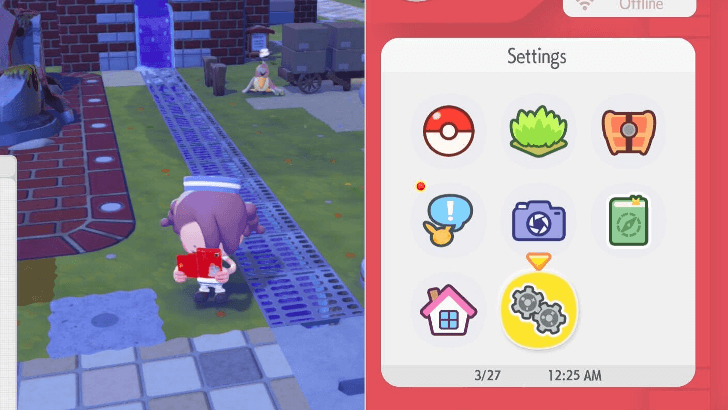
Press the Plus (+) Button while playing to access the Pokedex Menu. From there, select the Settings option in order to adjust them to your liking.
Graphics Cannot Be Adjusted
Unfortunately, you cannot manually adjust the graphics settings for Pokopia. By default, the Nintendo Switch 2 comes with a 1080p screen, and can support framerates up to 120 fps.
This means that in term of graphics, the game is already running on its best quality output. We recommend playing on docked mode to get the full 1080p/120 fps playing experience.
Pokemon Pokopia Related Guides

Beginner's Guide to Pokopia: Tips and Tricks
All Tips and Tricks
Comment



Author

List of Settings and Best Settings

Rankings
- We could not find the message board you were looking for.

Gaming News





Popular Games

Genshin Impact Walkthrough & Guides Wiki
Umamusume: Pretty Derby Walkthrough & Guides Wiki
Pokemon Pokopia Walkthrough & Guides Wiki
Honkai: Star Rail Walkthrough & Guides Wiki
Monster Hunter Stories 3: Twisted Reflection Walkthrough & Guides Wiki
Arknights: Endfield Walkthrough & Guides Wiki
Wuthering Waves Walkthrough & Guides Wiki
Zenless Zone Zero Walkthrough & Guides Wiki
Pokemon TCG Pocket (PTCGP) Strategies & Guides Wiki
Monster Hunter Wilds Walkthrough & Guides Wiki









Recommended Games
Fire Emblem Heroes (FEH) Walkthrough & Guides Wiki
Diablo 4: Vessel of Hatred Walkthrough & Guides Wiki
Cyberpunk 2077: Ultimate Edition Walkthrough & Guides Wiki
Yu-Gi-Oh! Master Duel Walkthrough & Guides Wiki
Super Smash Bros. Ultimate Walkthrough & Guides Wiki
Pokemon Brilliant Diamond and Shining Pearl (BDSP) Walkthrough & Guides Wiki
Elden Ring Shadow of the Erdtree Walkthrough & Guides Wiki
Monster Hunter World Walkthrough & Guides Wiki
The Legend of Zelda: Tears of the Kingdom Walkthrough & Guides Wiki
Persona 3 Reload Walkthrough & Guides Wiki










All rights reserved
©2025 Pokémon. ©1995–2025 Nintendo / Creatures Inc. / GAME FREAK inc. ©KOEI TECMO GAMES
The copyrights of videos of games used in our content and other intellectual property rights belong to the provider of the game.
The contents we provide on this site were created personally by members of the Game8 editorial department.
We refuse the right to reuse or repost content taken without our permission such as data or images to other sites.