
Photo Mode Guide
★ Tip: Use Frames to organize your Storage.
☆ Build Habitats with Ditto's Moves.
★ Build Houses and Structures for your Pokemon
☆ Increase Comfort & Environment Levels.
★ Redeem Mystery Gifts for free items & furniture.
☆ Limited Time Event: Befriend Hoppip until 3/24!
Photo Mode allows players to take pictures using the camera function in Pokemon Pokopia. Check out all the features of Photo Mode here, and learn how to open the camera and the best times to use it in this guide.
List of Contents
Camera Features
Photo Mode
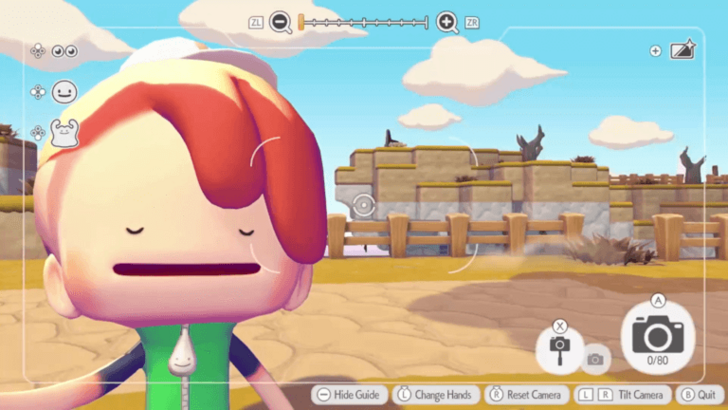
In photo mode, you can take pictures of your player character and the environment around them. You may use this to take pictures of newly-befriended Pokemon or show off your builds.
Album
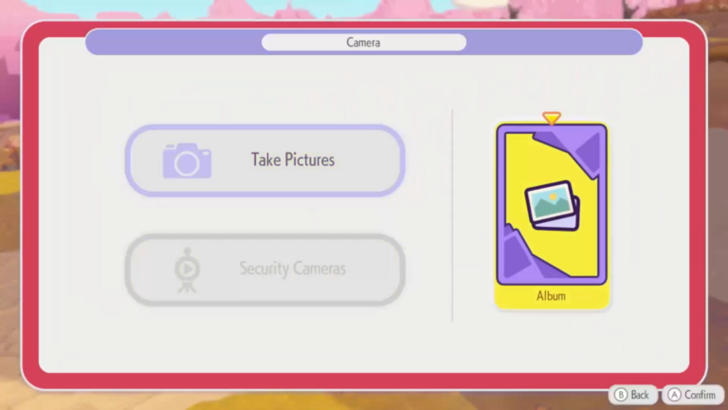
The pictures you take will be stored in the Album. There are two separate categories for Memories and Reference Photos.
Memories are where regular photos are stored. These photos can be saved on your console and may even be displayed on the game's starting menu.
If you use the camera to identify items in the environment, the resulting photo will go under Reference Photos. These photos are mainly used for 3D Printing.
Security Camera
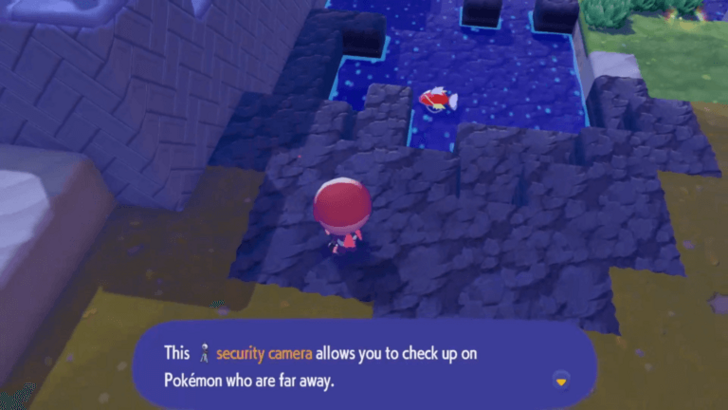
You can use Security Cameras to observe what happens in certain areas while you are far away. You may place them near newly-made habitats in order to find out if a new Pokemon has spawned.
You may access the Security Camera footage by selecting the option in the Pokedex or Menu.
How to Use the Photo Mode
|
|
 Photo Mode Controls
Photo Mode Controls
| Controls | Action |
|---|---|
 |
Take a photo Select a frame or filter |
 |
Quit Photo Mode Quit the Frame and Filters Menu |
 |
Move character around |
 |
Rotate camera |
Press |
Adjust height (Landscape Mode) Change hands (Selfie Mode) |
Press |
Reset camera |
 |
Toggle between Selfie Mode and Landscape Mode |
 |
Toggle between taking regular photos and taking reference photos |
 / /  |
Tilt camera Toggle between the Frame and Filter menus |
 |
Zoom out |
 |
Zoom in |
 |
Hide guide |
 |
Open the Frames and Filters Menu |
 / /  |
Change player character facial expressions |
 |
Change player character pose |
 |
Make characters look at the camera |
Shown above are the controls for the camera feature. Use these in order to adjust photos to your liking.
Identify Items
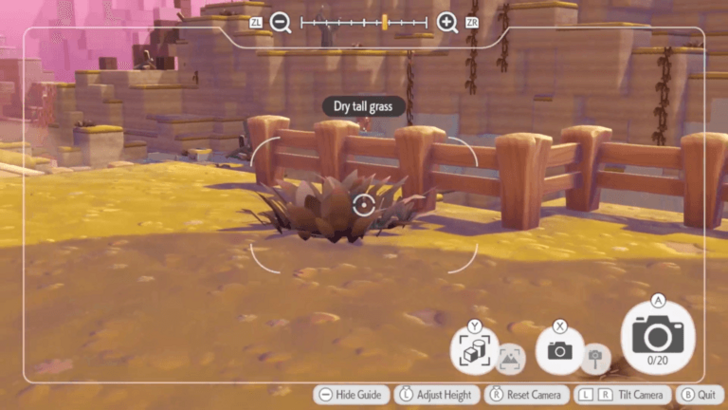
Players can take reference photos by toggling the option using the Y button in landscape mode. In this mode, the camera will identify the names of items in the environment.
These reference photos are kept in a separate album. This means that you do not have to worry about it competing for space with your regular photos.
Take Selfies
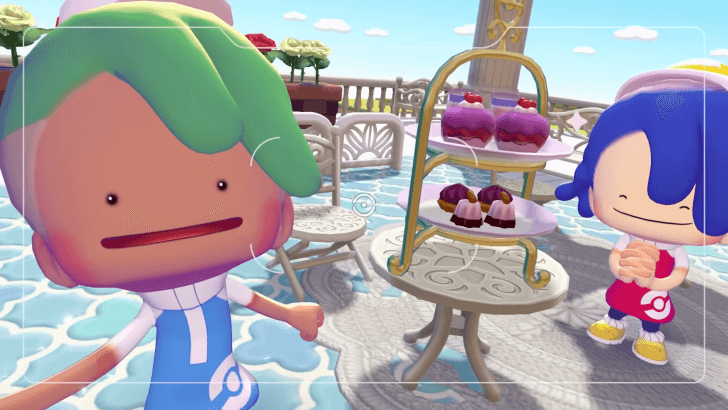
The camera also has a Selfie feature that lets you include yourself, as if you are taking the selfie. This makes the game more immersive, especially if you want to take a picture with your favorite Pokemon.
Buy The Tripod to Take Pictures of Yourself From Afar
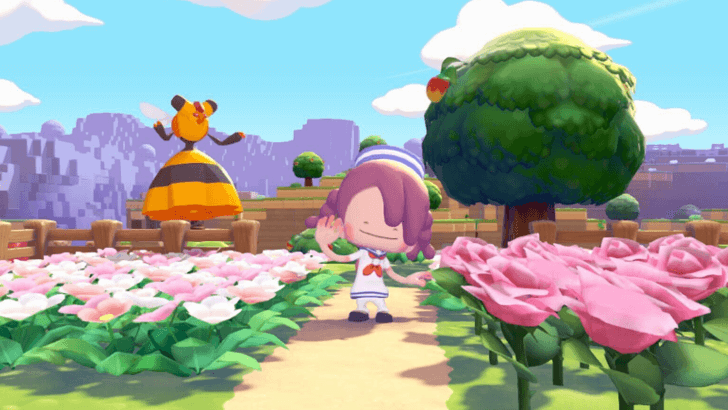
If you buy the tripod from the PC Shop, you will be able to leave your camera in one spot and take a picture of yourself from afar. After purchasing, you can switch to tripod mode by pressing Y twice.
Use Frames and Filters
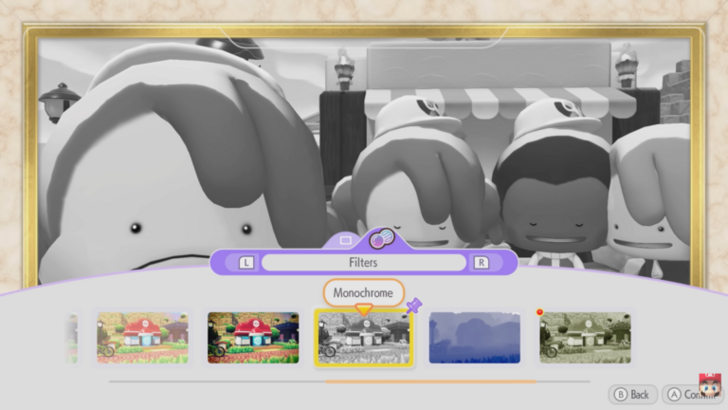
You may use frames and filters to customize your photos. Doing this can show off the player's personality more, or even change the mood of some photos.
Change Expressions and Poses
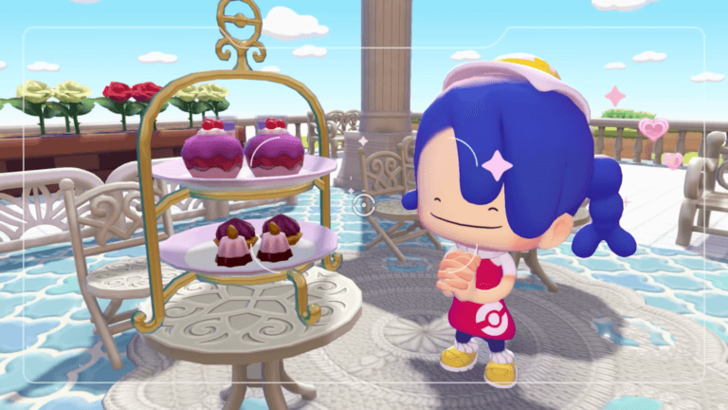
The player who is using the camera can change their character's expression using the left and right buttons. Additionally, other players that are in the image can change their poses.
How to Open Camera
Open from the Menu
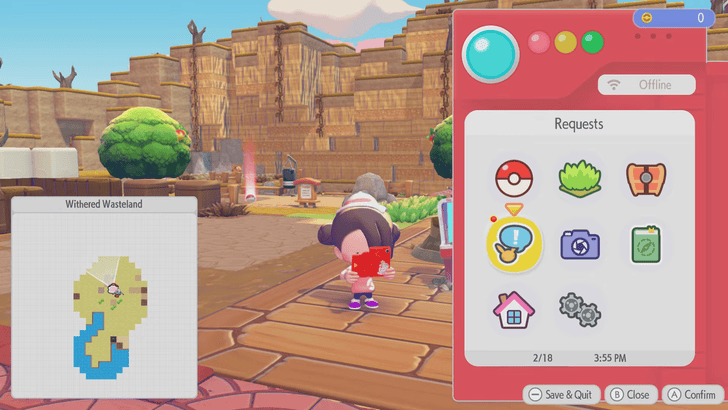
The Photo Mode can be accessed from the Pokedex or the Menu. Simply select the camera icon to open it.
Press the Minus Button
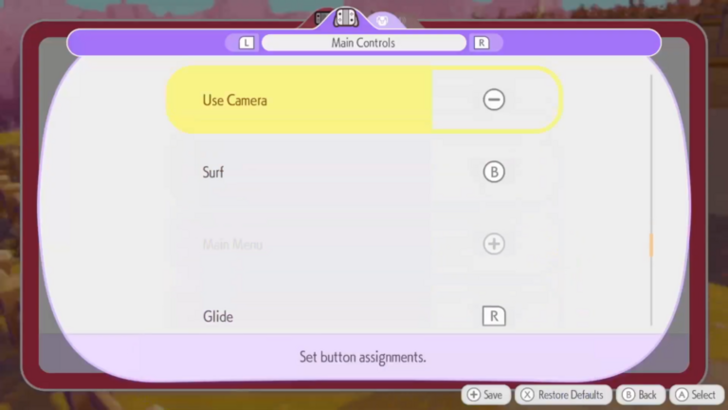
You may use the minus button as a shortcut to use the camera. Use this if you need to take a photo quickly.
Best Times to Use the Photo Mode
Take Photo Ops For Highlight Reels
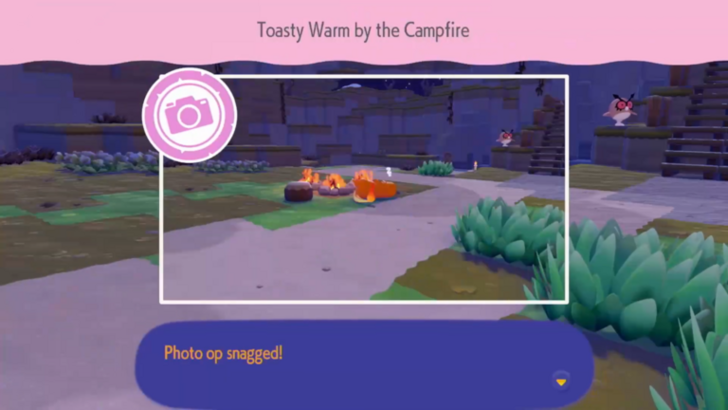
You may see a popup on the upper right corner of your screen saying that a photo op in happening nearby. If this happens, quickly use the camera and look for an area highlighted by a yellow rectangle.
Make sure that the rectangle is within the frame when you are taking a photo. Once this is done, you will receive a new frame to customize your photos with.
Highlight Reels can be revisited under the Collection Menu.
Multiplayer Sessions
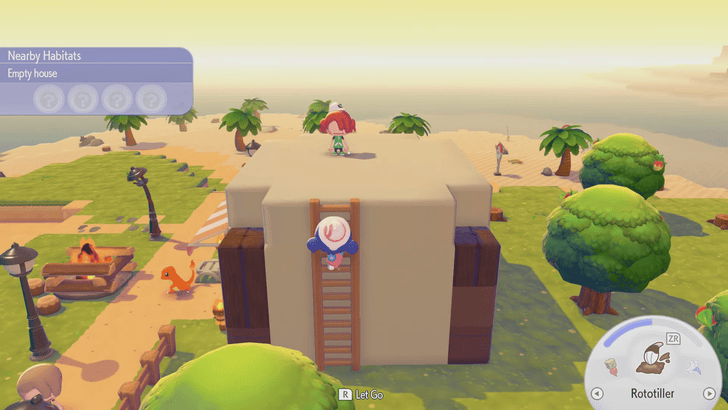
One of the best times to use Photo Mode is when playing with friends in multiplayer modes. This helps you capture memorable moments, even funny ones when playing or decorating together.
Showcase Builds and Decorations
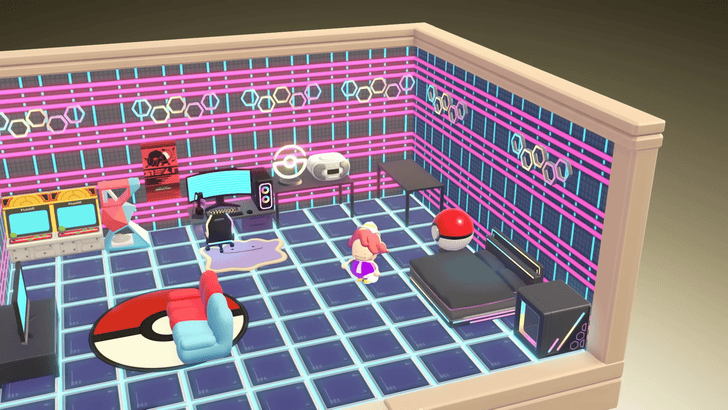
You can also showcase your builds or decorations in Photo Mode. This is a great way to show everyone your creativity outside of the game.
Model New Outfits
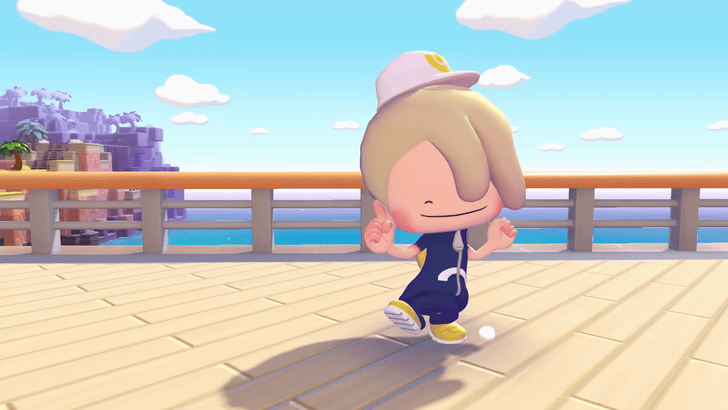
You can also take a picture of yourself if you want to share your current look as a Ditto. This is a fun way to show off your outfit, especially if it is inspired by a prominent figure or celebrity.
Character Customization and All Appearance Options
Pokemon Pokopia Related Guides

Beginner's Guide to Pokopia: Tips and Tricks
All Tips and Tricks
Comment



Author

Photo Mode Guide

Rankings
- We could not find the message board you were looking for.

Gaming News




![Nova Roma Review [Early Access] | Newer, Better, and More Confusing](https://img.game8.co/4455512/2cbf8926e9a1c72a3ff056088f801ef4.png/thumb)
Popular Games

Genshin Impact Walkthrough & Guides Wiki
Umamusume: Pretty Derby Walkthrough & Guides Wiki
Crimson Desert Walkthrough & Guides Wiki
Monster Hunter Stories 3: Twisted Reflection Walkthrough & Guides Wiki
Honkai: Star Rail Walkthrough & Guides Wiki
Pokemon Pokopia Walkthrough & Guides Wiki
The Seven Deadly Sins: Origin Walkthrough & Guides Wiki
Wuthering Waves Walkthrough & Guides Wiki
Zenless Zone Zero Walkthrough & Guides Wiki
Arknights: Endfield Walkthrough & Guides Wiki







Recommended Games
Fire Emblem Heroes (FEH) Walkthrough & Guides Wiki
Diablo 4: Vessel of Hatred Walkthrough & Guides Wiki
Cyberpunk 2077: Ultimate Edition Walkthrough & Guides Wiki
Yu-Gi-Oh! Master Duel Walkthrough & Guides Wiki
Super Smash Bros. Ultimate Walkthrough & Guides Wiki
Pokemon Brilliant Diamond and Shining Pearl (BDSP) Walkthrough & Guides Wiki
Elden Ring Shadow of the Erdtree Walkthrough & Guides Wiki
Monster Hunter World Walkthrough & Guides Wiki
The Legend of Zelda: Tears of the Kingdom Walkthrough & Guides Wiki
Persona 3 Reload Walkthrough & Guides Wiki










All rights reserved
©2025 Pokémon. ©1995–2025 Nintendo / Creatures Inc. / GAME FREAK inc. ©KOEI TECMO GAMES
The copyrights of videos of games used in our content and other intellectual property rights belong to the provider of the game.
The contents we provide on this site were created personally by members of the Game8 editorial department.
We refuse the right to reuse or repost content taken without our permission such as data or images to other sites.