
Best and Recommended Settings
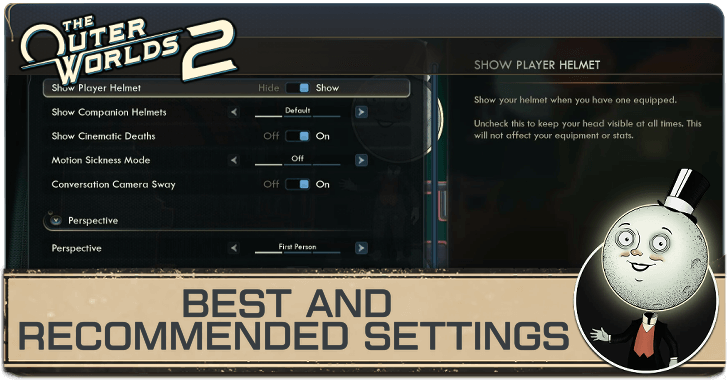
Here are the best and recommended settings for The Outer Worlds 2. Read on to see a list of all available settings and the best settings to enable in-game!
List of Contents
Best and Recommended Settings for Outer Worlds 2
| Jump to a Setting! | ||
|---|---|---|
| Graphics | Audio | Controls |
| Gameplay | UI | Accessibility |
Best Graphics Settings
| Graphics Settings | |||||
|---|---|---|---|---|---|
| Gamma | 2.20 Can be adjusted to increase visibility in darker areas or if too bright |
||||
| Visual Mode | Balanced | ||||
| Field of View | 100 | ||||
| ▼ PC Graphics Settings | User PC Specs ▶︎ PC System Requirements |
||||
Best Audio Settings
| Jump to a Setting! | ||
|---|---|---|
| Graphics | Audio | Controls |
| Gameplay | UI | Accessibility |
| Audio Settings | |||||
|---|---|---|---|---|---|
| Volume | User Preference | ||||
| Language | User Preference ▶︎ How to Change Language |
||||
| Conversation Subtitles | On | ||||
| Bark Subtitles | Show | ||||
| Cinematic Subtitles | Show | ||||
| Audio Log Content (Subtitles) | Show | ||||
Best Controls Settings
| Jump to a Setting! | ||
|---|---|---|
| Graphics | Audio | Controls |
| Gameplay | UI | Accessibility |
| Controls Settings | |||||
|---|---|---|---|---|---|
| Aim Preference | Hold | ||||
| Sprint Preference | Toggle | ||||
| Crouch Preference | Toggle | ||||
| Invert X Axis | Default | ||||
| Invert Y Axis | Default | ||||
| Controller Auto-Sprint | On | ||||
| Controller Sensitivity | User Preference | ||||
| Controller Aim Sensitivity | User Preference Recommended to be lower than Controller Sensitivity |
||||
| Controller Dead Zone Left Inner | 15% | ||||
| Controller Dead Zone Left Outer | 5% Increase if experiencing Stick Drift |
||||
| Controller Dead Zone Right Inner | 15% | ||||
| Controller Dead Zone Right Outer | 3% Increase if experiencing Stick Drift |
||||
Best Controller Layout
| Edit Keybindings Menu | |||||
|---|---|---|---|---|---|
| Button Layout | Modern This layout has easier access to crouching by binding it to the right bumper |
||||
| Stick Layout | Righty | ||||
| Bumper Layout | Righty | ||||
| Trigger Layout | Righty | ||||
Controller layout can be changed by accessing the Edit Keybindings section in the controls menu. Lefty layouts are also available for players who prefer that setup.
Unfortunately, only the four preset layouts are available, and currently players cannot freely remap individual button bindings.
Best Gameplay Settings
| Jump to a Setting! | ||
|---|---|---|
| Graphics | Audio | Controls |
| Gameplay | UI | Accessibility |
| Gameplay Settings | |||||
|---|---|---|---|---|---|
| Show Player Helmet | User Preference | ||||
| Show Companion Helmets | User Preference | ||||
| Show Cinematic Deaths | On | ||||
| Motion Sickness Mode | User Preference | ||||
| Conversation Camera Sway | On | ||||
| Perspective | First Person ▶︎ How to Change POV |
||||
| Aim Assist Enabled | On | ||||
| Magnetism Strength | 1.00 | ||||
| Adhesion Strength | 1.10 | ||||
| Friction Strength | 1.10 | ||||
| ADS Snapping | 1.00 | ||||
Best UI Settings
| Jump to a Setting! | ||
|---|---|---|
| Graphics | Audio | Controls |
| Gameplay | UI | Accessibility |
| UI Settings | |||||
|---|---|---|---|---|---|
| Text Size | User Preference | ||||
| Enable Tutorials | On | ||||
| Tooltip Damage Display | DPS The DPS stat gives a more accurate depiction of a weapon’s damage output |
||||
| Show Base Item Stats | Off | ||||
| Show Floating Damage Text | On | ||||
| Show Input Hotkeys | Show | ||||
| HUD Settings | |||||
| Waypoint Markers | Show | ||||
| Interaction Outlines | Show | ||||
| Level Up Reminders | Show | ||||
| Notification Duration | Default | ||||
| Level Up Notifications | Default | ||||
| Point of Interest Prompt Duration | Default | ||||
| Quest Updates | Timed Fade | ||||
| Minimap | Always On | ||||
| Player Status Bars | Always On | ||||
| Companion Ability UI | Always On | ||||
| Equipment Display | Always On | ||||
| Show NPC Awareness | On | ||||
| Minimap Settings | |||||
| Minimap Rotation Lock | User Preference | ||||
| Show Player FOV Cone | Show | ||||
| Show Threat Indicators | Show | ||||
| Conversation Settings | |||||
| Show Responses While Listening | Hide | ||||
| Show Subtitle Speaker Name | Show | ||||
| Direction Indicator (Subtitles) | User Preference | ||||
| Font Outline | User Preference Toggle On to improve subtitle visibility |
||||
| Font Dropshadow | User Preference Toggle On to improve subtitle visibility |
||||
| Subtitle Text Color | User Preference | ||||
| Subtitle Text Opacity | User Preference | ||||
| Subtitle Font Scaling | User Preference | ||||
| Subtitle Background Color | User Preference | ||||
| Subtitle Background Opacity | User Preference | ||||
| Max Subtitle Width | User Preference | ||||
| Status Bar and Tags | |||||
| Show Companion Status | On | ||||
| Show Companion Revive State | On | ||||
| Show Companion Wants To Talk | On | ||||
| Show NPC Status | On | ||||
| Show Targeted NPC | On | ||||
| Reticle Settings | |||||
| Enable Offset Reticle | Off | ||||
| Reticle Feedback | Always On | ||||
| Aiming Reticle | Default | ||||
| Reticle Type Override | Default | ||||
| Center Reticle | Show | ||||
| Reticle Color | User Preference | ||||
| Reticle Opacity | 100% | ||||
| Reticle Shadow Color | Black | ||||
| Reticle Shadow Opacity | 50% | ||||
Best Accessibility Settings
| Jump to a Setting! | ||
|---|---|---|
| Graphics | Audio | Controls |
| Gameplay | UI | Accessibility |
| Accessibility Settings | |||||
|---|---|---|---|---|---|
| Motion Blur | 0% | ||||
| Chromatic Abberation | Off | ||||
The accessibility settings above list options not already shown in previous tables
Available PC Settings
| Jump to a PC Setting | |
|---|---|
| Graphics | Keybinds |
List of PC Graphics Settings
| Display Mode | Full Screen, Windowed Full Screen, Windowed |
|---|---|
| Resolution | Varies by setup |
| Frame Rate Limit | 30, 60, 120, 144, 160, 165, 180, 200, 240, Unlimited |
| V-Sync | Off / On |
| Upscaling | None, TAA, TSR, AMD FidelityFX 3, Intel XeSS, NVIDIA DLSS Each upscaling method includes its own adjustable settings |
| Frame Generation Method | Off / On |
| Latency Reduction Method | Off / On |
| NVIDIA Reflex Low Latency | Off, On, Boost |
| Motion Blur | 0–100% |
| Gamma | 0.00–4.00 |
| Hardware Raytracing | Off / On |
| High Dynamic Range (HDR) | Off / On |
| Graphics Quality | Low, Medium, High, Very High, Custom |
| Screen Effects | Low, Medium, High, Very High |
| View Distance | Low, Medium, High, Very High |
| Shadows | Low, Medium, High, Very High |
| Anti-Aliasing | Low, Medium, High, Very High |
| Textures | Low, Medium, High, Very High |
| Visual Effects | Low, Medium, High, Very High |
| Foliage | Low, Medium, High, Very High |
| Global Illumination | Low, Medium, High, Very High |
| Reflections | Low, Medium, High, Very High |
| Crowd Density | Low, Medium, High, Very High |
| Field of View | Adjustable Slider ▶︎ How to Change FOV |
Fully Remappable Keybinds for Keyboard and Mouse
Outer Worlds 2 offers fully remappable keybinds for mouse and keyboard (MnK), giving players greater control and flexibility. Console players can also use MnK by simply plugging the devices into their console.
The Outer Worlds 2 Related Guides
Beginner's Guide: Tips and Tricks
All Tips and Tricks Guides
Comment



Author
Best and Recommended Settings

Rankings
- We could not find the message board you were looking for.
Gaming News

![Monster Hunter Stories 3 Review [First Impressions] | Simply Rejuvenating](https://img.game8.co/4438641/2a31b7702bd70e78ec8efd24661dacda.jpeg/thumb)
![The Seven Deadly Sins: Origin [First Impressions] | A Promising Start](https://img.game8.co/4440581/584e0bfb87908f12c4eab6e846eb1afd.png/thumb)
Popular Games

Genshin Impact Walkthrough & Guides Wiki
Umamusume: Pretty Derby Walkthrough & Guides Wiki
Pokemon Pokopia Walkthrough & Guides Wiki
Honkai: Star Rail Walkthrough & Guides Wiki
Monster Hunter Stories 3: Twisted Reflection Walkthrough & Guides Wiki
Arknights: Endfield Walkthrough & Guides Wiki
Wuthering Waves Walkthrough & Guides Wiki
Zenless Zone Zero Walkthrough & Guides Wiki
Pokemon TCG Pocket (PTCGP) Strategies & Guides Wiki
Monster Hunter Wilds Walkthrough & Guides Wiki








Recommended Games
Diablo 4: Vessel of Hatred Walkthrough & Guides Wiki
Cyberpunk 2077: Ultimate Edition Walkthrough & Guides Wiki
Fire Emblem Heroes (FEH) Walkthrough & Guides Wiki
Yu-Gi-Oh! Master Duel Walkthrough & Guides Wiki
Super Smash Bros. Ultimate Walkthrough & Guides Wiki
Pokemon Brilliant Diamond and Shining Pearl (BDSP) Walkthrough & Guides Wiki
Elden Ring Shadow of the Erdtree Walkthrough & Guides Wiki
Monster Hunter World Walkthrough & Guides Wiki
The Legend of Zelda: Tears of the Kingdom Walkthrough & Guides Wiki
Persona 3 Reload Walkthrough & Guides Wiki










All rights reserved
© 2025 Obsidian Entertainment, Inc. Obsidian Entertainment, the Obsidian Entertainment logo, The Outer Worlds 2, and The Outer Worlds 2 logos are trademarks or registered trademarks of Obsidian Entertainment, Inc. All rights reserved.
The copyrights of videos of games used in our content and other intellectual property rights belong to the provider of the game.
The contents we provide on this site were created personally by members of the Game8 editorial department.
We refuse the right to reuse or repost content taken without our permission such as data or images to other sites.