
Mistwharf Interactive Map and Location
★ Tier Lists: Characters | Weapons | Demon Wedges
★ Builds: Kezhou | Fushu | Fina | Lynn | Psyche
★ Version 1.2 Summary | Characters: Zhiliu | Yuming
┗ Mechanics: Mount | Gifting | Reputation | Accessory Customization
★ How to Get Characters | Mystic Maze | Redeem Codes

Mistwharf is the fourth playable map region of Atlasia in Duet Night Abyss. See its Interactive Map, how to get there, its Challenges, Taixu Runes, Geniemons, Chests, and all known info about it here!
 Attention! Attention! |
This guide is still a work in progress. You can come back later, or sign in and use  under the page's title to be notified of any updates! under the page's title to be notified of any updates! |
List of Contents
Mistwharf Interactive Map
| ★ Press the icons on the right side to show collectibles and points of interest on the map. ★ Toggle the Full On icon to expand the map. ★ Use the drop-down list at the top of the map to navigate to different levels of Mistwharf. |
Map Legend
| Mistwharf Map Guide | ||
|---|---|---|
 Teleport Point Teleport Point |
 Treasure Chest Treasure Chest |
 Geniemon Geniemon |
 Advensphere Advensphere |
 Document Document |
 NPC NPC |
 Fishing Spot Fishing Spot |
 Shop Shop |
 Challenge Challenge |
The Interactive Map both shows the location of key points on the map, and doubles as a collectible checker.
- Click an icon on the right side to show all the pins of a specific type, or click the magnifying glass button to search for a specific pin by name.
- Click a pin on the map to see its name and description, and a relevant picture or video if available.
- From here, click Mark as Acquired to indicate that you've gotten a collectible already. This will change its icon on the map to show that it has been collected, and add 1 to that pin type's Counter.
- To undo this, click on the same pin and click Restore to unclaimed.
- To check how many pins you have marked so far, check the Counter in the bottom left, and click the icon that looks like a checklist to see counters for all pin types.
- If the collected pins start to get in the way, you can hide them all by clicking the green Show Pins button on the left side.
| Icon | How to Use |
|---|---|
 | Show Names This button reveals the Name of every icon currently shown. |
 | Show Pins This button will toggle between showing and hiding all the pins which you have already marked as acquired. |
 | Fullscreen This button will change the map display to fill the screen. |
 | Search Mode Toggle This button will display a searchbar which you can use to search for an individual pin by its name. |
 | Icon Mode Toggle In Search Mode, this button will toggle you back to Icon Mode, removing the search bar and displaying the icons again. |
 | All Pins This button is shown along with the Icons on the right when there are over 6 types of pins. Click it for a full selection of all available pin types. |
 | Counter Tracks the number of pins you have of a certain type. The pin type shown is set to the page and currently cannot be changed; however, all pin type counters can be viewed by clicking the checklist icon on the right side. |
 | View All Counters This icon is found on the right side of the Counter. When a map has more than one pin type, click this icon to see Counters for all pin types. |
 | Zoom In / Zoom Out This icon is found on the top left side of the map. You can press these buttons, or use your scroll wheel while hovering, to Zoom In and Out of the interactive map. |
How to Enter Mistwharf
Finish Lost and Found Event Quest
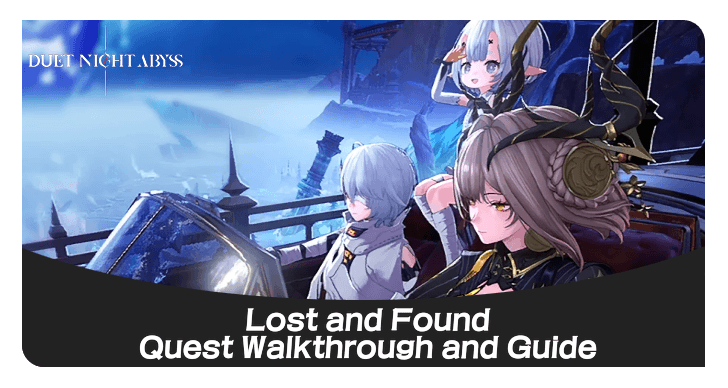
Mistwharf can be accessed by completing the Lost and Found quest. Completing this will transport the player into the Huaxu Region and directly into Mistwharf.
Lost and Found Quest Walkthrough
Mistwharf Release Date
Released on December 23, 2025
| Version 1.1 Release Date | |
|---|---|
 |
|
| Release Date | December 23, 2025 |
Mistwharf is a new area located in Huaxu that was released as part of the Version 1.1 - The Wind Awakening update on December 23, 2025!
Version 1.1 Release Date and Characters
Duet Night Abyss Related Guides
Map Guides for Atlasia
 Icelake Environs Map Guide Icelake Environs Map Guide |
 Purgatorio Island Map Guide Purgatorio Island Map Guide |
 Lonza Fortress Map Guide Lonza Fortress Map Guide |
 Mistwharf Map Guide Mistwharf Map Guide |
Comment



Author
Mistwharf Interactive Map and Location
Rankings
Gaming News

![Forza Horizon 6 Review [Preview] | Beautiful Roads With a Whole Lot of Oversteer](https://img.game8.co/4460981/a7254c24945c43fbdf6ad9bea52b5ce9.png/thumb)
Popular Games

Genshin Impact Walkthrough & Guides Wiki
Crimson Desert Walkthrough & Guides Wiki
Umamusume: Pretty Derby Walkthrough & Guides Wiki
Honkai: Star Rail Walkthrough & Guides Wiki
Monster Hunter Stories 3: Twisted Reflection Walkthrough & Guides Wiki
Wuthering Waves Walkthrough & Guides Wiki
The Seven Deadly Sins: Origin Walkthrough & Guides Wiki
Pokemon TCG Pocket (PTCGP) Strategies & Guides Wiki
Pokemon Pokopia Walkthrough & Guides Wiki
Zenless Zone Zero Walkthrough & Guides Wiki







Recommended Games
Monster Hunter World Walkthrough & Guides Wiki
Fire Emblem Heroes (FEH) Walkthrough & Guides Wiki
Pokemon Brilliant Diamond and Shining Pearl (BDSP) Walkthrough & Guides Wiki
Super Smash Bros. Ultimate Walkthrough & Guides Wiki
Diablo 4: Vessel of Hatred Walkthrough & Guides Wiki
Cyberpunk 2077: Ultimate Edition Walkthrough & Guides Wiki
Yu-Gi-Oh! Master Duel Walkthrough & Guides Wiki
Elden Ring Shadow of the Erdtree Walkthrough & Guides Wiki
The Legend of Zelda: Tears of the Kingdom Walkthrough & Guides Wiki
Persona 3 Reload Walkthrough & Guides Wiki










All rights reserved
Game Copyright©Pan Studio All Rights Reserved.
The content we provide on this site were created personally by members of the Game8 editorial department.
We refuse the right to reuse or repost content taken without our permission such as data or images to other sites.
©Pan Studio (Provider)