
How to Use GameChat
★ 394 P Switches | 150 ? Panels | 200 Medallions
☆ Unlockables Guide | Mirror Mode
★ How to Get Kamek Fast
☆ Best Characters | Best Karts | Best Combo
★ How to Unlock All Outfits with Food locations!
☆ Ver. 1.1.2 Patch Update released on 7/25/2025!
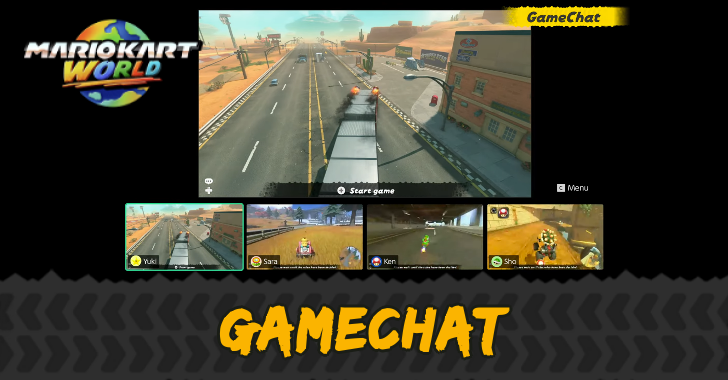
This is a step-by-step guide for using GameChat in Mario Kart World. Check out how to use GameChat and see it's requirements here.
How to Use GameChat
|
|
 Initial Setup
Initial Setup
| 1 | 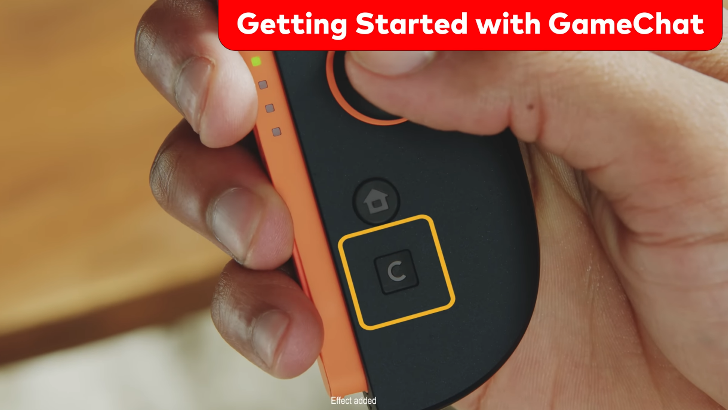 Press the C Button to open up the C Menu. |
| 2 | 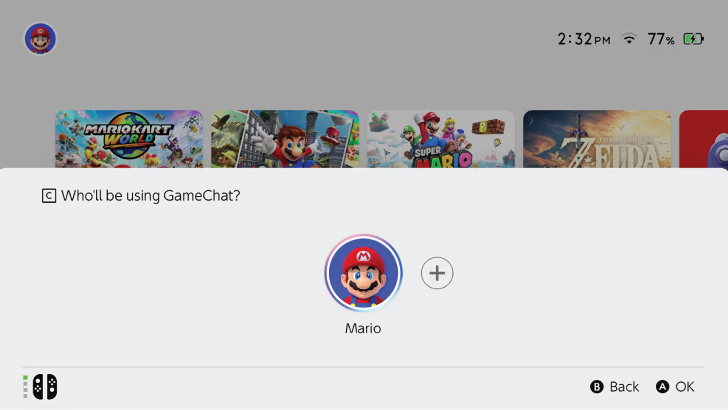 ┗ Requires a Nintendo Account |
| 3 | Proceed with the server connection test. ┗ Test Unsuccessful |
| 4 | Hit the Start button after the test. |
| 5 | Read the information regarding GameChat, then select Next when you're done. |
| 6 | Review the Terms of Service. Once you're done, select I've read the terms, check the Accept Box, and then select Next. |
| 7 | Verify your registered phone number. Enter the authentication code sent via message and enter it in when the prompt appears. |
| 8 | Select OK upon completion of verification. |
| 9 | Read the information regarding approving friends in GameChat, then select Next. |
| 10 | Add the friends that you wish to use GameChat with then select OK. ┗ Approval From Friends Is Also Required |
| 11 | Review the important reminders about using GameChat. Select Next after you're done with each page. |
| 12 | 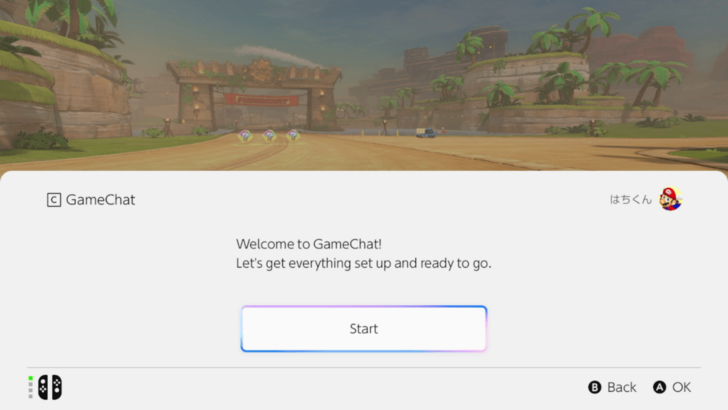
Setup is now complete. You may now proceed to create or join a room. ┣ How to Create a GameChat Room ┗ How to Join a GameChat room |
This is the setup for first-time users of GameChat. Once the initial setup is complete, users can proceed to create or join a GameChat room.
Requires a Nintendo Account
To access GameChat, a Nintendo account is required. If no account has been linked yet, you will be prompted to link at least one.
Test Unsuccessful
The test may fail due to issues with your network connection. Look for any potential causes of network instability and contact your Internet Service Provider for assistance if needed.
Approval From Friends Is Also Required
Please note that your friends also need to approve you before you can chat together. These approval settings can be adjusted at a later time.
How to Create a GameChat Room
| 1 | Press the C Button to open the C Menu. |
|---|---|
| 2 | 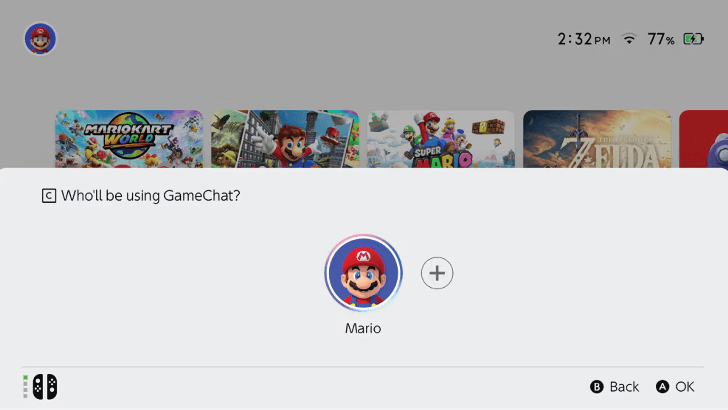 Select the user that will be using GameChat. |
| 3 | 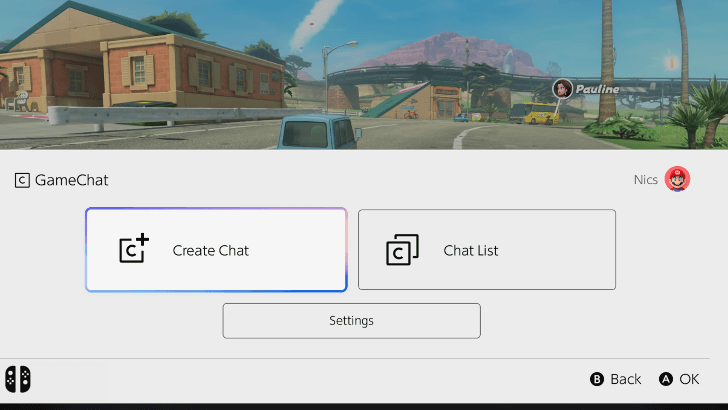 Select Create Chat. |
| 4 | 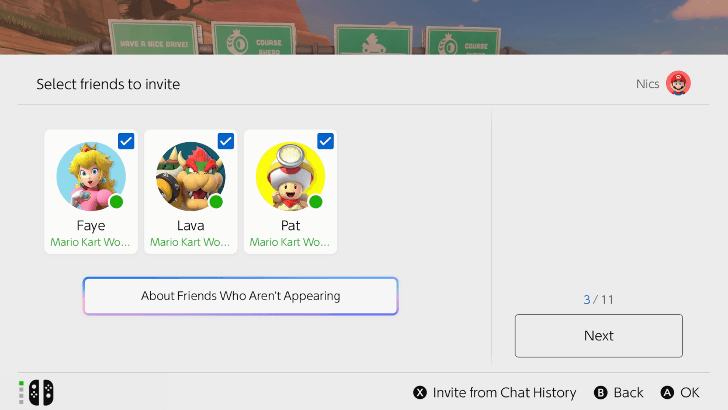 Select the friends you wish to invite. To invite users from your chat history, press X. The GameChat room has a capacity of 12 participants. |
| 5 | Once you’ve chosen friends to invite, select Next, then Start Chat. ┗ Enter Parental Controls PIN |
Enter Parental Controls PIN
The parental controls PIN is required when GameChat parental controls have not been applied to the user. This is a precaution to prevent children from selecting a different account to avoid parental control restrictions.
How to Join a GameChat Room
| 1 | Press the C Button to open the C Menu. |
| 2 | Select the user that will be using GameChat. |
| 3 |
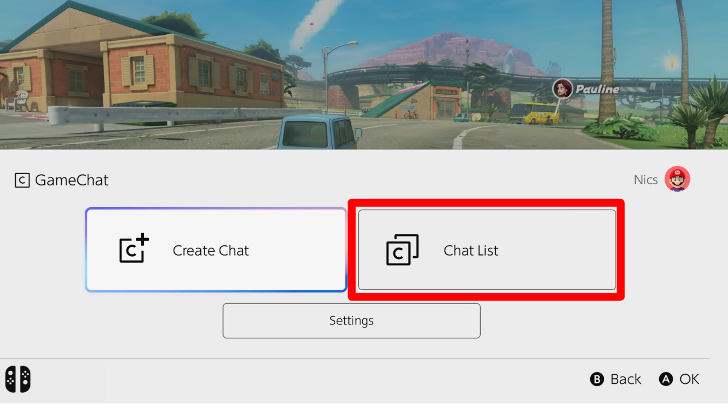 Select Chat List. |
| 4 | 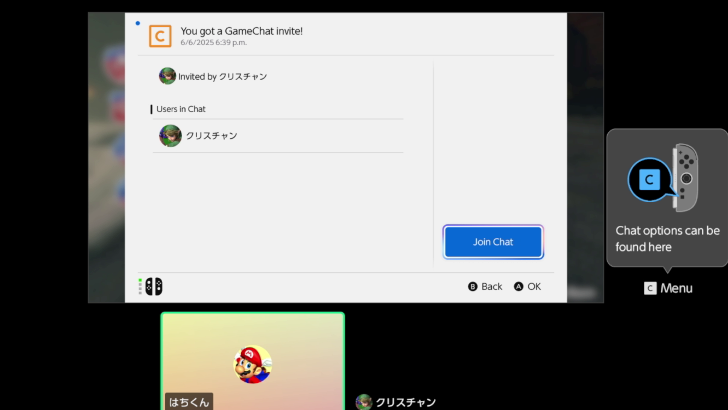 Select Join Chat. ┗ Can't Find Chat Prompt Appears |
Can’t Find Chat Prompt Appears
If you can't join the chat room, it's possible that the room includes friends you haven't approved to chat with. It is also possible that the room includes a user whom you have blocked.
How to Leave GameChat
| 1 | Press the C Button to open the C Menu |
|---|---|
| 2 | Navigate to the red "Leave Chat' icon and select it. |
The room is accessible for as long as one person is in it. If everyone leaves the room, a new room must be created to start GameChat.
GameChat Requirements
GameChat Checklist
Requires a Nitendo Online Membership
To use GameChat, a Nintendo Online Switch membership is required, as well as a persistent internet connection. However, there is an Open-Access Period that lasts from June 5, 2025 until March 31, 2026, during which GameChat will be accessible to all.
Requires a Registered Phone Number
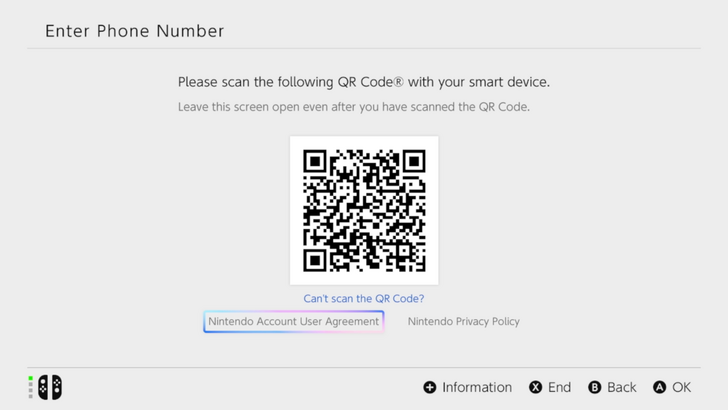
To use GameChat, you will need to register a phone number. This is a prerequisite for completing the authentication process. It is necessary to link this to your Nintendo Account.
Update Your System Software
It is essential that the system software be updated to the most recent version in order to utilize GameChat. It is important to note that failure to update the system software may restrict GameChat usage.
What is GameChat?
A New Social Feature in Switch 2
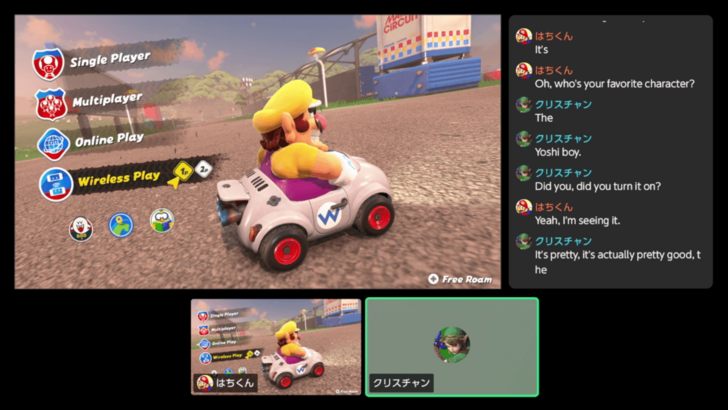
GameChat is a new feature that allows players to communicate in voice and video chat, as well as share their screens. It is designed to provide a social experience, allowing friends, family, and other users to communicate online.
Mario Kart World Related Guides
All Tips and Tricks
Comment



Author

How to Use GameChat

Rankings
- We could not find the message board you were looking for.
Gaming News




![Nova Roma Review [Early Access] | Newer, Better, and More Confusing](https://img.game8.co/4455512/2cbf8926e9a1c72a3ff056088f801ef4.png/thumb)
Popular Games

Genshin Impact Walkthrough & Guides Wiki
Umamusume: Pretty Derby Walkthrough & Guides Wiki
Crimson Desert Walkthrough & Guides Wiki
Monster Hunter Stories 3: Twisted Reflection Walkthrough & Guides Wiki
Honkai: Star Rail Walkthrough & Guides Wiki
Pokemon Pokopia Walkthrough & Guides Wiki
The Seven Deadly Sins: Origin Walkthrough & Guides Wiki
Wuthering Waves Walkthrough & Guides Wiki
Zenless Zone Zero Walkthrough & Guides Wiki
Arknights: Endfield Walkthrough & Guides Wiki







Recommended Games
Fire Emblem Heroes (FEH) Walkthrough & Guides Wiki
Diablo 4: Vessel of Hatred Walkthrough & Guides Wiki
Cyberpunk 2077: Ultimate Edition Walkthrough & Guides Wiki
Yu-Gi-Oh! Master Duel Walkthrough & Guides Wiki
Super Smash Bros. Ultimate Walkthrough & Guides Wiki
Pokemon Brilliant Diamond and Shining Pearl (BDSP) Walkthrough & Guides Wiki
Elden Ring Shadow of the Erdtree Walkthrough & Guides Wiki
Monster Hunter World Walkthrough & Guides Wiki
The Legend of Zelda: Tears of the Kingdom Walkthrough & Guides Wiki
Persona 3 Reload Walkthrough & Guides Wiki










All rights reserved
© Nintendo
The copyrights of videos of games used in our content and other intellectual property rights belong to the provider of the game.
The contents we provide on this site were created personally by members of the Game8 editorial department.
We refuse the right to reuse or repost content taken without our permission such as data or images to other sites.