
Best Brightness Settings: How to Increase Brightness
You can increase the Brightness Settings through the Options Menu in Resident Evil Requiem (RE9). Check out the Best Brightness Settings and How to Increase Brighhtness here in this guide.
List of Contents
Best Brightness Settings
Adjust According to Preference
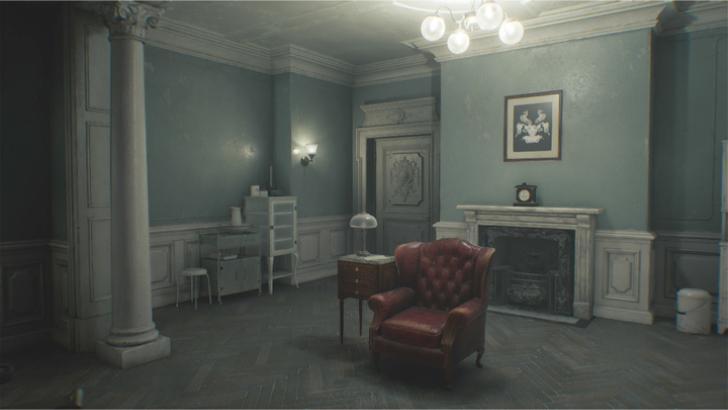
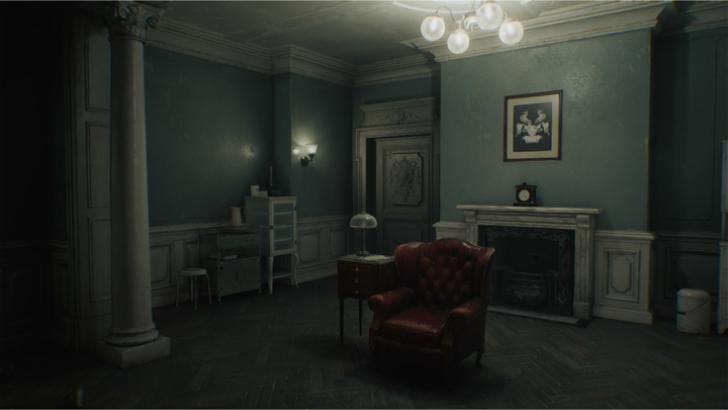
| Bright | Dark |
|---|---|
 |
 |
For better visibility, you can set your overall brightness settings to high. This lets you see areas and targets better, but it comes at the cost of immersion and a washed-out look.
To have the best experience, it is recommended that you follow the provided guidelines to balance the brightness setting.
This allows you to experience the different set pieces and gameplay scenarios as intended, with some areas being Intentionally darker to increase tension.
How to Increase Brightness
Adjust Through the Options Menu
| 1 | 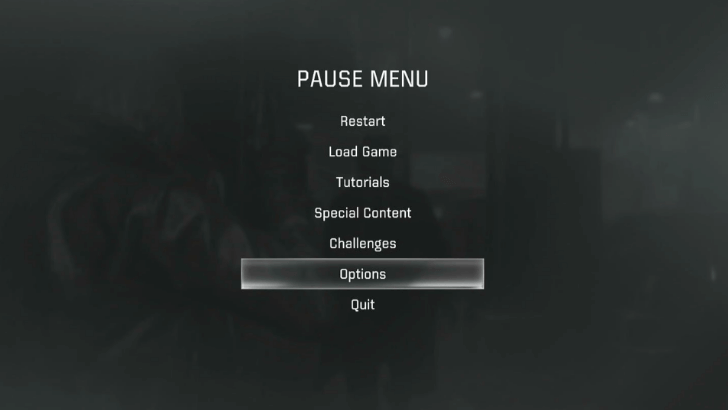 Begin by accessing the Options menu via the in-game Pause menu or the Main menu. |
|---|---|
| 2 | 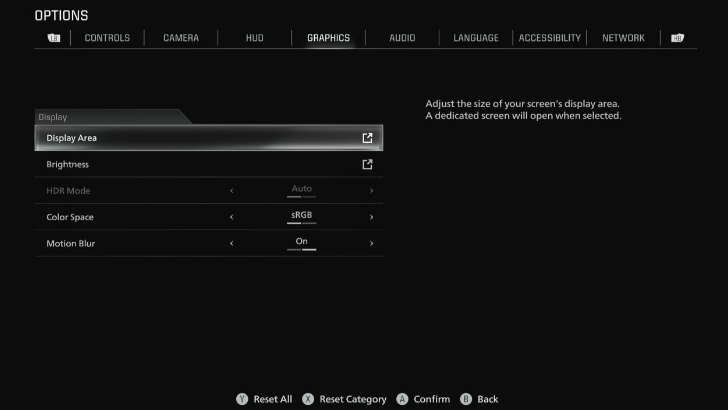 Go to the Brightness menu under the Display tab in the Graphics menu. |
| 3 | 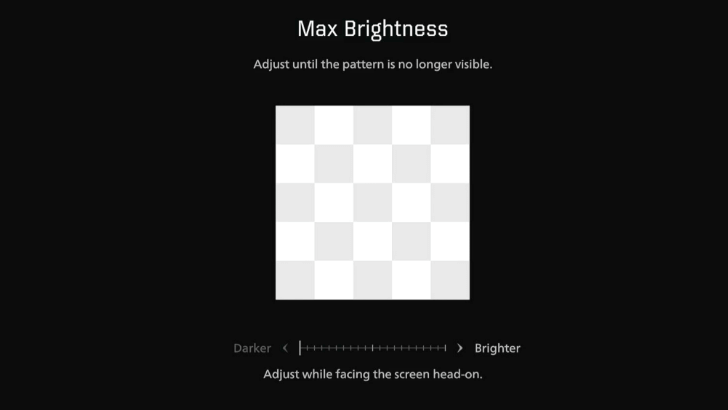 Adjust and calibrate the maximum brightness bar until the pattern no longer appears. The pattern should typically disappear when you reach the end of the scaling bar, though your experience may vary. |
| 4 | 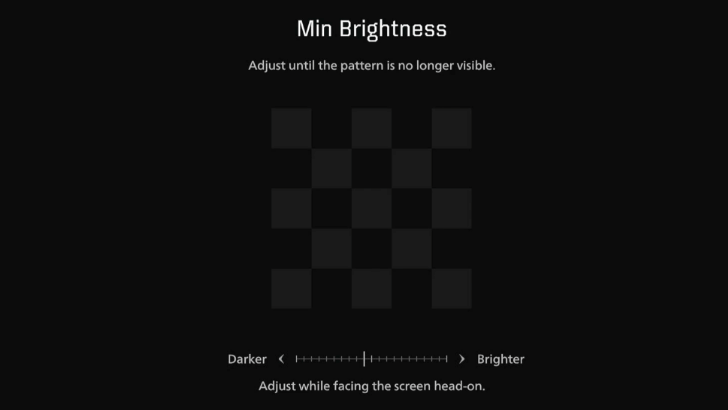 Adjust and calibrate the minimum brightness bar until the pattern no longer appears. Just like the maximum brightness setting, the pattern should disappear as you scale towards the end. Adjust and calibrate the minimum brightness bar until the pattern no longer appears. Just like the maximum brightness setting, the pattern should disappear as you scale towards the end.
|
| 5 | 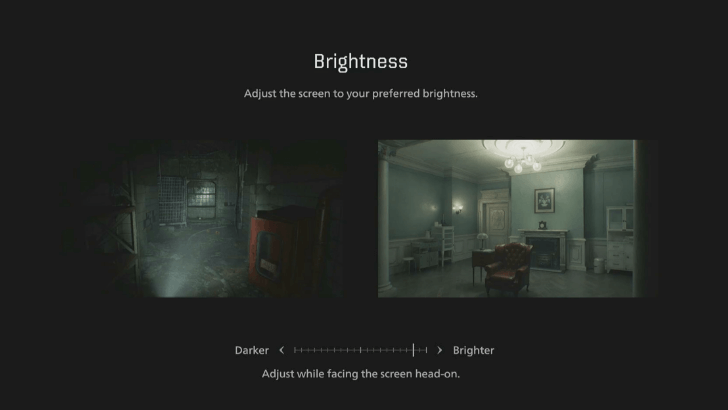 You can adjust the total brightness for the final brightness setting. Use the reference image provided to tune it to your liking. |
Resident Evil Requiem (RE9) Related Guides

All Tips and Tricks
Comment



Author
Best Brightness Settings: How to Increase Brightness

Premium Articles
Rankings
- We could not find the message board you were looking for.
Gaming News

![Star Savior Review [First Impressions] | Engaging, Entertaining, and Expensive](https://img.game8.co/4447603/8f500e9bf666bdb8adb1af478e9dfdbd.png/thumb)
![Death Stranding 2: On The Beach [PC] Review | A Port That Delivers](https://img.game8.co/4447392/15310a0c9aa1b6843bb713b2ea216930.jpeg/thumb)
Popular Games

Genshin Impact Walkthrough & Guides Wiki
Umamusume: Pretty Derby Walkthrough & Guides Wiki
Pokemon Pokopia Walkthrough & Guides Wiki
Honkai: Star Rail Walkthrough & Guides Wiki
Monster Hunter Stories 3: Twisted Reflection Walkthrough & Guides Wiki
Arknights: Endfield Walkthrough & Guides Wiki
Wuthering Waves Walkthrough & Guides Wiki
Zenless Zone Zero Walkthrough & Guides Wiki
Pokemon TCG Pocket (PTCGP) Strategies & Guides Wiki
Monster Hunter Wilds Walkthrough & Guides Wiki










Recommended Games
Fire Emblem Heroes (FEH) Walkthrough & Guides Wiki
Diablo 4: Vessel of Hatred Walkthrough & Guides Wiki
Cyberpunk 2077: Ultimate Edition Walkthrough & Guides Wiki
Yu-Gi-Oh! Master Duel Walkthrough & Guides Wiki
Super Smash Bros. Ultimate Walkthrough & Guides Wiki
Pokemon Brilliant Diamond and Shining Pearl (BDSP) Walkthrough & Guides Wiki
Elden Ring Shadow of the Erdtree Walkthrough & Guides Wiki
Monster Hunter World Walkthrough & Guides Wiki
The Legend of Zelda: Tears of the Kingdom Walkthrough & Guides Wiki
Persona 3 Reload Walkthrough & Guides Wiki










All rights reserved
©CAPCOM U.S.A., INC. ALL RIGHTS RESERVED.
The copyrights of videos of games used in our content and other intellectual property rights belong to the provider of the game.
The contents we provide on this site were created personally by members of the Game8 editorial department.
We refuse the right to reuse or repost content taken without our permission such as data or images to other sites.