
Best Settings
★ Story Walkthrough | Upgrades and Abilities
☆ Characters | Bosses | Puzzles
★ Viewros Map: Energy Tank | Missile Expansion | Shot Expansion
★ Game Details: amiibo Unlocks | How Long to Beat | Switch Edition Differences
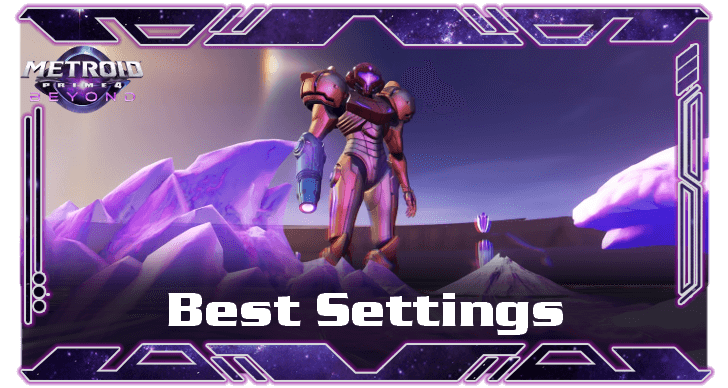
These are the best and recommended settings for Metroid Prime 4: Beyond. Check out all the Gameplay, Video, Audio, Control Scheme, Camera, Cursor, and Miscellaneous settings in this guide.
List of Contents
Best and Recommended Settings for Metroid Prime 4: Beyond
| Jump to a Setting | ||
|---|---|---|
| Gameplay | Video | Audio |
| Control Scheme | Camera | Cursor |
| Misc | ||
Best Gameplay Settings
| Tutorials | On |
|---|---|
| Change Difficulty | User Preference |
As Metroid Prime 4: Beyond features new gameplay mechanics through Psychic Abilities, it is best to leave Tutorials set to ON to be able to learn these new features.
You can als change the Difficulty any time in the Settings menu. Do be warned, that lowering the Difficulty in your current playthrough results in missing out on any difficulty-based rewards at the end of the game.
However, the changes made to the Difficulty setting is not permanent until your game is saved or a checkpoint is reached.
Difficulty Differences and Best Difficulty Settings
Best Video Settings
| Brightness | 50 (Default) |
|---|---|
| Show Helmet in HUD | On (Default) |
| HUD Movement (First Person) | User Preference |
| HUD Movement (Third Person) | User Preference |
| Subtitles | On (Default) |
| Subtitle Background | On |
For Video settings, the Brightness is set to 50 by default. Set the values higher if you find the game too dim or too bright.
The Show Helmet in HUD setting shows the inside of Samus's helmet around the screen by default, providing the realism of wearing the Varia Suit's headgear. Toggling this OFF results in a cleaner and minimalistic HUD.
HUD Movement for First and Third Person is not recommended if you are sensitive to motion or prone to motion sickness.
The Subtitles and Subtitles Background are highly recommended for a more complete experience during dialogue and cutscenes.
Best Audio Settings
| Global Volume | 100 (Default) |
|---|---|
| Speech Volume | 100 (Default) |
| SFX Volume | 100 (Default) |
| Music Volume | 100 (Default) |
| Device Type | Headphones (Default) |
For the Device Type setting, you can choose what device is plugged in to the Switch's audio jack.
Best Control Scheme
| Stick Controls | ・Use the JoyCon's control sticks for aiming and movement.
・We recommend using this option for the default experience of the game. |
|---|---|
| Pointer Controls | ・Use motion controls for aiming, and the control stick for movement.
・Good for having a realistic feel in aiming, but we don't recommend motion controls for the other parts of gameplay. |
| Mouse Mode (For Switch 2 Only) |
・Uses the right JoyCon 2 for aiming.
・We recommend this control scheme as the JoyCon 2's mouse offers a more precise aiming. |
The best Control Scheme comes down to your preference and familiarity.
However, for beginners, we recommend using the default Stick Controls with the JoyCons or a Pro Controller, as using both sticks for movement and aiming you more control over Samus's movements.
Pointer Controls are not recommended, especially in gameplay sections where the Control Beam is used, as the controls can get floaty and finicky.
If possible, we also recommend using Switch 2's Mouse Mode as this allows a more precise and steady aiming during combat.
How to Use Mouse Mode and Controls
Best Camera Settings
| Stick Sensitivity X | 41 (Default) |
|---|---|
| Stick Sensitivity Y | 41 (Default) |
| Stick Invert X | User Preference |
| Stick Invert Y | User Preference |
| Enable Motion Controls | User Preference |
| Motion Controls Sensitivity X | User Preference |
| Motion Controls Sensitivity Y | User Preference |
It is recommended to increase Stick Sensitivity when the aiming feels slow. Increasing Stick Sensitivity makes the movement and aiming respond faster.
Best Cursor Settings
| Stick Sensitivity X | 9 (Default) |
|---|---|
| Stick Sensitivity Y | 9 (Default) |
| Stick Invert X | User Preference |
| Stick Invert Y | User Preference |
| Revised Lock-On Free Aim | Off |
| Enable Motion Controls for Lock-On Free Aim | Off |
| Free Aim Motion Threshold | 30 (Default) |
| Motion Control Sensitivity X | User Preference |
| Motion Control Sensitivity Y | User Preference |
| Motion Control Invert Y | User Preference |
Revised Lock-On Free Aim is not recommended to toggle on as it locks the free aim cursor within the boundaries of the lock-on cursor, preventing you from aiming at the edges of your screen.
Best Misc Settings
| Enable Spring Ball Motion Controls | Off |
|---|---|
| Spring Ball Threshold | Off |
| Flight Invert X | User Preference |
| Flight Invert Y | User Preference |
Flight Invert settings affect the controls of the Charge Beam when the Control Beam is shot.
The Spring Ball Motion Controls add motion controls when using Morph Ball. We do not recommend this setting as it is easier and more accurate to press the button for jump, especially in areas with Morph Ball puzzles.
Metroid Prime 4: Beyond Related Guides

Beginner's Guide: Tips and Tricks to Get Started
All Tips and Tricks
Comment



Author


Rankings
- We could not find the message board you were looking for.
Gaming News

![Monster Hunter Stories 3 Review [First Impressions] | Simply Rejuvenating](https://img.game8.co/4438641/2a31b7702bd70e78ec8efd24661dacda.jpeg/thumb)
![The Seven Deadly Sins: Origin [First Impressions] | A Promising Start](https://img.game8.co/4440581/584e0bfb87908f12c4eab6e846eb1afd.png/thumb)
Popular Games

Genshin Impact Walkthrough & Guides Wiki
Umamusume: Pretty Derby Walkthrough & Guides Wiki
Pokemon Pokopia Walkthrough & Guides Wiki
Honkai: Star Rail Walkthrough & Guides Wiki
Monster Hunter Stories 3: Twisted Reflection Walkthrough & Guides Wiki
Arknights: Endfield Walkthrough & Guides Wiki
Wuthering Waves Walkthrough & Guides Wiki
Zenless Zone Zero Walkthrough & Guides Wiki
Pokemon TCG Pocket (PTCGP) Strategies & Guides Wiki
Monster Hunter Wilds Walkthrough & Guides Wiki









Recommended Games
Diablo 4: Vessel of Hatred Walkthrough & Guides Wiki
Cyberpunk 2077: Ultimate Edition Walkthrough & Guides Wiki
Fire Emblem Heroes (FEH) Walkthrough & Guides Wiki
Yu-Gi-Oh! Master Duel Walkthrough & Guides Wiki
Super Smash Bros. Ultimate Walkthrough & Guides Wiki
Pokemon Brilliant Diamond and Shining Pearl (BDSP) Walkthrough & Guides Wiki
Elden Ring Shadow of the Erdtree Walkthrough & Guides Wiki
Monster Hunter World Walkthrough & Guides Wiki
The Legend of Zelda: Tears of the Kingdom Walkthrough & Guides Wiki
Persona 3 Reload Walkthrough & Guides Wiki










All rights reserved
© Nintendo. Metroid and Nintendo Switch are trademarks of Nintendo.
The copyrights of videos of games used in our content and other intellectual property rights belong to the provider of the game.
The contents we provide on this site were created personally by members of the Game8 editorial department.
We refuse the right to reuse or repost content taken without our permission such as data or images to other sites.