
List of Controls (Dual Stick, Gyro Motion, and Mouse)
★ Story Walkthrough | Upgrades and Abilities
☆ Characters | Bosses | Puzzles
★ Viewros Map: Energy Tank | Missile Expansion | Shot Expansion
★ Game Details: amiibo Unlocks | How Long to Beat | Switch Edition Differences
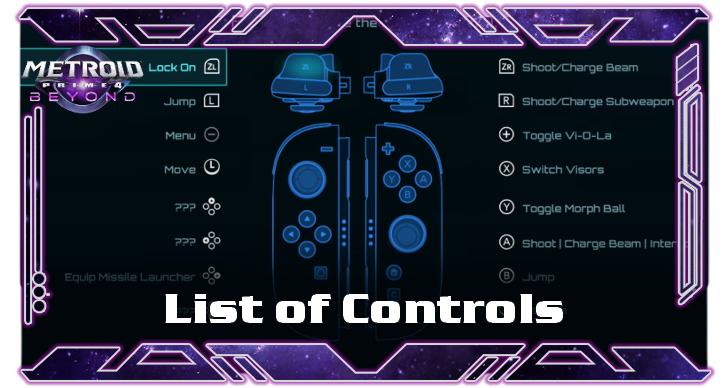
Here is a list of controls on the Nintendo Switch 1 and 2 for Metroid Prime 4: Beyond. See all dual stick controls, if there are gyro motion controls available, mouse controls, and advanced mode here!
List of Contents
List of Controls
Dual Stick Controls
| Action | Button |
|---|---|
| Lock On |  |
| Jump |  |
| Menu |  |
| Move |  |
| Equip Ice Shot |  |
| Equip Thunder Shot |  |
| Equip Missile Launcher |  |
| Equip Fire Shot |  |
| Shoot / Charge Beam |  |
| Shoot / Charge Subweapon |  |
| Toggle Vi-O-La |  |
| Switch Visors |  |
| Toggle Morph Ball |  |
| Shoot | Charge Beam | Interact |  |
| Jump |  |
| Camera |  |
| Action | Button |
|---|---|
| Psychic Spider ball | |
| Boost Ball | |
| Menu | |
| Move | |
| (FREE) | |
| (FREE) | |
| (FREE) | |
| (FREE) | |
| Bomb | |
| Psychic Power Bomb | |
| Toggle Vi-O-La | |
| Spring Ball | |
| Toggle Morph Ball | |
| Bomb | |
| Boost Ball | |
| Camera | |
| Action | Button |
|---|---|
| Brake | Scan | |
| Brake | |
| Menu | |
| Move | |
| Vi-O-La Radio: Play / Stop | |
| Vi-O-La Radio: Previous Track | |
| Vi-O-La Radio: Next Track | |
| Toggle Minimap | |
| Accelerate | |
| Accelerate | |
| Toggle Vi-O-La | |
| Switch Visors | |
| (FREE) | |
| Fire Projectile | |
| Boost | |
| Camera | |
The default controls for Metroid Prime 4: Beyond is with the dual stick setup. However, it works seamlessly with Gyro and Mouse controls for a more immersive gameplay. Simply change how you hold the Joy-Con to change the controls.
What is Advanced Mode?
Remap Buttons of Your Choice
You can fully customize your own preferred button mapping with Advanced Mode. Directional buttons cannot be edited in default mode and can only be done so with Advanced Mode.
Are There Gyro Controls?
Yes, Pointer Controls are Available
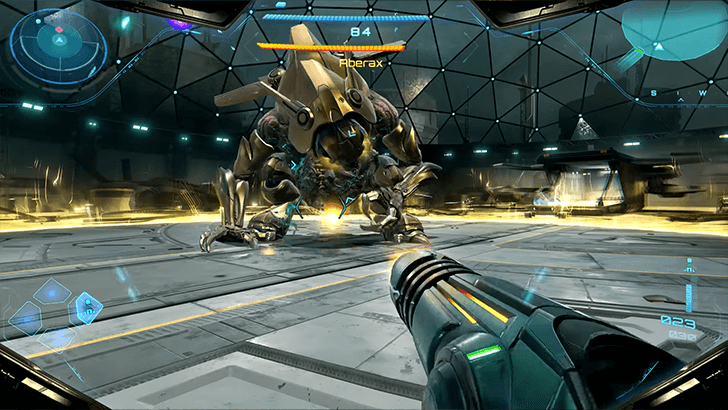
Gyro Controls are available in Metroid Prime 4: Beyond. Simply hold the ZL button and move the right Joy-Con around to aim with Samus' weapons.
Metroid Prime 4: Beyond Mouse Controls
List of Mouse Controls
| Camera Movement |  |
|---|---|
| Shoot Beam | / |
| Fire Missile | |
| Morph Ball | |
| Scan Visor | |
| Jump | |
You can use the right Joy-Con 2 controller as a mouse to aim better when dealing with enemies. Place the controller's optical sensor side down (magnetic end) on a flat surface and use it as a regular mouse. Once done, pick up the controller to return to normal mode.
How to Use Mouse Mode and Controls
Metroid Prime 4: Beyond Related Guides

Beginner's Guide: Tips and Tricks to Get Started
All Tips and Tricks
Comment



Author

List of Controls (Dual Stick, Gyro Motion, and Mouse)

Rankings
- We could not find the message board you were looking for.
Gaming News

![The Liar Princess and the Blind Prince Review [PC] | Lovely to Look at but Tedious to Play](https://img.game8.co/4442586/8d95f5faf05780f1765ce7e0938bd825.jpeg/show)
![Monster Hunter Stories 3 Review [First Impressions] | Simply Rejuvenating](https://img.game8.co/4438641/2a31b7702bd70e78ec8efd24661dacda.jpeg/thumb)
![The Seven Deadly Sins: Origin [First Impressions] | A Promising Start](https://img.game8.co/4440581/584e0bfb87908f12c4eab6e846eb1afd.png/thumb)
Popular Games

Genshin Impact Walkthrough & Guides Wiki
Umamusume: Pretty Derby Walkthrough & Guides Wiki
Pokemon Pokopia Walkthrough & Guides Wiki
Honkai: Star Rail Walkthrough & Guides Wiki
Monster Hunter Stories 3: Twisted Reflection Walkthrough & Guides Wiki
Arknights: Endfield Walkthrough & Guides Wiki
Wuthering Waves Walkthrough & Guides Wiki
Zenless Zone Zero Walkthrough & Guides Wiki
Pokemon TCG Pocket (PTCGP) Strategies & Guides Wiki
Monster Hunter Wilds Walkthrough & Guides Wiki









Recommended Games
Diablo 4: Vessel of Hatred Walkthrough & Guides Wiki
Cyberpunk 2077: Ultimate Edition Walkthrough & Guides Wiki
Fire Emblem Heroes (FEH) Walkthrough & Guides Wiki
Yu-Gi-Oh! Master Duel Walkthrough & Guides Wiki
Super Smash Bros. Ultimate Walkthrough & Guides Wiki
Pokemon Brilliant Diamond and Shining Pearl (BDSP) Walkthrough & Guides Wiki
Elden Ring Shadow of the Erdtree Walkthrough & Guides Wiki
Monster Hunter World Walkthrough & Guides Wiki
The Legend of Zelda: Tears of the Kingdom Walkthrough & Guides Wiki
Persona 3 Reload Walkthrough & Guides Wiki










All rights reserved
© Nintendo. Metroid and Nintendo Switch are trademarks of Nintendo.
The copyrights of videos of games used in our content and other intellectual property rights belong to the provider of the game.
The contents we provide on this site were created personally by members of the Game8 editorial department.
We refuse the right to reuse or repost content taken without our permission such as data or images to other sites.