
 All Korok Seed Locations
 Best Characters Tier List
 All amiibo Rewards and Unlocks
 Best Zonai Devices
 List of All Consumable Items
 List of Voice Actors and Cast
 Best Supply Materials
 Post-Game Guide
 Best Party and Team Composition
 Ending Explained
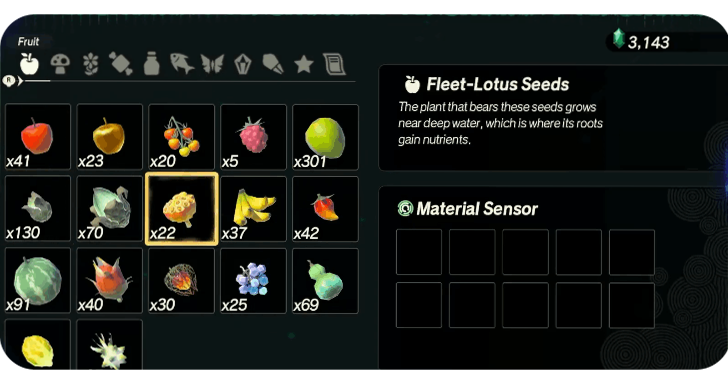 Material Farming Guide
 Rupee Farming Guide
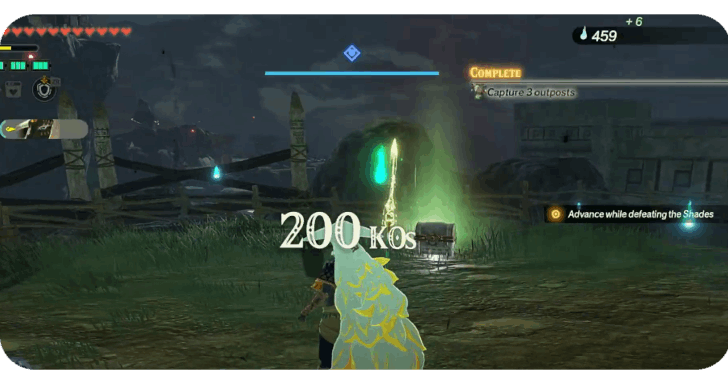 Poe Farming Guide
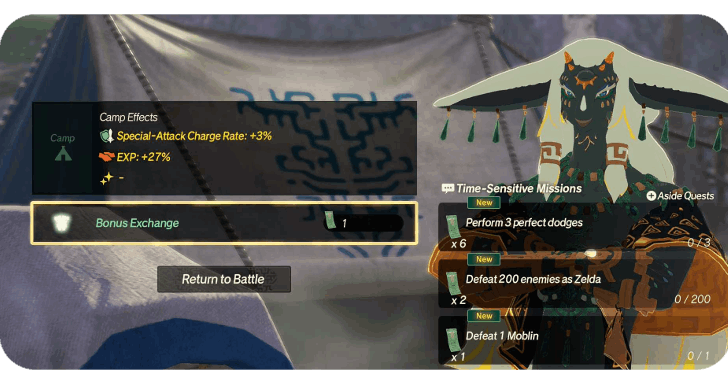 Bonus Exchange Guide
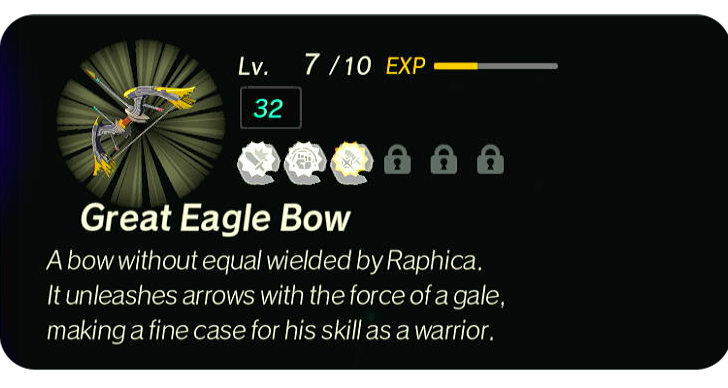 Best Seals to Use for Weapons
 Best Weapons


This survey will take about 1 minute.
Your answers will help us to improve our website.
Hyrule Warriors: Age of Imprisonment
All amiibo Rewards and Unlocks

Hyrule Warriors: Age of Imprisonment supports amiibo functions and provides rewards in-game! Read on to learn the game's amiibo functionality and see what rewards you can get from scanning them!
Does Age of Imprisonment Support amiibo?
The Game Has Official amiibo Support
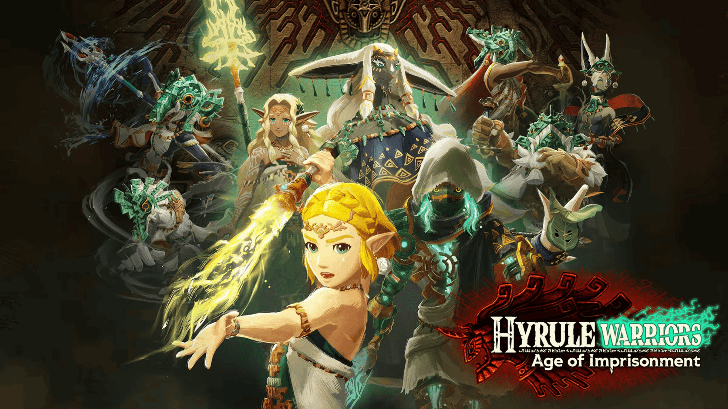
Hyrule Warriors: Age of Imprisonment has amiibo functionality, allowing you to scan amiibos for rewards and materials!
Game Supports Zelda and Non-Zelda amiibos

Hyrule Warriors: Age of Imprisonment also supports both Legend of Zelda and Non-Zelda related amiibos. Scan your amiibos in the game to get in-game rewards!
How to Scan amiibos
- Select amiibo on the Title Screen
- Tap the amiibo on the NFC Touchpoint
- Collect Rewards After Scanning
Select amiibo on the Title Screen
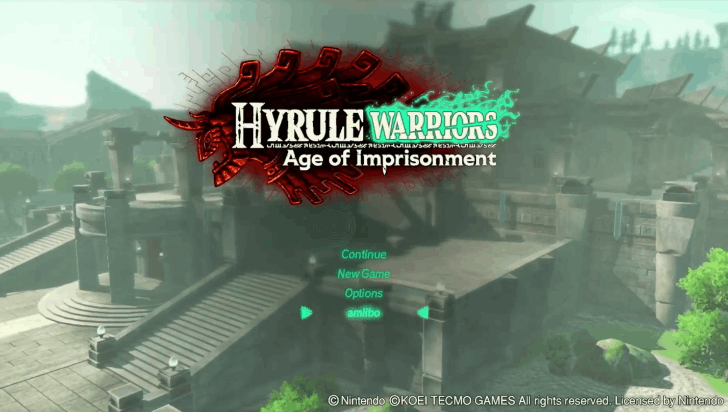
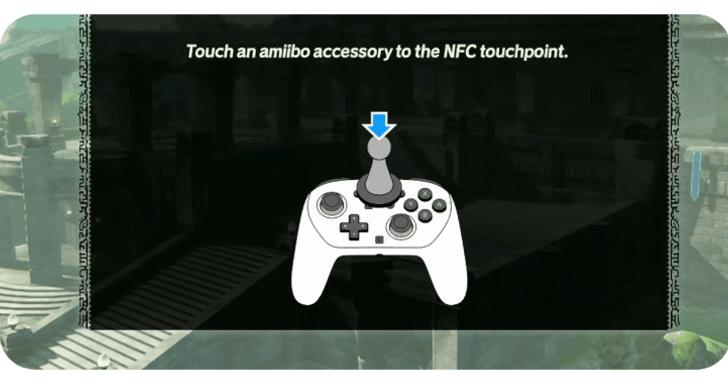
Go to the title screen and select the amiibo function. You will be sent to a screen with instructions requiring an amiibo to be used.
Tap the amiibo on the NFC Touchpoint on your Joycon 2 or Pro Controller
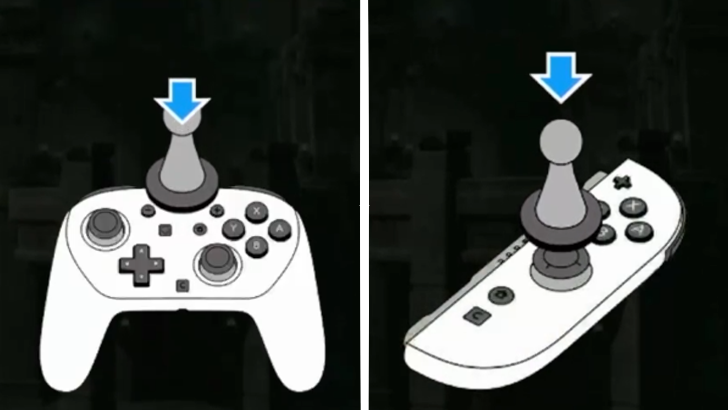
Grab any of your available amiibos and have them scanned by putting their base above the NFC Touchpoint of the Nintendo controller you are using and wait for it to finish scanning.
If you are using a Joycon 2, put the amiibo on the right Joycon stick while the scanning prompt is showing on the screen. For the Pro Controller, place your amiibo on the center of the controller above the Switch icon while the scanning prompt is on the screen.
Collect Rewards After Scanning
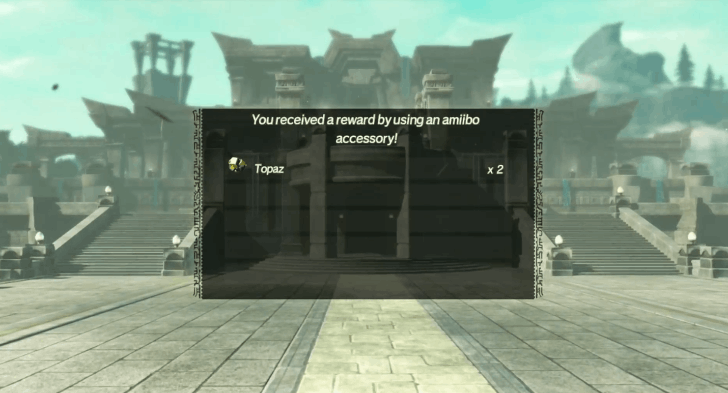
Should the scan be completed, you will receive a notification of what rewards you got from the amiibo. Enter the game again (by hitting Continue) to have the items added to your inventory.
amiibo Rewards and Unlocks
Random Materials and Items
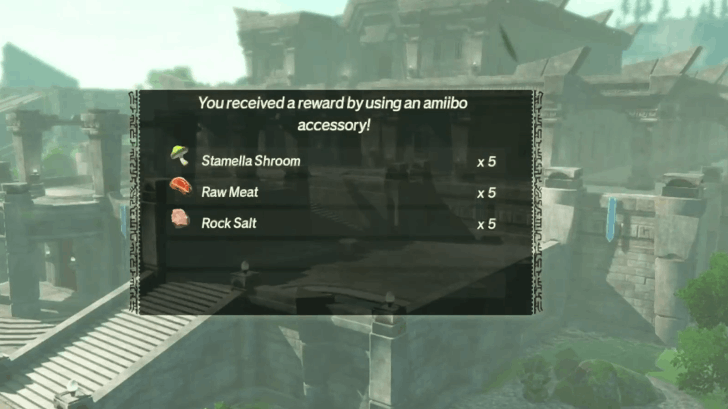
Scanning each amiibo allows you to receive randomized materials and items that will help you throughout the game! Make sure to collect these materials as soon as you are finished with your amiibo scanning.
Let Us Know What Rewards You Unlocked!
You can share what rewards you have unlocked and what amiibos you used in the comments section below!
▼Jump to the Comments!▼
How to Bypass amiibo Scan Limit
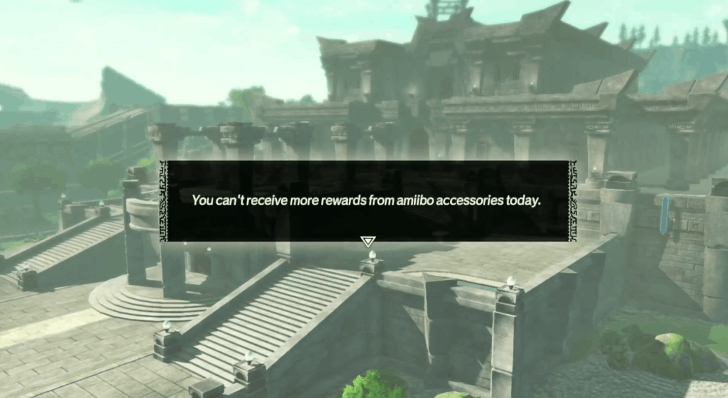
Hyrule Warriors: Age of Imprisonment has a scan limit of five unique amiibos. Each of these can only be scanned once per day. You will have to wait at least one day after scanning to be eligible for rewards again. You can bypass this limit however, by advancing your Switch 2's System Time.
Change Your Switch 2's Time and Date Settings
 1. Close the game then head to System Settings by pressing the Options menu on your Home Screen. Scroll down and find the Date and TIme option. |

2. Make sure Synchronize Clock via Internet is off first, as you cannot change time with the setting on. Note: To avoid potential errors with the Switch 2, you can re-enable this setting after completing your amiibo transactions. |
 3. Advance the clock at least one day from present day or your last advanced day. If you set your day to December 5 and collected rewards on this day, for example, move the clock to December 6, then to December 7 after collecting and so on. |
 4. Boot the game and try scanning for your amiibos again, it should allow for rescanning afterwards. Make sure to collect your past rewards first though before scanning again as they might be lost if not collected! |
※ Should the game fail to rescan your amiibo after the time change, try closing the game properly and wait for a few seconds before rescanning.
Hyrule Warriors: Age of Imprisonment Related Guides

Guides by Category
 Walkthrough Walkthrough |
 How-Tos How-Tos
|
 Characters Characters |
 Quests Quests |
 Challenges Challenges |
 Aside Quests Aside Quests |
 Enemies Enemies |
 Materials Materials |
 Weapons Weapons |
 Unique Skills Unique Skills |
 News and Updates News and Updates |
- |
Recommended Guides
Comment
Author
Hyrule Warriors: Age of Imprisonment Walkthrough & Guides Wiki
All amiibo Rewards and Unlocks

Please participate in our site
improvement survey
04/2026
improvement survey
04/2026
Would you assist in
improving Game8's site?
improving Game8's site?

×
We are listening to our users' valuable opinions and discussing how to act on them.
The information collected through this survey will be used for the purpose of improving our services. In addition, the information will only be disclosed a part of a statistic in a format that will not allow identification of personal information.
Begin Survey
Not Now
×
Please rate each item regarding Game8.co's Advertisements.
Amount of Ads
Very Dissatisfied
Somewhat Dissatisfied
Fine
Somewhat Satisfied
Highly Satisfied
Placement of Ads
Timing of Ad Display
Ad Loading Speed
Safeness of Ads
Content of Ads
×
Please rate each item regarding Game8.co's Quality of Articles.
Amount of information
Very Dissatisfied
Somewhat Dissatisfied
Fine
Somewhat Satisfied
Highly Satisfied
Frequency of updates
Speed of new information
Accuracy of articles
Understandibility of articles
Readability of sentences
×
Please rate each item regarding Game8.co's Usability of the Site.
Ease of finding information
Very Dissatisfied
Somewhat Dissatisfied
Fine
Somewhat Satisfied
Highly Satisfied
Loading Speed
Use of Color
Font Size
Visibility of Images
Easy to Understand Layout
×
Please rate each item regarding Game8.co's Message Boards, Comments.
Ease of Writing
Very Dissatisfied
Somewhat Dissatisfied
Fine
Somewhat Satisfied
Highly Satisfied
Readability
Ease in Finding Information
Comment Quality
Comment Quantity
Admin Response
×
Please rate each item regarding Game8.co's Site's new design.
Please rate our site's new design
Very Dissatisfied
Somewhat Dissatisfied
Fine
Somewhat Satisfied
Highly Satisfied
Do you think that the website's design change makes the site easier to use?
Has the new design made it easier for you to find information on the site?
Has the new design improved the overall visual appeal of the site?
How would you rate your overall satisfaction with the new design of the site?
×
How likely are you to recommend Game8 to someone you know?
Very Unlikely
0
1
2
3
4
5
6
7
8
9
10
Very Likely
If you have other opinions regarding potential improvement to the website, please share them with us. We would appreciate your honest opinion.
Note: This is a free response section, so you can proceed without entering anything.
Note: Please be sure not to enter any kind of personal information into your response.
Note: Please be sure not to enter any kind of personal information into your response.
×
Thank You
×
Thank you for participating in our survey! Your answers will help us to improve the quality of our website and services.
We hope you continue to make use of Game8.
We hope you continue to make use of Game8.
Close
Rankings
- We could not find the message board you were looking for.
Gaming News



![Forza Horizon 6 Review [Preview] | Beautiful Roads With a Whole Lot of Oversteer](https://img.game8.co/4460981/a7254c24945c43fbdf6ad9bea52b5ce9.png/thumb)
![Borderlands Mobile Review [Playtest] | The Same Borderlands Made Easy](https://img.game8.co/4465500/aac0c880a39ec5cd46073e49d18f3ed5.png/thumb)
Popular Games

Genshin Impact Walkthrough & Guides Wiki
Crimson Desert Walkthrough & Guides Wiki
Umamusume: Pretty Derby Walkthrough & Guides Wiki
Honkai: Star Rail Walkthrough & Guides Wiki
Monster Hunter Stories 3: Twisted Reflection Walkthrough & Guides Wiki
Wuthering Waves Walkthrough & Guides Wiki
The Seven Deadly Sins: Origin Walkthrough & Guides Wiki
Pokemon TCG Pocket (PTCGP) Strategies & Guides Wiki
Pokemon Pokopia Walkthrough & Guides Wiki
Zenless Zone Zero Walkthrough & Guides Wiki









Recommended Games
Fire Emblem Heroes (FEH) Walkthrough & Guides Wiki
Pokemon Brilliant Diamond and Shining Pearl (BDSP) Walkthrough & Guides Wiki
Super Smash Bros. Ultimate Walkthrough & Guides Wiki
Diablo 4: Vessel of Hatred Walkthrough & Guides Wiki
Cyberpunk 2077: Ultimate Edition Walkthrough & Guides Wiki
Yu-Gi-Oh! Master Duel Walkthrough & Guides Wiki
Elden Ring Shadow of the Erdtree Walkthrough & Guides Wiki
Monster Hunter World Walkthrough & Guides Wiki
The Legend of Zelda: Tears of the Kingdom Walkthrough & Guides Wiki
Persona 3 Reload Walkthrough & Guides Wiki










All rights reserved
© Nintendo © KOEI TECMO GAMES All rights reserved.
The copyrights of videos of games used in our content and other intellectual property rights belong to the provider of the game.
The contents we provide on this site were created personally by members of the Game8 editorial department.
We refuse the right to reuse or repost content taken without our permission such as data or images to other sites.