
How to Import Settings
Import Settings allow you to transfer your settings from previous titles to Call of Duty Black Ops 7 (BO7). Learn where find these settings and how to import them here.
List of Contents
Howt to Import Settings
Select Import Settings in Account & Network
| Import Settings Step-by-Step Guide | |
|---|---|
| ① | 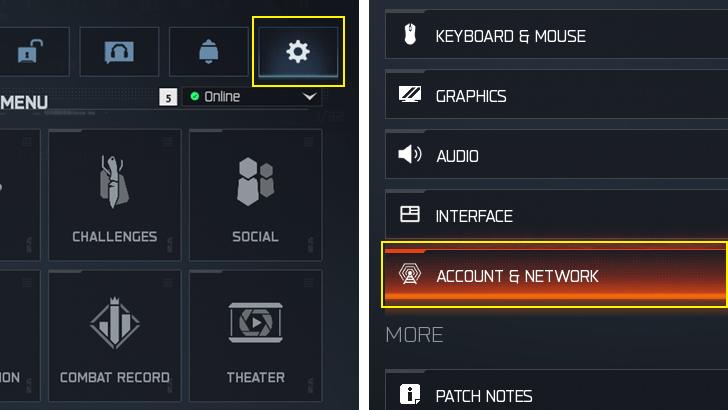 Access the Settings menu. This can be done by selecting the cog icon in the lobby or the Launcher Menu. You can also do this by selecting the Start/Options button on a controller. Select Account & Network afterwards. |
| ② | 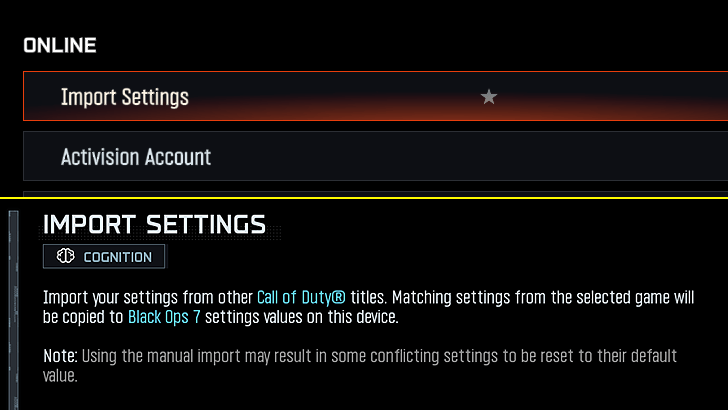 In the Account & Network Settings, select Import Settings. |
| ③ | 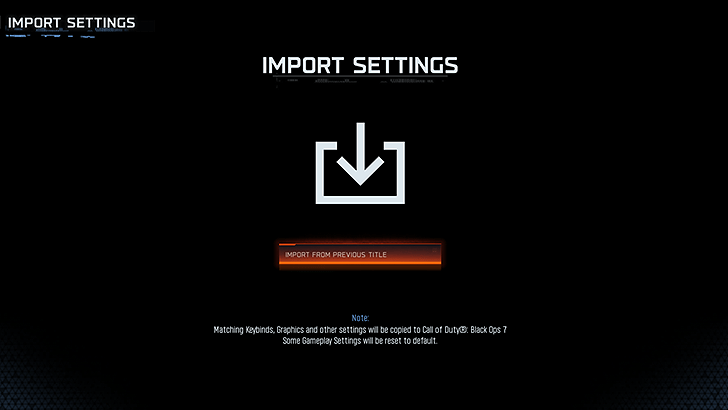 Once in the Import Settings menu, select Import from Previous Title, then hit Yes on the confirmation prompt. Note that this will overwrite your present settings or restore any conflicting values to default. |
The Import Settings function allows you to quickly copy over your settings set in previous titles to Black Ops 7. This is useful for reducing the time you'll need to adjust your settings according to what you are familiar with. This covers options such as graphic options, audio settings, and control schemes/keybinds.
Call of Duty Black Ops 7 (BO7) Related Guides
All Tips and Tricks
Comment



Author

How to Import Settings

Rankings
- We could not find the message board you were looking for.
Gaming News

![Monster Hunter Stories 3 Review [First Impressions] | Simply Rejuvenating](https://img.game8.co/4438641/2a31b7702bd70e78ec8efd24661dacda.jpeg/show)
![Monster Hunter Stories 3 Review [First Impressions] | Simply Rejuvenating](https://img.game8.co/4438641/2a31b7702bd70e78ec8efd24661dacda.jpeg/thumb)
![The Seven Deadly Sins: Origin [First Impressions] | A Promising Start](https://img.game8.co/4440581/584e0bfb87908f12c4eab6e846eb1afd.png/thumb)
Popular Games

Genshin Impact Walkthrough & Guides Wiki
Umamusume: Pretty Derby Walkthrough & Guides Wiki
Pokemon Pokopia Walkthrough & Guides Wiki
Honkai: Star Rail Walkthrough & Guides Wiki
Monster Hunter Stories 3: Twisted Reflection Walkthrough & Guides Wiki
Arknights: Endfield Walkthrough & Guides Wiki
Wuthering Waves Walkthrough & Guides Wiki
Zenless Zone Zero Walkthrough & Guides Wiki
Pokemon TCG Pocket (PTCGP) Strategies & Guides Wiki
Monster Hunter Wilds Walkthrough & Guides Wiki








Recommended Games
Diablo 4: Vessel of Hatred Walkthrough & Guides Wiki
Cyberpunk 2077: Ultimate Edition Walkthrough & Guides Wiki
Fire Emblem Heroes (FEH) Walkthrough & Guides Wiki
Yu-Gi-Oh! Master Duel Walkthrough & Guides Wiki
Super Smash Bros. Ultimate Walkthrough & Guides Wiki
Pokemon Brilliant Diamond and Shining Pearl (BDSP) Walkthrough & Guides Wiki
Elden Ring Shadow of the Erdtree Walkthrough & Guides Wiki
Monster Hunter World Walkthrough & Guides Wiki
The Legend of Zelda: Tears of the Kingdom Walkthrough & Guides Wiki
Persona 3 Reload Walkthrough & Guides Wiki










All rights reserved
©/TM/® 2025 Activision Publishing, Inc.
The copyrights of videos of games used in our content and other intellectual property rights belong to the provider of the game.
The contents we provide on this site were created personally by members of the Game8 editorial department.
We refuse the right to reuse or repost content taken without our permission such as data or images to other sites.