
Best Settings and Best Graphics Settings
★ Disclaimer: Our guides were written before the Rearmament update, so some information may be outdated. We appreciate your support!
★ News: Crossplay | Game Pass | Roadmap
★ Best Settings | Teams | Weapons
┗ Best Bonus Abilities | XP Farm | Difficulty
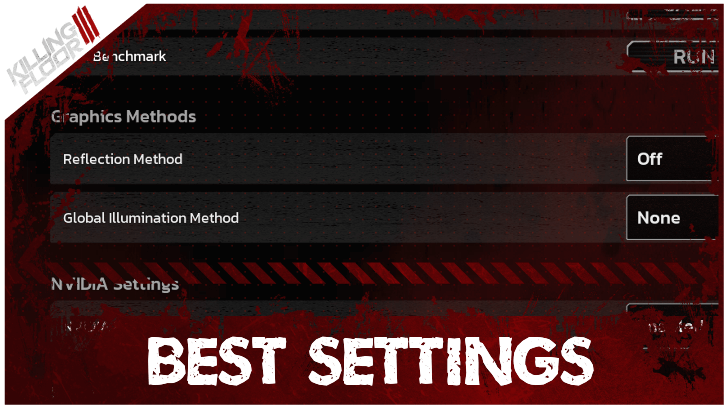
Here are the best and recommended settings to play Killing Floor 3 (KF3) on. See the best graphics, gameplay, and advanced settings, and if you can view damage numbers here!
Best and Recommended Settings for Killing Floor 3
| Jump to a Setting! | ||
|---|---|---|
| Graphics | Gameplay | Advanced |
Optimized Graphics Settings
| Setting | Value |
|---|---|
| View Distance Quality | Low |
| Reflection Quality | Low |
| Post Process Quality | Low |
| Shadow Quality | Low |
| Global Illumination Quality | Low |
| Texture Quality | Low |
| Effects Quality | Low |
| Foliage Quality | Low |
| Shading Quality | Low |
| Bloom | Off |
| Lens Flare | Off |
| Lens Flare Intensity | 0 |
For Killing Floor 3, it is recommended to set the graphics settings to low and prioritize performance over visual quality. As the game can be relatively high paced when playing at higher difficulties, reducing the load for graphics can reduce potential match-ending occurences such as stuttering and crashes.
Optimized Gameplay Settings
| Setting | Value |
|---|---|
| VSync | Off |
| Field of View | 90 |
| FOV Scaling Axis | Off |
| Frame Rate Cap | 60 |
| Motion Blur | Off |
| Depth of Field | Off |
Turn off VSync in gameplay settings to reduce input lag in matches, and remove Motion Blur to prevent potential motion sickness, especially when playing in long sessions. Depth of Field affects object focus and is best turned off as the game is centered around killing hordes of enemies, not one at a time.
Field of View is best set to 90, especially when playing as Sharpshooter or Commando, as a higher FoV will make entities appear smaller, making it harder to hit them in combat.
Ninja players can instead opt for higher FoV to avoid being swarmed by enemies and have better map awareness in battles.
Optimized Advanced Settings
| Setting | Value |
|---|---|
| Reflection Method | Off |
| Global Illumination Method | None |
| NVIDIA Reflex | Enable |
| Supersampling Mode | NVIDIA DLSS |
| Quality Mode | Performance |
It is highly recommended to turn off both Reflection Method or Global Illumination as these tend to add higher load in the CPU, potentially leading to increased lag and frame drops. NVIDIA Reflex is best enabled for less input lag, and weaker CPUs can opt to turn the Boost option on for improved latency.
Players can be flexible in their Supersampling Mode, but enabling NVIDIA DLSS and setting the mode to Performance allows decent performance without sacrificing too much visual quality. Higher end CPUs can set it to Quality instead if the blur from reduced image quality is hindering gameplay experience.
Can You Turn On Damage Numbers?
Damage Numbers Cannot Be Viewed
There is no setting available to display the damage numbers in battle. Players are unable to view the specific amount of damage they deal to enemies during a match.
Killing Floor 3 Related Guides
Guides by Category
 Characters
 Skills
 Weapons
 Weapon Mods
 Bosses
 Enemies
 Crafting Materials
 Damage Types
 Cosmetics
 Maps
Maps Tools
Tools Assignments
 Supply Pass
 Bugs and Issues
 Tips and Tricks
 Items
Items Affliction
 Bonus Abilities
 Latest News
All Recommended Guides
 Best Perk Builds
 Best Specialists Tier List
 Best Weapons
 Best Tools
 Best XP Farm Guide
 Best Team Comp
 Best Skills
 Best Bonus Abilities
 Best Ammo and Weapon Mods
 How Long to Beat
 How to Get Creds Pack
 Multiplayer Guide
 Trophy Guide
 Weekly Mutation
 Difficulty Differences
 Easter Eggs and Secrets
 Weapon Stats Explained
 How to Enable Crossplay
 All Game Modes
 Hell on Earth Guide
 List of All Destructibles
 List of All Voice Actors
 How to Join the Playtest
 Lore and Story Explained
 Roadmap and Schedule
 Season 2 Release Date
 Patch Notes and Updates
 Server Status
 Maintenance Countdown
 Co-Op Message Board
Comment



Author

Best Settings and Best Graphics Settings

Rankings
- We could not find the message board you were looking for.
Gaming News

![Star Savior Review [First Impressions] | Engaging, Entertaining, and Expensive](https://img.game8.co/4447603/8f500e9bf666bdb8adb1af478e9dfdbd.png/show)



Popular Games

Genshin Impact Walkthrough & Guides Wiki
Umamusume: Pretty Derby Walkthrough & Guides Wiki
Crimson Desert Walkthrough & Guides Wiki
Monster Hunter Stories 3: Twisted Reflection Walkthrough & Guides Wiki
Honkai: Star Rail Walkthrough & Guides Wiki
Pokemon Pokopia Walkthrough & Guides Wiki
The Seven Deadly Sins: Origin Walkthrough & Guides Wiki
Wuthering Waves Walkthrough & Guides Wiki
Zenless Zone Zero Walkthrough & Guides Wiki
Arknights: Endfield Walkthrough & Guides Wiki










Recommended Games
Fire Emblem Heroes (FEH) Walkthrough & Guides Wiki
Diablo 4: Vessel of Hatred Walkthrough & Guides Wiki
Cyberpunk 2077: Ultimate Edition Walkthrough & Guides Wiki
Yu-Gi-Oh! Master Duel Walkthrough & Guides Wiki
Super Smash Bros. Ultimate Walkthrough & Guides Wiki
Pokemon Brilliant Diamond and Shining Pearl (BDSP) Walkthrough & Guides Wiki
Elden Ring Shadow of the Erdtree Walkthrough & Guides Wiki
Monster Hunter World Walkthrough & Guides Wiki
The Legend of Zelda: Tears of the Kingdom Walkthrough & Guides Wiki
Persona 3 Reload Walkthrough & Guides Wiki










All rights reserved
Killing Floor© 2009-2025 Tripwire Interactive. Unreal® is a trademark or registered trademark of Epic Games, Inc. in the United States of America and elsewhere. Unreal® Engine, Copyright 1998-2025, Epic Games, Inc. All rights reserved.
The copyrights of videos of games used in our content and other intellectual property rights belong to the provider of the game.
The contents we provide on this site were created personally by members of the Game8 editorial department.
We refuse the right to reuse or repost content taken without our permission such as data or images to other sites.