
How to Change Camera Mode
The Game8 Black Beacon Team has ended coverage as of May 21, 2025. Information on certain pages may not be up-to-date. Thank you for your continued support!
Changing your Camera Mode in Black Beacon enhances accessibility and improves map navigation. Learn more about how to change Camera Mode in-game and why it's useful to do so in this guide.
List of Contents
How to Change Camera Mode
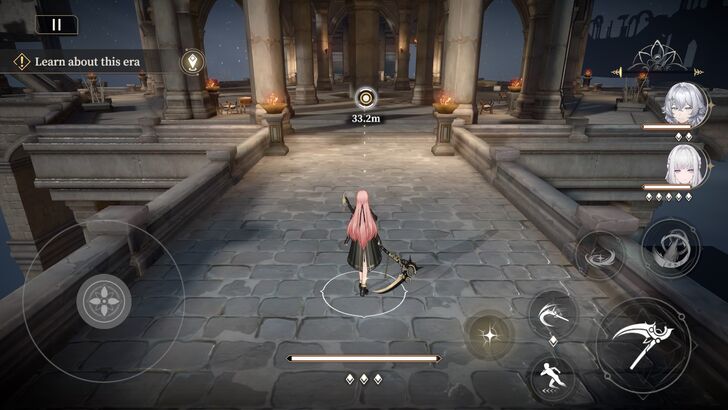
In Black Beacon, players have the option to switch camera modes between Top-Down View and Free View. Changing camera modes makes the game more accessible to players and offers ways to better solve puzzles or battle enemy mobs. For example, the top-down view works best when fighting mobs, as it provides a better view of multiple enemies on the map.
Change Camera Mode from the Settings Option
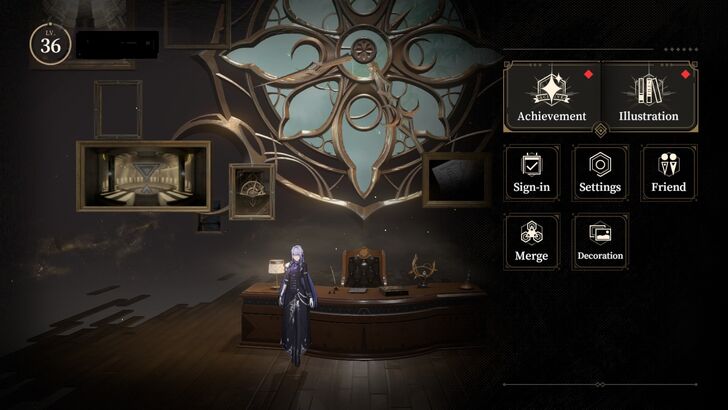
Changing the view from the Settings menu allows you to set the default camera perspective whenever you take the mission. However, some missions in Story Mode will automatically lock you into a particular view for narrative and gameplay purposes, such as solving puzzles or playing cutscenes. Here are the steps for switching views in the Settings menu:
| 1 | 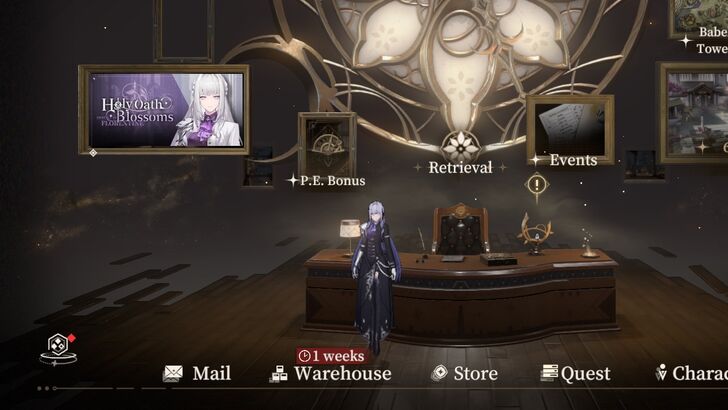 First, locate the small hexagonal icon at the bottom left of the home screen and press it. |
|---|---|
| 2 | 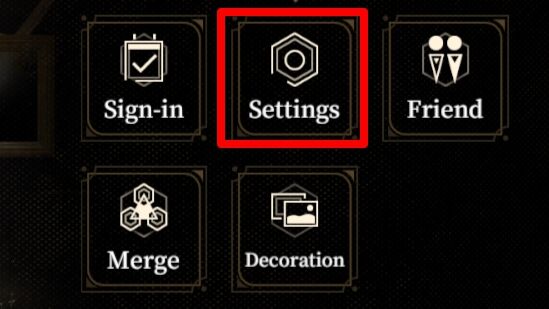 From there, look for another hexagonal icon labeled Settings and select it. This will take you to a list of options where you can adjust the game's audio, graphics, and other settings. |
| 3 | 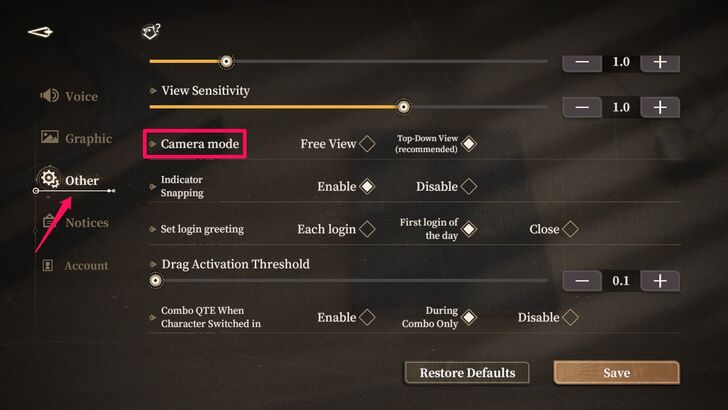 Select the two gear icons called Other and swipe up until you see Camera Mode. |
| 4 | 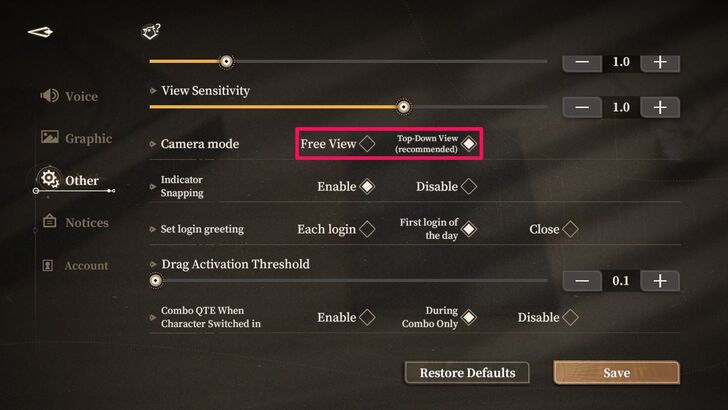 You will be presented with two options: Free View and Top-Down View. |
| 5 | 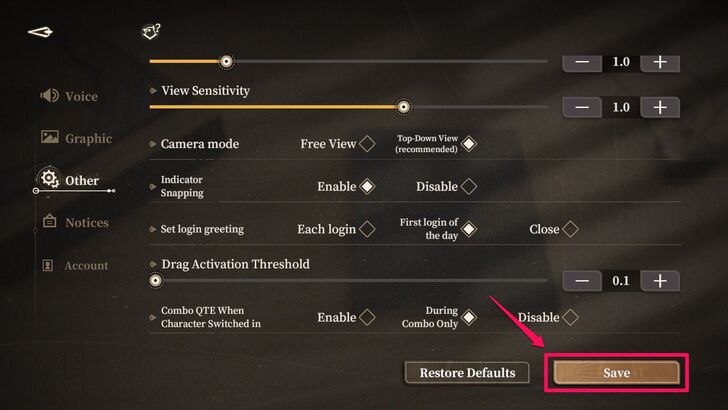 Select your preferred Camera Mode and press Save, located at the bottom right of the screen. This ensures that your selected camera perspective remains active during missions, except in specific scenarios like cutscenes and puzzles. |
Change Camera Mode During a Mission
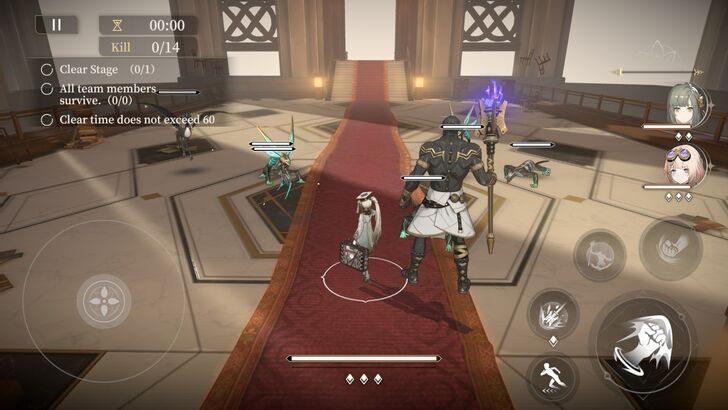
Though you can set the default view in the Settings menu, you can still switch camera perspectives during a mission, which is particularly helpful when solving puzzles or looking for objects of interest.
Keep in mind that if you switch perspectives during a mission, the view setting will not be saved for future missions. Additionally, you cannot switch views when in "Focus Mode" or during combat. Here are the steps to switch views while on a mission:
| 1 | 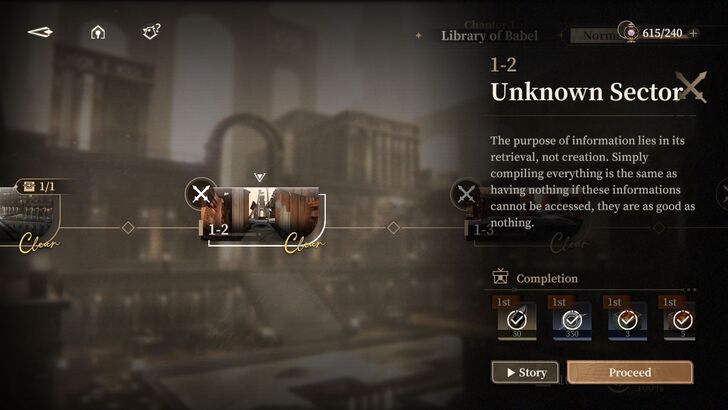 The first thing to do is to initiate a mission from Story Mode. |
|---|---|
| 2 | 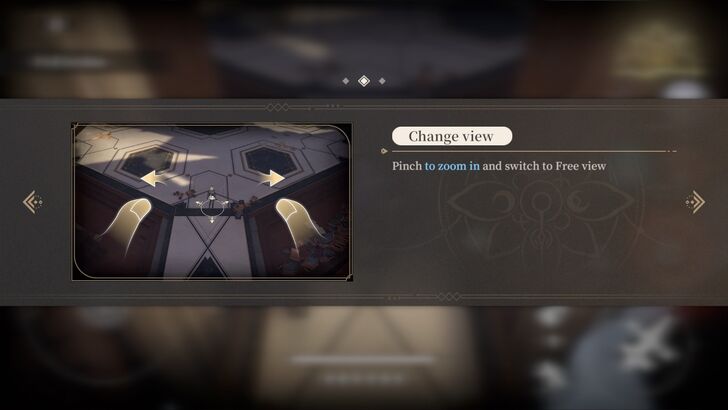 If you did not change the Camera Mode in the Settings menu, your default view is top-down view. You can change it by placing your thumbs in the middle of the screen and swiping them to opposite sides. Wait for the screen to flash a Free Perspective prompt, indicating that you have successfully switched to Free View |
| 3 | 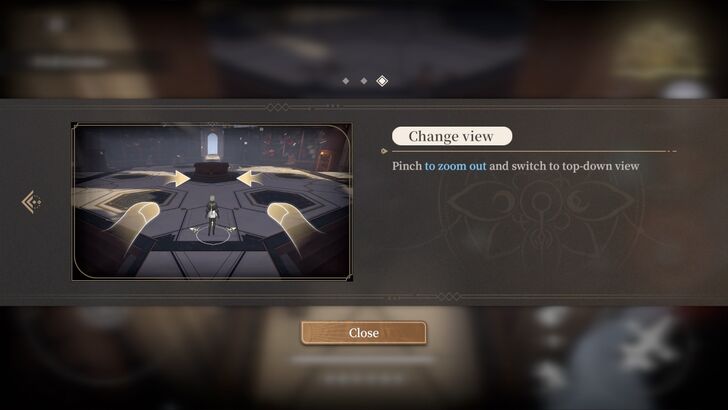 If you want to switch back to the default camera perspective, place your thumbs on opposite sides of the screen and swipe them toward the middle. Wait for the screen to flash a Top-Down Perspective prompt to confirm that you have successfully switched views. |
| 4 | 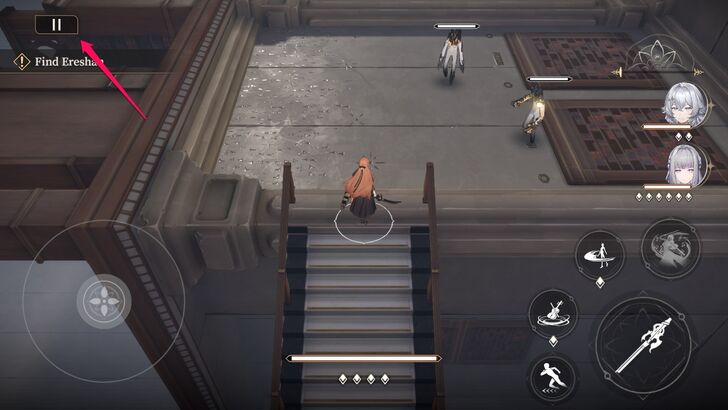 Alternatively, you can also Pause the game. |
| 5 | 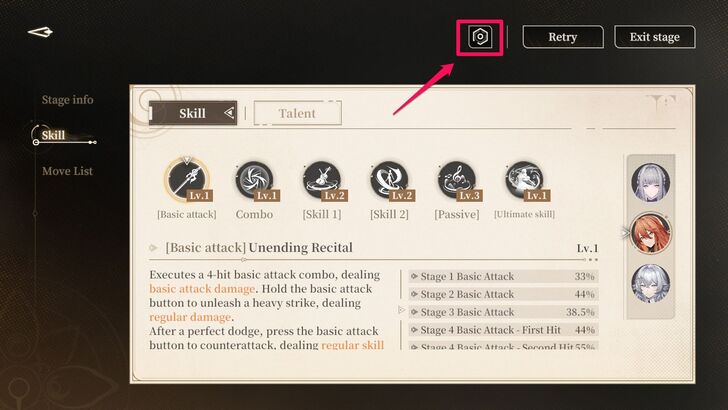 Look for the Settings icon, and change your character's Camera Mode, following the second step of the previous section. |
Camera Modes in Black Beacon
Free Look
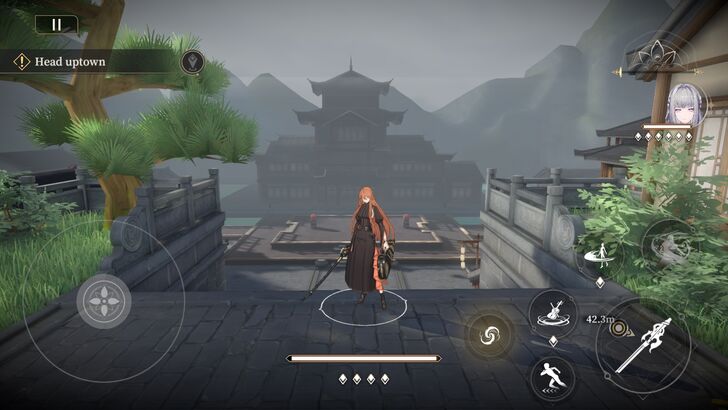
Free Look mode sets your camera perspective to third-person view, allowing you to view the characters, objects, and enemies in more detail. This is particularly helpful when you need to solve some puzzles in the Story mode.
Top-Down
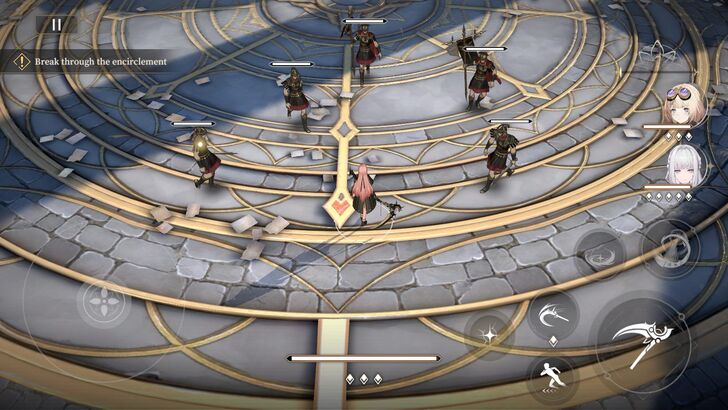
Top-Down view switches your Camera Mode to isometric view, where it provides a wider view of the map. This is designed to help players navigate the environment and track multiple enemy movements.
What’s the Best Camera Mode to Play Black Beacon In?
Top-Down is the Best Camera Mode
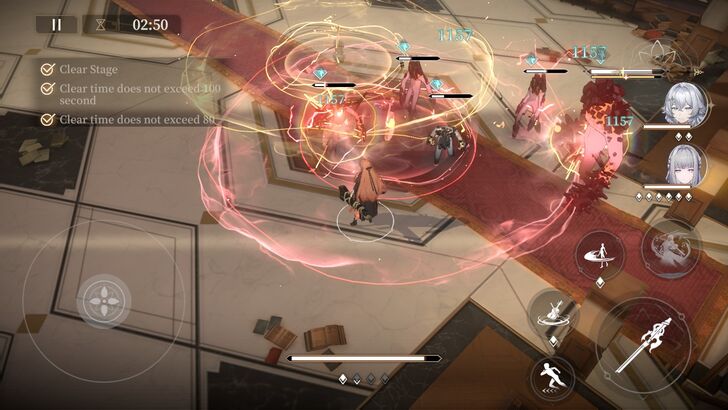
The best Camera Mode when playing Black Beacon is the Top-Down View, as it allows you to monitor enemy movements, especially when facing multiple opponents. Additionally, it enables precise aiming for certain skills, such as Viola's Deep Tonal Range or Asti's Spinning Umbrella, which can be more difficult to execute in Free Look mode. Thus, the Top-Down View is the better choice during combat, as it helps you track multiple enemies and aim skills more accurately.
Why Change Camera Modes?
To Get Better In-Game Visibility
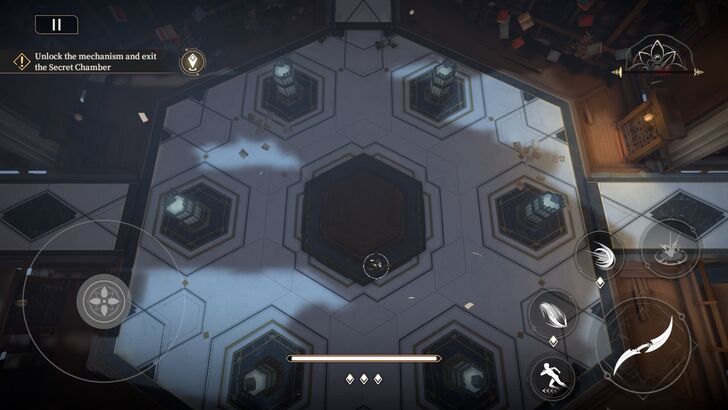
Switching to different views provides better visibility of the game environment. For example, in missions with puzzles that require you to find specific objects on the map, the best way to solve them is to switch to Free Perspective. This switches the camera to a third-person view and allows you to move it around, giving you a more detailed perspective of the map and the objects within it. Meanwhile, the top-down view helps with navigation, especially on maps with multiple paths.
Though some scenarios in Story Mode automatically lock your view, other chapters and game modes, such as EX and Resources, allow you to freely switch views.
To Make the Game More Comfortable to Play
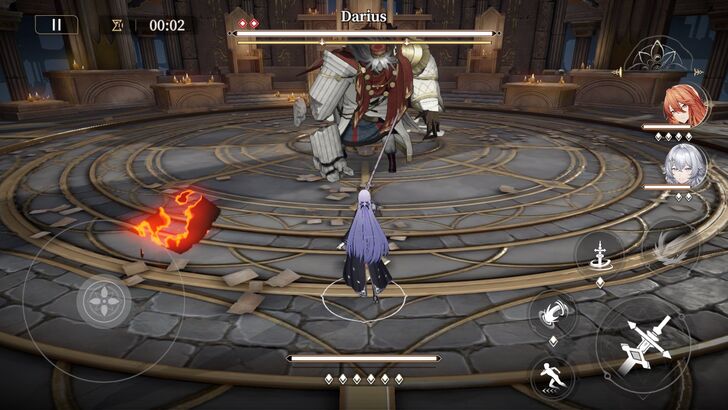
Switching between different views helps players choose the best way to play the game, providing accessibility and enhancing comfort. For instance, some players prefer a third-person view during combat for a more immersive experience. Meanwhile, others may experience motion sickness depending on the camera's perspective. Thus, allowing players to switch views gives them greater control over their gameplay experience based on their preferences.
Black Beacon Related Guides
All Tips and Tricks Guides
 Beginner's Guide: Tips and Tricks for New Players
Comment



Author

How to Change Camera Mode
Rankings
- We could not find the message board you were looking for.
Gaming News

![Monster Hunter Stories 3 Review [First Impressions] | Simply Rejuvenating](https://img.game8.co/4438641/2a31b7702bd70e78ec8efd24661dacda.jpeg/thumb)
Popular Games

Genshin Impact Walkthrough & Guides Wiki
Honkai: Star Rail Walkthrough & Guides Wiki
Umamusume: Pretty Derby Walkthrough & Guides Wiki
Pokemon Pokopia Walkthrough & Guides Wiki
Resident Evil Requiem (RE9) Walkthrough & Guides Wiki
Monster Hunter Wilds Walkthrough & Guides Wiki
Wuthering Waves Walkthrough & Guides Wiki
Arknights: Endfield Walkthrough & Guides Wiki
Pokemon FireRed and LeafGreen (FRLG) Walkthrough & Guides Wiki
Pokemon TCG Pocket (PTCGP) Strategies & Guides Wiki








Recommended Games
Diablo 4: Vessel of Hatred Walkthrough & Guides Wiki
Cyberpunk 2077: Ultimate Edition Walkthrough & Guides Wiki
Fire Emblem Heroes (FEH) Walkthrough & Guides Wiki
Yu-Gi-Oh! Master Duel Walkthrough & Guides Wiki
Super Smash Bros. Ultimate Walkthrough & Guides Wiki
Pokemon Brilliant Diamond and Shining Pearl (BDSP) Walkthrough & Guides Wiki
Elden Ring Shadow of the Erdtree Walkthrough & Guides Wiki
Monster Hunter World Walkthrough & Guides Wiki
The Legend of Zelda: Tears of the Kingdom Walkthrough & Guides Wiki
Persona 3 Reload Walkthrough & Guides Wiki










All rights reserved
Game Copyright©Glohow Holdings Pte. Ltd. & MINGZHOU Technology Co., Ltd. All Rights Reserved
The content we provide on this site were created personally by members of the Game8 editorial department.
We refuse the right to reuse or repost content taken without our permission such as data or images to other sites.
©Glohow Holdings Pte. Ltd. & MINGZHOU Technology Co., Ltd (Provider)