
Friends Guide: How Do I Add Friends?
The Game8 Black Beacon Team has ended coverage as of May 21, 2025. Information on certain pages may not be up-to-date. Thank you for your continued support!
Having Friends in Black Beacon can be a useful way of getting Mutual Aid Points. Learn how to make friends in-game in our guide.
List of Contents
How to Unlock Friends Menu
Clear Main Story Stage 1-9 First
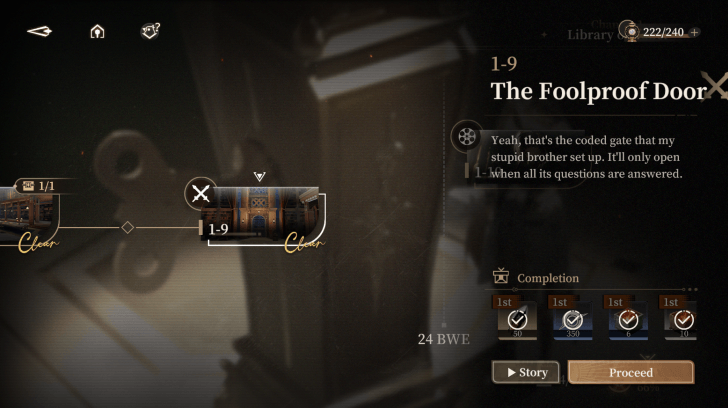
First and foremost, the Friends menu is only accessible when you have cleared Stage 1-9 in the Main Story.
Once you have cleared this stage, this menu can now be accessed and will not be locked.
How Do I Add Friends?
Send a Friend Request from the Friends Menu
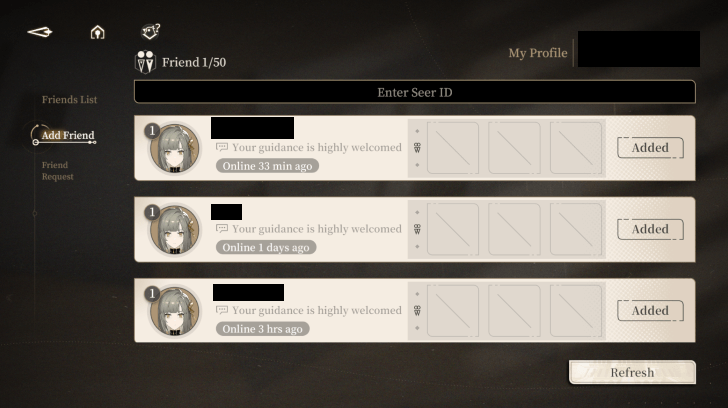
After clearing Stage 1-9 in the Main Story, the Friends Menu should be unlocked. This will now allow you to send and accept friend requests to other players.
| 1 | 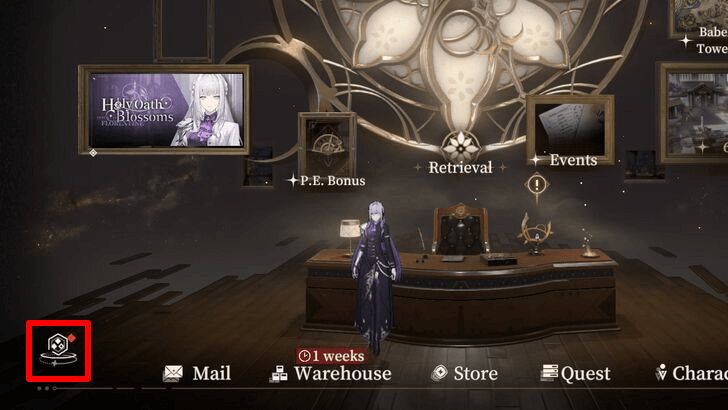 First, locate the small hexagonal icon at the bottom left of the Home Screen and press it. |
|---|---|
| 2 | 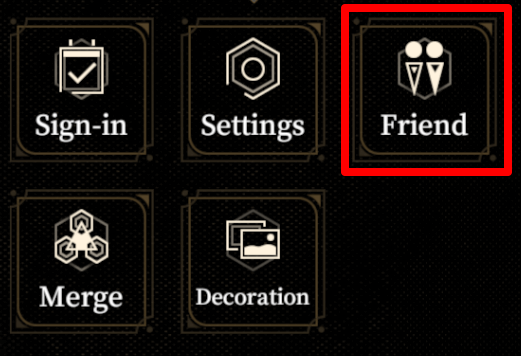 From there, look for the option labeled Friend and select it. This will open the Friends List and will display all of the users that have either accepted your friend request or you have accepted theirs. |
| 3 | 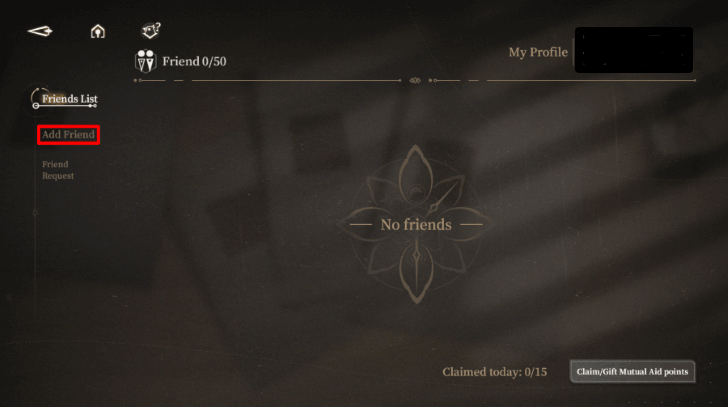 Here, click on the Add Friend option. This will display random users that you can send friend requests to, as well as a search bar to search bar to search a specific player's Seer ID. |
| 4 | 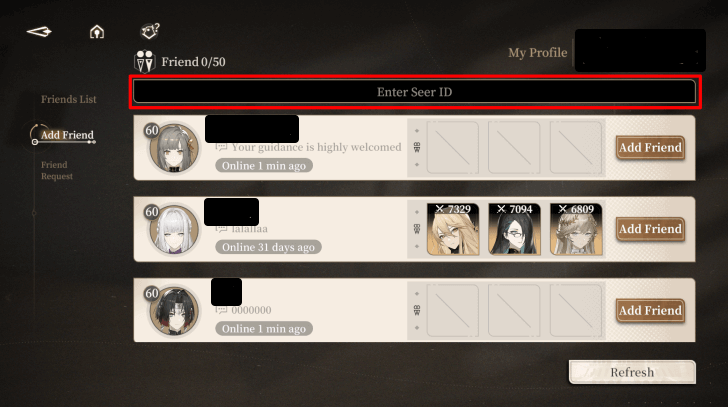 Search the Seer ID of the player that you want to send a friend request to. |
| 5 | 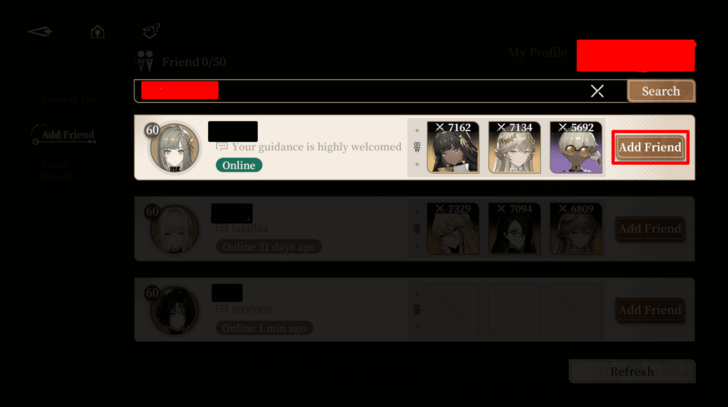 After searching for a player's specific Seer ID, this will display their player card detailing their avatar, comment, and their supporting members. Click on the Add Friend button to send a friend request. |
| 6 | 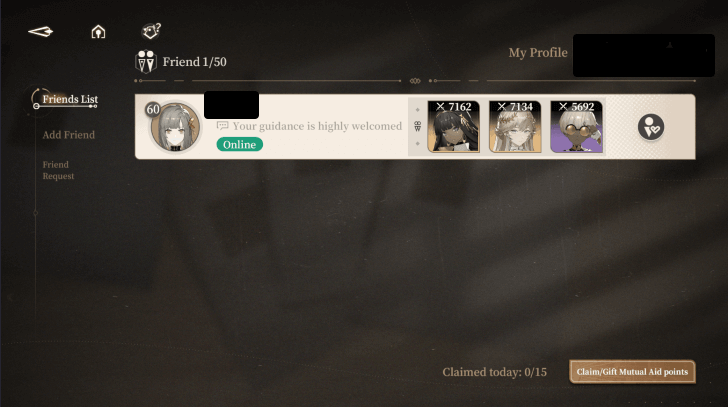 When your friend request is accepted, their player card will now be displayed in the Friends List menu. |
How to Accept Friend Requests from the Friends Menu
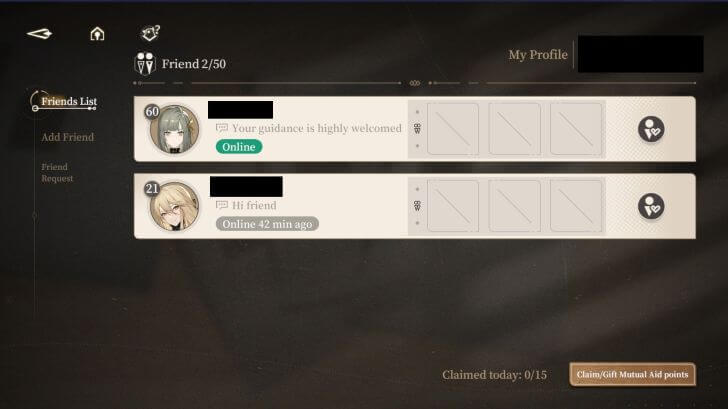
Similarly, the way to accept another player's friend request is also accessible in the Friends Menu.
| 1 | First, locate the small hexagonal icon at the bottom left of the home screen and press it. |
|---|---|
| 2 | From there, look for the option labeled Friend and select it. This will open the Friends List and will display all of the users that have either accepted your friend request or you have accepted theirs. |
| 3 | 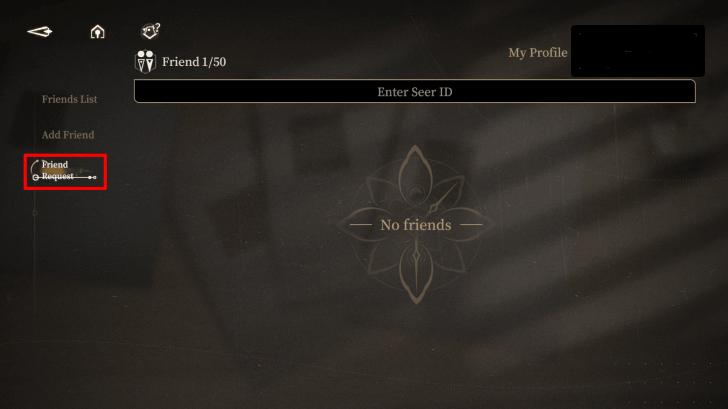 Here, click on the Friend Request option. This will display all friend requests received from other players. |
| 4 | 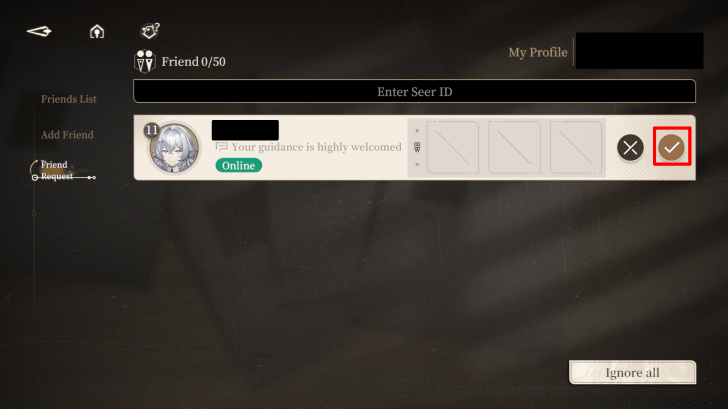 Click on the Add Friend button to accept another player's friend request. |
| 5 | 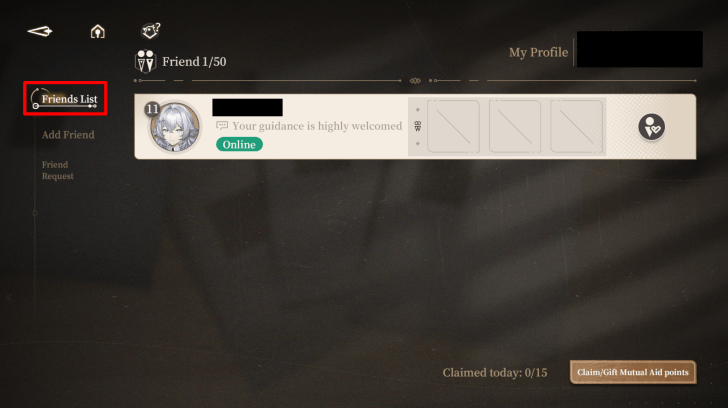 When their friend request is accepted, their player card will now be displayed in the Friends List menu. |
Why Should I Add Friends in Black Beacon?
Gain Additional Mutual Aid Points
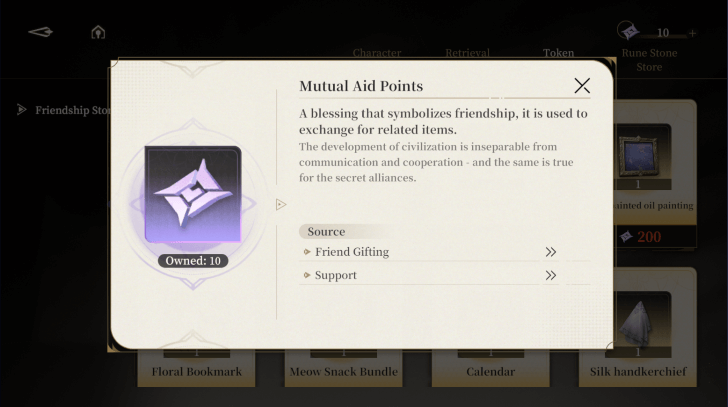
Adding other players is vital for your progression since it's one of the ways to earn Mutual Aid Points. Aside from claiming and sending Mutual Aid Points every day, you also earn more Mutual Aid Points from your support units if they are used by your friends.
These points are used to purchase various gifts in the Store which are then used to raise a character's Affection Level.
Black Beacon Related Guides

All Tips and Tricks Guides
 Beginner's Guide: Tips and Tricks for New Players
Comment



Author

Friends Guide: How Do I Add Friends?
Rankings
Gaming News



![Monster Hunter Stories 3 Review [First Impressions] | Simply Rejuvenating](https://img.game8.co/4438641/2a31b7702bd70e78ec8efd24661dacda.jpeg/thumb)
Popular Games

Genshin Impact Walkthrough & Guides Wiki
Honkai: Star Rail Walkthrough & Guides Wiki
Umamusume: Pretty Derby Walkthrough & Guides Wiki
Pokemon Pokopia Walkthrough & Guides Wiki
Resident Evil Requiem (RE9) Walkthrough & Guides Wiki
Monster Hunter Wilds Walkthrough & Guides Wiki
Wuthering Waves Walkthrough & Guides Wiki
Arknights: Endfield Walkthrough & Guides Wiki
Pokemon FireRed and LeafGreen (FRLG) Walkthrough & Guides Wiki
Pokemon TCG Pocket (PTCGP) Strategies & Guides Wiki








Recommended Games
Diablo 4: Vessel of Hatred Walkthrough & Guides Wiki
Cyberpunk 2077: Ultimate Edition Walkthrough & Guides Wiki
Fire Emblem Heroes (FEH) Walkthrough & Guides Wiki
Yu-Gi-Oh! Master Duel Walkthrough & Guides Wiki
Super Smash Bros. Ultimate Walkthrough & Guides Wiki
Pokemon Brilliant Diamond and Shining Pearl (BDSP) Walkthrough & Guides Wiki
Elden Ring Shadow of the Erdtree Walkthrough & Guides Wiki
Monster Hunter World Walkthrough & Guides Wiki
The Legend of Zelda: Tears of the Kingdom Walkthrough & Guides Wiki
Persona 3 Reload Walkthrough & Guides Wiki










All rights reserved
Game Copyright©Glohow Holdings Pte. Ltd. & MINGZHOU Technology Co., Ltd. All Rights Reserved
The content we provide on this site were created personally by members of the Game8 editorial department.
We refuse the right to reuse or repost content taken without our permission such as data or images to other sites.
©Glohow Holdings Pte. Ltd. & MINGZHOU Technology Co., Ltd (Provider)