




This survey will take about 1 minute.
Your answers will help us to improve our website.
Hytale
Failed to Connect to Server Error Fix
★ Best Weapons Tier List
☆ Best and Recommended Settings
★ Spawn Items Using Item IDs!
☆ Multiplayer Guide
★ Best Fuel for Furnace
☆ All Ore Locations
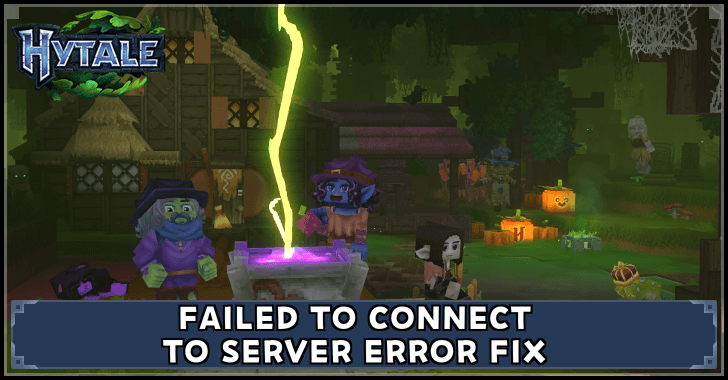
Configure your Network Connection to fix the Failed to Connect to Server Error in Hytale. Find out how to fix the Failed to Connect to Server Error in this guide!
List of Contents
Failed to Connect to Server Error Fix
Below are steps provided by the Hytale Support website on how to fix the Failed to Connect to Server error:
| Fix Server Error Steps |
|---|
|
① Open Network Connection Properties ② Apply Each Solution |
Open Network Connection Properties
| 1 | 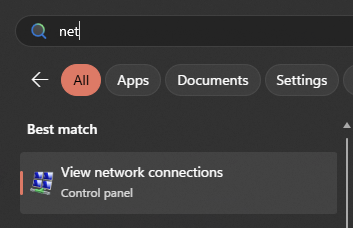 To start, open the Start Menu, type “View network connections”, and select the Control Panel link below. |
|---|---|
| 2 | 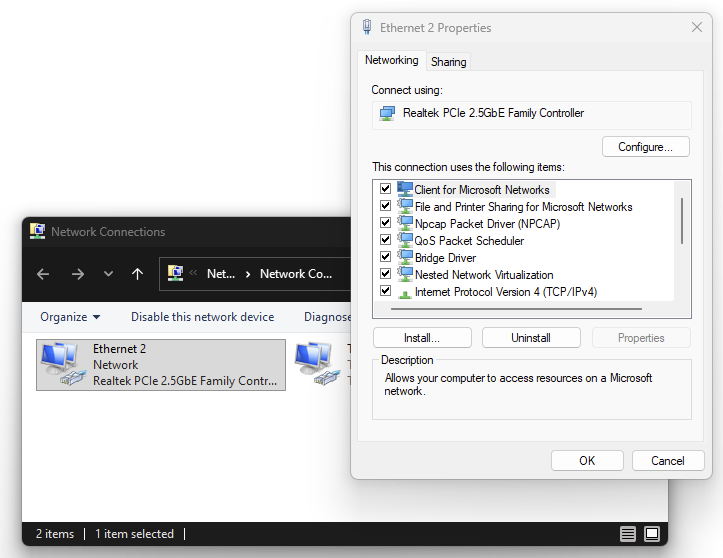 Find your the network connection responsible for your internet connection, press Right Click on it and select Properties, then Configure. |
Apply Each Solution
Once you have the Network Connection Properties window open, perform each solution listed below one at a time and verify if that fixes your problem. You may not need to make all changes described here:
Solution 1
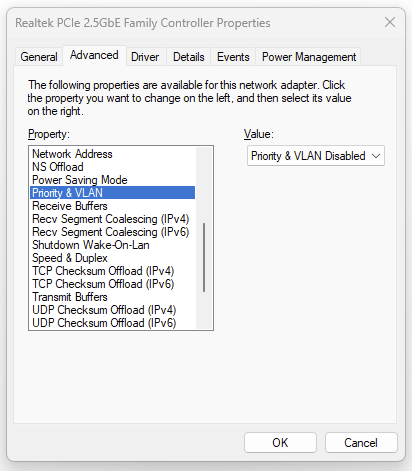
- Select “Priority & VLAN” and select “Priority & VLAN Disabled”
- Click “Ok” and wait for your internet connection to be restored
- Attempt to connect to the server again
Solution 2
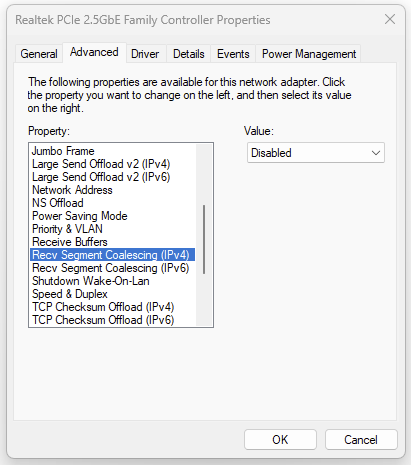
- Select “Recv. Segment Coalescing (IPv4)” and select “Disabled”
- Select “Recv. Segment Coalescing (IPv6)” and select “Disabled”
- Click “Ok” and wait for your internet connection to be restored
- Attempt to connect to the server again
Solution 3
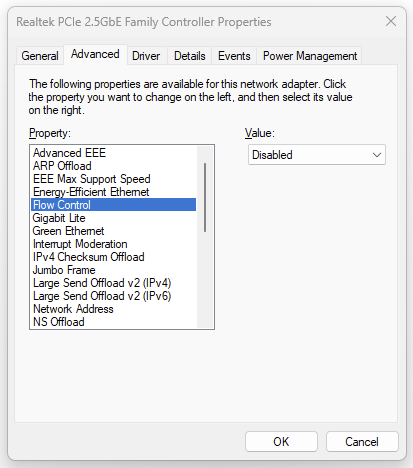
- Select “Advanced EEE” and select “Disabled”
- Select “ARP Offload” and select “Disabled”
- Select “Energy-Efficient Ethernet” and select “Disabled”
- Select “Flow Control” and select “Disabled”
- Select “Green Ethernet” and select “Disabled”
- Click “Ok” and wait for your internet connection to be restored
- Attempt to connect to the server again
Solution 4
If the above solutions have not worked, you will have to change more values in the Network Connection Properties. This is quite an invasive change and may be difficult to reverse, so proceed carefully!
Listed below are the 31 values that you need to change:
- Advanced EEE - Disabled
- ARP Offload - Disabled
- EEE Max Support Speed - 1.0 Gbps Full Duplex
- Energy-Efficient Ethemet - Disabled
- Flow Control - Disabled
- Gigabit Lite - Disabled
- Green Ethemet - Disabled
- Interrupt Moderation - Disabled
- IPv4 Checksum Offload - Rx & Tx Enabled
- Jumbo Frame - Disabled
- Large Send Offload v2 (IPv4) - Disabled
- Large Send Offload v2 (IPv6) - Disabled
- Maximum Number of RSS Queues - 4 Queues
- Network Address - Not Present
- NS Offload - Disabled
- Power Saving Mode - Disabled
- Priority & VLAN - Disabled
- Receive Buffers - 512
- Receive Side Scaling - Enabled
- Shutdown Wake-On-Lan - Disabled
- Speed & Duplex - Auto
- TCP Checksum Offload (IPv4) - Disabled
- TCP Checksum Offload (IPv6) - Disabled
- Transmit Buffers - 1024 (/2048)
- UDP Checksum Offload (IPv4) - Disabled
- UDP Checksum Offload (IPv6) - Disabled
- VLAN ID - 0
- Wake on Magic Packet - Disabled
- Wake on magic packet when system is in the S0ix power state - Disabled
- Wake on pattern match - Disabled
- WOL & Shutdown Link Speed - Not Speed Down
When you're done, click “Ok” and wait for your internet connection to be restored, and attempt to connect to the server again.
Failed to Connect to Server Error Information
World Not Loading on Server
If you are having issues with your network connection, a Failed to Connect to Server Error may appear when loading into your world in Hytale.
You can confirm whether this is an isolated issue by checking if your internet works just fine using other websites, such as being able to watch videos on YouTube.
All Bugs, Crashing Issues, and Known Errors
Hytale Related Guides
Latest News
Patch Notes and Updates
| Patch Notes and Updates | |
|---|---|
| Update 1 Patch Notes | Update 2 Features & Release Date |
FAQs and Game Info
| Frequently Asked Questions | |
|---|---|
| Is There Controller Support? | Hytale Price: Is Hytale Free? |
| Failed to Connect to Server Error Fix | Is Hytale on PS5? |
| Is Hytale on Xbox? | Is Hytale on Steam? |
| Can You Gift Hytale? | When is Hytale's Full Version? |
| General Game Info | |
| Hytale Server Status | How to Make and Host a Server |
Comment
Author

Failed to Connect to Server Error Fix

Please participate in our site
improvement survey
03/2026
improvement survey
03/2026
Would you assist in
improving Game8's site?
improving Game8's site?

×
We are listening to our users' valuable opinions and discussing how to act on them.
The information collected through this survey will be used for the purpose of improving our services. In addition, the information will only be disclosed a part of a statistic in a format that will not allow identification of personal information.
Begin Survey
Not Now
×
Please rate each item regarding Game8.co's Advertisements.
Amount of Ads
Very Dissatisfied
Somewhat Dissatisfied
Fine
Somewhat Satisfied
Highly Satisfied
Placement of Ads
Timing of Ad Display
Ad Loading Speed
Safeness of Ads
Content of Ads
×
Please rate each item regarding Game8.co's Quality of Articles.
Amount of information
Very Dissatisfied
Somewhat Dissatisfied
Fine
Somewhat Satisfied
Highly Satisfied
Frequency of updates
Speed of new information
Accuracy of articles
Understandibility of articles
Readability of sentences
×
Please rate each item regarding Game8.co's Usability of the Site.
Ease of finding information
Very Dissatisfied
Somewhat Dissatisfied
Fine
Somewhat Satisfied
Highly Satisfied
Loading Speed
Use of Color
Font Size
Visibility of Images
Easy to Understand Layout
×
Please rate each item regarding Game8.co's Message Boards, Comments.
Ease of Writing
Very Dissatisfied
Somewhat Dissatisfied
Fine
Somewhat Satisfied
Highly Satisfied
Readability
Ease in Finding Information
Comment Quality
Comment Quantity
Admin Response
×
Please rate each item regarding Game8.co's Site's new design.
Please rate our site's new design
Very Dissatisfied
Somewhat Dissatisfied
Fine
Somewhat Satisfied
Highly Satisfied
Do you think that the website's design change makes the site easier to use?
Has the new design made it easier for you to find information on the site?
Has the new design improved the overall visual appeal of the site?
How would you rate your overall satisfaction with the new design of the site?
×
How likely are you to recommend Game8 to someone you know?
Very Unlikely
0
1
2
3
4
5
6
7
8
9
10
Very Likely
If you have other opinions regarding potential improvement to the website, please share them with us. We would appreciate your honest opinion.
Note: This is a free response section, so you can proceed without entering anything.
Note: Please be sure not to enter any kind of personal information into your response.
Note: Please be sure not to enter any kind of personal information into your response.
×
Thank You
×
Thank you for participating in our survey! Your answers will help us to improve the quality of our website and services.
We hope you continue to make use of Game8.
We hope you continue to make use of Game8.
Close
Rankings
- We could not find the message board you were looking for.
Gaming News




Popular Games

Genshin Impact Walkthrough & Guides Wiki
Honkai: Star Rail Walkthrough & Guides Wiki
Umamusume: Pretty Derby Walkthrough & Guides Wiki
Pokemon Pokopia Walkthrough & Guides Wiki
Resident Evil Requiem (RE9) Walkthrough & Guides Wiki
Monster Hunter Wilds Walkthrough & Guides Wiki
Wuthering Waves Walkthrough & Guides Wiki
Arknights: Endfield Walkthrough & Guides Wiki
Pokemon FireRed and LeafGreen (FRLG) Walkthrough & Guides Wiki
Pokemon TCG Pocket (PTCGP) Strategies & Guides Wiki







Recommended Games
Diablo 4: Vessel of Hatred Walkthrough & Guides Wiki
Fire Emblem Heroes (FEH) Walkthrough & Guides Wiki
Yu-Gi-Oh! Master Duel Walkthrough & Guides Wiki
Super Smash Bros. Ultimate Walkthrough & Guides Wiki
Pokemon Brilliant Diamond and Shining Pearl (BDSP) Walkthrough & Guides Wiki
Elden Ring Shadow of the Erdtree Walkthrough & Guides Wiki
Monster Hunter World Walkthrough & Guides Wiki
The Legend of Zelda: Tears of the Kingdom Walkthrough & Guides Wiki
Persona 3 Reload Walkthrough & Guides Wiki
Cyberpunk 2077: Ultimate Edition Walkthrough & Guides Wiki










All rights reserved
©2026 HYPIXEL STUDIOS CANADA INC. ALL RIGHTS RESERVED.
The copyrights of videos of games used in our content and other intellectual property rights belong to the provider of the game.
The contents we provide on this site were created personally by members of the Game8 editorial department.
We refuse the right to reuse or repost content taken without our permission such as data or images to other sites.