
Best and Recommended Settings
★ Best Weapons Tier List
☆ Best and Recommended Settings
★ Spawn Items Using Item IDs!
☆ Multiplayer Guide
★ Best Fuel for Furnace
☆ All Ore Locations
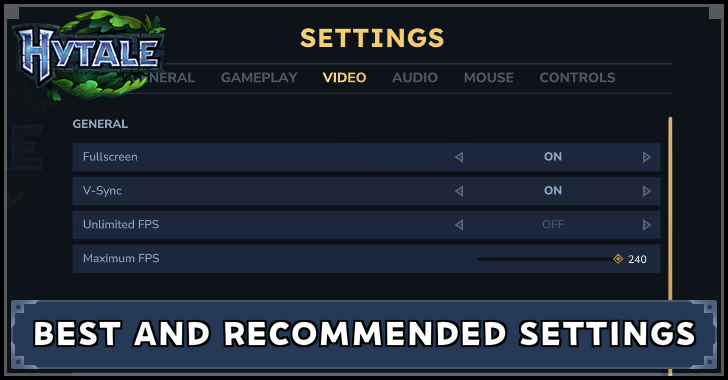
Here are the best and recommended settings to play Hytale. See the best video, controls, and audio settings, as well as the most optimal interface and gameplay settings, here!
List of Contents
Best and Recommended Settings for Hytale
| Jump to a Setting! | ||
|---|---|---|
| Video | Controls | Mouse |
| Audio | Gameplay | General |
Best Video Settings
| General | |
|---|---|
| V-Sync | Personal Preference Turning it on will prevent screen tearing, while turning it off can provide additional frames. |
| Unlimited FPS | Off Always set a cap for your FPS, ideally equal to or below your monitor's refresh rate. |
| Maximum FPS: | Set Relative to Display Set to your monitor's refresh rate for best results. |
| Rendering | |
| View Distance | 384 (default) Allows you to see far without affecting your performance. |
| Render Scale | 100 (default) Keep at 100 to prevent game from looking blurry. |
| Advanced Rendering | |
| World Detail | Medium Provides a good balance between performance and quality. |
| Anti-Aliasing | Off Disabling this reduces image quality, specifically around the edges of geometry. |
| Shadow Quality | Low Disabling lowers the quality of shadows. |
| Particle Quality | Medium Reduces particle effects. |
| Shading Quality | Low Reduces quality of lighting and shading effects. |
| Bloom | Off Disables bloom effects around intense sources of light. |
| Sun Shafts | Off Disables sun rays shining through leaves. |
| Foliage Fading | On Makes distant foliage fade. |
| Depth Buffer Precision | High Reduces object flickering from a distance. |
Performance Options Explained
The performance options listed above provide a good balance between performance and quality, making the game run smoothly while still making it look good. As every computer is different, experiment with the settings to fine-tune it to your taste.
Best Controls
Default Keyboard Binds Are Good
The default keyboard binds for this game are already good, and are very similar to the control schemes of similar games. As such, leaving the controls untouched is your best option.
Best Mouse Settings
| Invert Mouse | User Preference Turn on or off based on your personal preference. |
|---|---|
| Up/Down and Left/Right Speed | User Preference Controls your mouse sensitivity. Adjust based on personal preference. |
| Invert Mouse Wheel Scroll Direction | User Preference Primarily affects hotbar scrolling. Turning it on makes you go right to left on the hotbar when scrolling down. |
Best Audio Settings
| Output Device | User Preference Adjust based on what output device you are using while playing the game. |
|---|---|
| Output Mode | Default Selecting default automatically adjusts your output mode based on what's best for your output device. Alternatively, choose stereo so that the sound output is directional. |
| Master Volume | User Preference |
| Music Volume | 100% |
| Ambience Volume | 100% |
| UI Volume | 100% |
| SFX Volume | 100% |
Best Gameplay Settings
| General | |
|---|---|
| Camera-Relative Flight | User Preference Turning it On will make you fly where the camera is facing, while turning it Off allows you to move your camera around without affecting flight direction. |
| Camera-Relative Climbing | User Preference Turning this on and pressing Forward (W by default) will make you go up or down ladders based on your camera. Turning it off and pressing Forward will always make you go up, regardless of where the camera is facing. |
| Auto Step-Up | User Preference Turning it on allows you to automatically walk up one-block high steps without the need to jump. |
| Enable Utility Quick Swap | On Allows you to Quick Swap between items in your off-hand, while still allowing you to long-press for the Utility wheel. |
| Accessibility | |
| Ennable Arachnophobia Mode | User Preference Turn this on if you have Arachnophobia |
| Preferred Pickup Locations | |
| Armor Items | Inventory Stores Armor Items in your inventory instead of your hotbar (as long as there's space). |
| Weapon and Tool Items | Hotbar Stores Weapons and Tools in your hotbar instead of your inventory (as long as there's space). |
| Usable Items | Hotbar Stores Usable Items in your hotbar instead of your inventory (as long as there's space). |
| Solid Block Items | Hotbar Stores Solid Blocks in your hotbar instead of your inventory (as long as there's space). |
| Miscellaneous Items | Inventory Stores Miscellaneous Items in your inventory instead of your hotbar (as long as there's space). |
| Camera | |
| Camera Preference (On Spawn) | User Preference Sets your camera mode when spawning. |
| Sprint FOV Effect | On Increases your FOV when sprinting. Serves as an indicator that you are sprinting. |
| Sprint FOV Intensity | User Preference Adjust how much or how little your FOV changes when sprinting |
| View Bobbing Effect | User Preference Turning this off can help reduce motion sickness. |
| View Bobbing Intensity | User Preference Adjust how much or how little your view moves up and down while moving. |
| Camera Shake Effect | User Preference Adjust based on your personal preference |
| First/Third Person Camera Shake Intensity | User Preference Adjust based on your personal preference |
Best General Settings
| General | |
|---|---|
| Language | User Preference Players can set the game to either use the system language or to use English. |
| Camera | |
| Field of View | 75 (default) Provides a good amount of peripheral vision without sacrificing depth perception. |
| Camera Shoulder | User Preference Dictates which shoulder the camera will be on when entering third-person mode. |
| User Interface | |
| Max Chat Messages | 64 (default) Prevents flooding your screen with messages. |
| Show Damage Numbers | On Gives you a good estimate of how much damage you are dealing. |
| Show Entity Health Bars | User Preference Showing the Health Bars lets you see your progress during fights, while hiding Health bars provides a sense of excitement when fighting. |
| Display Input Bindings in HUD | On This lets you see what buttons to press without having to go to the settings. |
| DIsplay Network Quality Warnings | On Gives an idea of the quality of your connection. |
| Hide HUD | Off Only enable when taking screenshots. |
| Hide Hotbar | Off Only enable when taking screenshots. |
| Hide Compas | Off Only enable when taking screenshots or if you want more challenge. |
| Hide Notifications | Off Notifications provide important information and must not be hidden. |
| Hide Chat | Off Chat messages disappear after a while, so hiding chat is not necessary. |
| Hide Held Item | Off Only enable when taking screenshots. |
| Block Placement Preview | Multipart Shows a preview when placing multi-block parts like workbenches. |
| Development | |
| Diagnostic Mode | Off Only turn on if you are creating mods or content for the game. |
Hytale Related Guides

Recommended Guides
| Best Guides | |
|---|---|
| Best Weapons Tier List | Best Fuel |
| Best Base Locations | Best Food |
| Best Hytale Servers | - |
| Recommended Guides | |
| Console Commands List | List of Item IDs |
| Forgotten Temple Guide | Endgame Guide |
| Guides for Starting Out | |
| Best Things to Craft First | Best Settings |
| Game Modes Explained | - |
Hytale Wiki
| Hytale Wiki Contents | |
|---|---|
 Walkthrough Walkthrough |
 Materials Materials |
 Bosses Bosses |
 Crafting Recipes Crafting Recipes |
 Tips and Tricks Tips and Tricks |
 Weapons Weapons |
 Armor Armor |
 Memories Memories |
 Map, Zones, and Biomes Map, Zones, and Biomes |
 Mobs Mobs |
 Bugs and Errors Bugs and Errors |
 News and Updates News and Updates |
Comment



Author

Best and Recommended Settings

Rankings
- We could not find the message board you were looking for.
Gaming News

![Monster Hunter Stories 3 Review [First Impressions] | Simply Rejuvenating](https://img.game8.co/4438641/2a31b7702bd70e78ec8efd24661dacda.jpeg/show)
![Monster Hunter Stories 3 Review [First Impressions] | Simply Rejuvenating](https://img.game8.co/4438641/2a31b7702bd70e78ec8efd24661dacda.jpeg/thumb)
![The Seven Deadly Sins: Origin [First Impressions] | A Promising Start](https://img.game8.co/4440581/584e0bfb87908f12c4eab6e846eb1afd.png/thumb)
Popular Games

Genshin Impact Walkthrough & Guides Wiki
Umamusume: Pretty Derby Walkthrough & Guides Wiki
Pokemon Pokopia Walkthrough & Guides Wiki
Honkai: Star Rail Walkthrough & Guides Wiki
Monster Hunter Stories 3: Twisted Reflection Walkthrough & Guides Wiki
Arknights: Endfield Walkthrough & Guides Wiki
Wuthering Waves Walkthrough & Guides Wiki
Zenless Zone Zero Walkthrough & Guides Wiki
Pokemon TCG Pocket (PTCGP) Strategies & Guides Wiki
Monster Hunter Wilds Walkthrough & Guides Wiki









Recommended Games
Diablo 4: Vessel of Hatred Walkthrough & Guides Wiki
Cyberpunk 2077: Ultimate Edition Walkthrough & Guides Wiki
Fire Emblem Heroes (FEH) Walkthrough & Guides Wiki
Yu-Gi-Oh! Master Duel Walkthrough & Guides Wiki
Super Smash Bros. Ultimate Walkthrough & Guides Wiki
Pokemon Brilliant Diamond and Shining Pearl (BDSP) Walkthrough & Guides Wiki
Elden Ring Shadow of the Erdtree Walkthrough & Guides Wiki
Monster Hunter World Walkthrough & Guides Wiki
The Legend of Zelda: Tears of the Kingdom Walkthrough & Guides Wiki
Persona 3 Reload Walkthrough & Guides Wiki










All rights reserved
©2026 HYPIXEL STUDIOS CANADA INC. ALL RIGHTS RESERVED.
The copyrights of videos of games used in our content and other intellectual property rights belong to the provider of the game.
The contents we provide on this site were created personally by members of the Game8 editorial department.
We refuse the right to reuse or repost content taken without our permission such as data or images to other sites.