






This survey will take about 1 minute.
Your answers will help us to improve our website.
Hytale
How to Make and Host a Server
★ Best Weapons Tier List
☆ Best and Recommended Settings
★ Spawn Items Using Item IDs!
☆ Multiplayer Guide
★ Best Fuel for Furnace
☆ All Ore Locations
Players can create and host a server in Hytale. Learn how to make and host a server, as well as learn all the requirements for creating a server in this guide!
List of Contents
| The following information is disclosed on the Hytale Support Server Manual. While we have verified the information for making and hosting a server posted by the official site, there is always risk when downloading software from the internet. We cannot accept any liability for damage to a device or files from the official site. |
How to Make and Host a Server
- Download and Install Java 25
- Obtain Server Files
- Create a .bat File
- Run the .bat File
- Configure the Server
- Run the Server
- Setup the Firewall
- Port Forward the Server
1. Download and Install Java 25
Java 25 is required to create a server in Hytale. Adoptium is recommended by Hytale to get your own copy of Java 25.
Select the OS of your PC, choose JRE, and click on .MSI to download the installer. You can then run it to complete the installation.
2. Obtain Server Files
There are two ways to obtain server files, which is via Manually Copying to Launcher or using Hytale Downloader CLI. The manual copy method is great for quickly testing your server, but it will be a bit hassle to update.
Using the Hytale Downloader CLI, on the other hand, will allow you to create servers quickly as well and keep them updated easily.
2.1 Hytale Downloader CLI
You can create a folder that will hold all of the files for your server somewhere easily accessible in your PC, like in the Desktop, for example.
| # | Steps |
|---|---|
| 1 | Go to the Hytale Server Manual and download Hytale Downloader CLI to get access to server files. |
| 2 | Extract the content out from the downloaded zip file to the folder you made for the Hytale Server. |
| 3 | Run the "hytale-downloader-OS-amd64" and authenticate your device by entering the verification link from the app that opened. Note: Select the "OS" matching your PC's operating system, which is either linux or windows. |
| 4 | Once approved, it will automatically download a zip file around 1.4GB file size directly to the folder. Open the zip file to see its content. |
| 5 | From the zip file, open the Server folder and copy the Licenses, HytaleServer.aot, and HytaleServer.jar in the folder you made earlier. After that, open the zip file again and copy another zip file called Assets.zip. |
2.2 Manual Copy
| Currently Under Investigation! |
3. Create a .bat File
After getting the files for your server, you need to create a .bat file. To do that, create a new text document and edit the file name with something like "execute.bat" or "run.bat".
Its purpose is to put the asset files together, adjust booting times, and control RAM consumption.
| .bat File Sample | java -XX:AOTCache=HytaleServer.aot -jar HytaleServer.jar --assets Assets.zip |
|---|
The .bat file should work fine with the code above, but you can still add more commands from the official Hytale Server Manual.
4. Run the .bat File
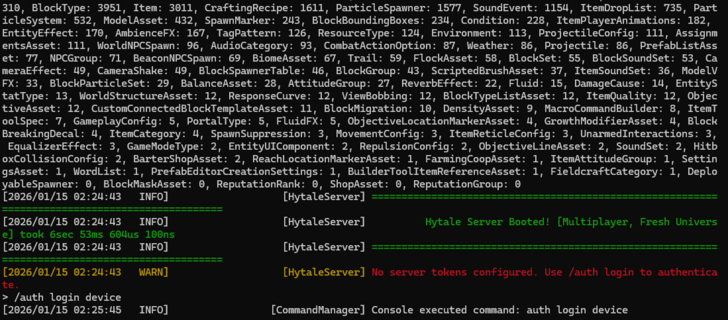
After setting up the commands for the .bat file, run it and wait for it to finish loading. Type "> /auth login device" after it finishes loading to authenticate your device. Copy the second link and open it to a browser to approve it.
New files will appear in the Hytale Server folder after a short while, which contains documents that will let you configure the server.
5. Configure the Server
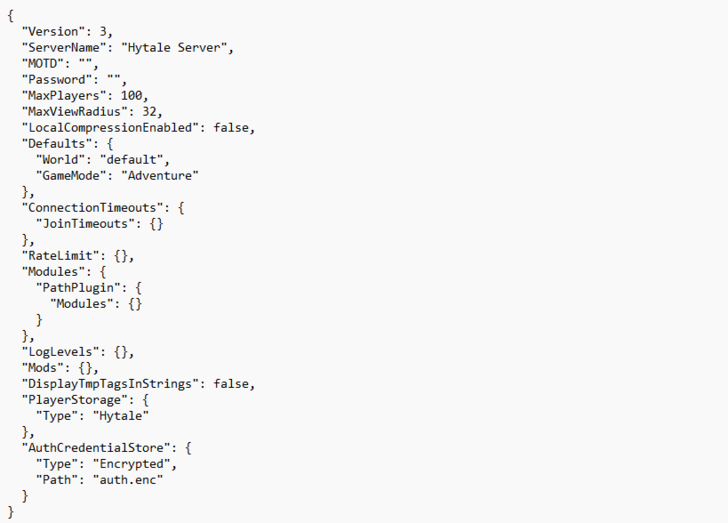
In general, you will only need to edit the "config.json" file. Config.json will allow you to change the server's name, add password, change player count, render or view distance, game mode, and enable mods!
6. Run the Server
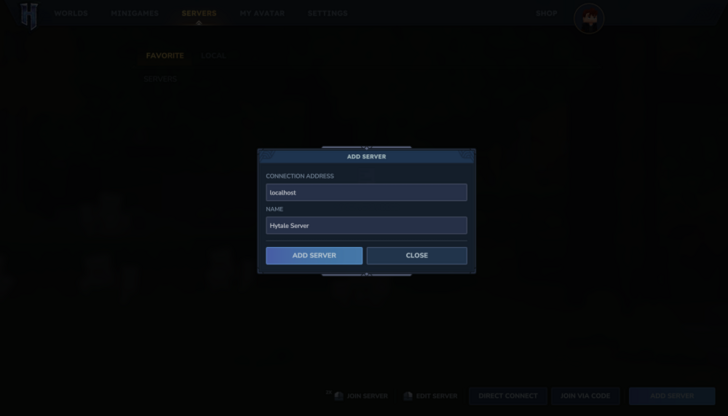
Open Hytale and run the server you just made to test it. To access the server, go to Servers, click Add Server, and input "localhost" on the Connection Address with a Server Name.
Enter the server afterward and make yourself an Operator or Admin to input different commands in-game. You can do that by going back to the executed .bat file and type "/op add USERNAME" (USERNAME = your own in-game name).
7. Set Up the Firewall
| Windows Defender Firewall (Windows Powershell) |
New-NetFirewallRule -DisplayName "Hytale Server" -Direction Inbound -Protocol UDP -LocalPort 5520 -Action Allow |
|---|---|
| Linux (iptables) | sudo iptables -A INPUT -p udp --dport 5520 -j ACCEPT |
| Linux (ufw) | sudo ufw allow 5520/udp |
You will need this to allow the port 5520 (default) to not be blocked by the firewall. For Windows, use Windows Powershell (run as admin) and copy paste the code above to complete this process.
8. Port Forward the Server
Open the router's dashboard, find Security and select Port Forwarding. Setup the External and Internal Ports to 5520 and set the Protocol to UDP. The Local IP address should already be in the dashboard, but you can always check it through the CMD via ipconfig, if not.
You can then share the details of the server and it should be accessible by others at this point. Just make sure that the .bat file is open so that other can join in the server even if you are offline.
Server Creation and Hosting Requirements
At Least 4GB of RAM
You will be required to use a PC with at least 4GB of RAM to run a server. If you have a high-end PC with more than 32GB of RAM, you can adjust the RAM consumption via the .bat file to 8GB or 16GB so that the server can run faster and smoothly. If not, just go with the default of 4GB RAM.
| .bat File Sample | |
|---|---|
| java -XX:AOTCache=HytaleServer.aot -Xms8G -Xmx16G -jar HytaleServer.jar --assets Assets.zip | |
| Xms8G | Minimum RAM = 8GB |
| Xmx16G | Maximum Ram = 16GB |
Fast and Stable Internet Connection
Since other players will most likely connect via the internet, it's best for the host to have a fast and stable internet connection. Players will encounter less internet connection errors if the host has a reliable connection, allowing for better experience and smoother gameplay.
Hytale Related Guides
Latest News
Patch Notes and Updates
| Patch Notes and Updates | |
|---|---|
| Update 1 Patch Notes | Update 2 Features & Release Date |
FAQs and Game Info
| Frequently Asked Questions | |
|---|---|
| Is There Controller Support? | Hytale Price: Is Hytale Free? |
| Failed to Connect to Server Error Fix | Is Hytale on PS5? |
| Is Hytale on Xbox? | Is Hytale on Steam? |
| Can You Gift Hytale? | When is Hytale's Full Version? |
| General Game Info | |
| Hytale Server Status | How to Make and Host a Server |
Comment
Author

How to Make and Host a Server

Please participate in our site
improvement survey
04/2026
improvement survey
04/2026
Would you assist in
improving Game8's site?
improving Game8's site?

×
We are listening to our users' valuable opinions and discussing how to act on them.
The information collected through this survey will be used for the purpose of improving our services. In addition, the information will only be disclosed a part of a statistic in a format that will not allow identification of personal information.
Begin Survey
Not Now
×
Please rate each item regarding Game8.co's Advertisements.
Amount of Ads
Very Dissatisfied
Somewhat Dissatisfied
Fine
Somewhat Satisfied
Highly Satisfied
Placement of Ads
Timing of Ad Display
Ad Loading Speed
Safeness of Ads
Content of Ads
×
Please rate each item regarding Game8.co's Quality of Articles.
Amount of information
Very Dissatisfied
Somewhat Dissatisfied
Fine
Somewhat Satisfied
Highly Satisfied
Frequency of updates
Speed of new information
Accuracy of articles
Understandibility of articles
Readability of sentences
×
Please rate each item regarding Game8.co's Usability of the Site.
Ease of finding information
Very Dissatisfied
Somewhat Dissatisfied
Fine
Somewhat Satisfied
Highly Satisfied
Loading Speed
Use of Color
Font Size
Visibility of Images
Easy to Understand Layout
×
Please rate each item regarding Game8.co's Message Boards, Comments.
Ease of Writing
Very Dissatisfied
Somewhat Dissatisfied
Fine
Somewhat Satisfied
Highly Satisfied
Readability
Ease in Finding Information
Comment Quality
Comment Quantity
Admin Response
×
Please rate each item regarding Game8.co's Site's new design.
Please rate our site's new design
Very Dissatisfied
Somewhat Dissatisfied
Fine
Somewhat Satisfied
Highly Satisfied
Do you think that the website's design change makes the site easier to use?
Has the new design made it easier for you to find information on the site?
Has the new design improved the overall visual appeal of the site?
How would you rate your overall satisfaction with the new design of the site?
×
How likely are you to recommend Game8 to someone you know?
Very Unlikely
0
1
2
3
4
5
6
7
8
9
10
Very Likely
If you have other opinions regarding potential improvement to the website, please share them with us. We would appreciate your honest opinion.
Note: This is a free response section, so you can proceed without entering anything.
Note: Please be sure not to enter any kind of personal information into your response.
Note: Please be sure not to enter any kind of personal information into your response.
×
Thank You
×
Thank you for participating in our survey! Your answers will help us to improve the quality of our website and services.
We hope you continue to make use of Game8.
We hope you continue to make use of Game8.
Close
Rankings
- We could not find the message board you were looking for.
Gaming News



![Forza Horizon 6 Review [Preview] | Beautiful Roads With a Whole Lot of Oversteer](https://img.game8.co/4460981/a7254c24945c43fbdf6ad9bea52b5ce9.png/thumb)
![Borderlands Mobile Review [Playtest] | The Same Borderlands Made Easy](https://img.game8.co/4465500/aac0c880a39ec5cd46073e49d18f3ed5.png/thumb)
Popular Games

Genshin Impact Walkthrough & Guides Wiki
Crimson Desert Walkthrough & Guides Wiki
Umamusume: Pretty Derby Walkthrough & Guides Wiki
Honkai: Star Rail Walkthrough & Guides Wiki
Monster Hunter Stories 3: Twisted Reflection Walkthrough & Guides Wiki
Wuthering Waves Walkthrough & Guides Wiki
The Seven Deadly Sins: Origin Walkthrough & Guides Wiki
Pokemon TCG Pocket (PTCGP) Strategies & Guides Wiki
Pokemon Pokopia Walkthrough & Guides Wiki
Zenless Zone Zero Walkthrough & Guides Wiki









Recommended Games
Fire Emblem Heroes (FEH) Walkthrough & Guides Wiki
Pokemon Brilliant Diamond and Shining Pearl (BDSP) Walkthrough & Guides Wiki
Super Smash Bros. Ultimate Walkthrough & Guides Wiki
Diablo 4: Vessel of Hatred Walkthrough & Guides Wiki
Cyberpunk 2077: Ultimate Edition Walkthrough & Guides Wiki
Yu-Gi-Oh! Master Duel Walkthrough & Guides Wiki
Elden Ring Shadow of the Erdtree Walkthrough & Guides Wiki
Monster Hunter World Walkthrough & Guides Wiki
The Legend of Zelda: Tears of the Kingdom Walkthrough & Guides Wiki
Persona 3 Reload Walkthrough & Guides Wiki










All rights reserved
©2026 HYPIXEL STUDIOS CANADA INC. ALL RIGHTS RESERVED.
The copyrights of videos of games used in our content and other intellectual property rights belong to the provider of the game.
The contents we provide on this site were created personally by members of the Game8 editorial department.
We refuse the right to reuse or repost content taken without our permission such as data or images to other sites.