



This survey will take about 1 minute.
Your answers will help us to improve our website.
Doom: The Dark Ages
Controls and Best Settings
☆ Doom: The Dark Ages is live now!
★ Collectibles | Secrets | Walkthrough
┗ Resources | Codex | Toy
★ Trophies | Beginner's Guide | Enemies
☆ Skins: Twitch Drops | Prince St. Pizza
★ FAQs: Co-op | DLC | Specs | Glory Kills
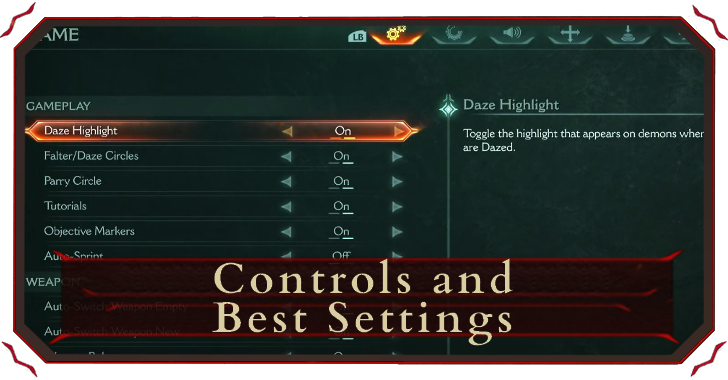
Doom: The Dark Ages offers a wide range of customizable settings, allowing players to tailor their game experience to their preferences. Learn more about the in-game controls and best settings in this guide!
List of Contents
Controls Overview
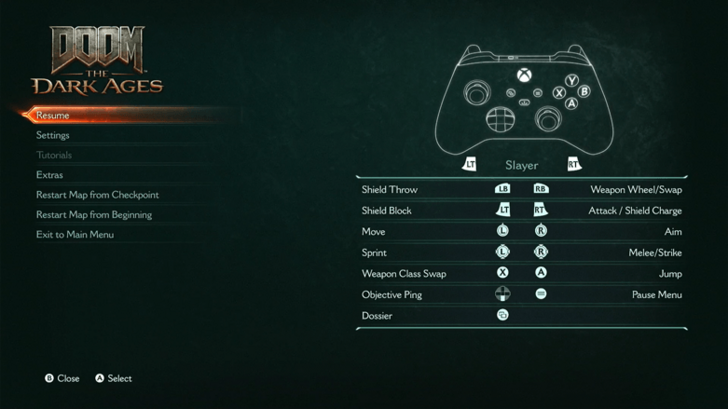
| Action | Button |
|---|---|
| Move |  / /  / /     |
| Aim |  / /  / /  |
| Attack/Shield Charge |  / /  / /  |
| Block/Parry |  / /  / /  |
| Melee/Strike |  / /  / /  |
| Sprint |  / /  / /  |
| Shield Throw |  / /  / /  |
| Weapon Wheel Swap |  / /  / /  |
| Jump |  / /  / /  |
| Objective Ping |  / /  / /  |
| Pause Menu |  / /  / /  |
| Dossier |  / /  / /  |
Rebinding Controls
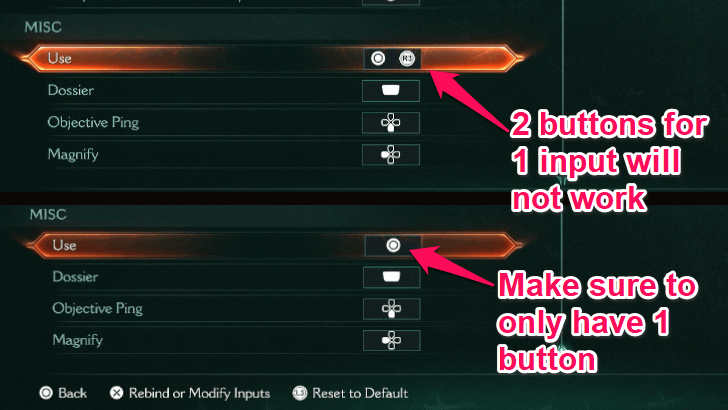
When rebinding controls, it is important to make sure that you properly unbind the buttons. If one input has more than one button assigned to it, it may not work properly.
Best Settings
Recommended Settings to Adjust
When starting the game, it would be best to adjust settings according to your preference. Some settings worth checking out include:
| Settings | Description |
|---|---|
| Motion Blur | Very useful for players prone to motion sickness. |
| Aim Sensitivity | Vital in any first person shooter, make sure to adjust this according to your preference. |
| Enhanced Targeting | Enable this to make hitting enemies easier. |
| Empowered Attacks | Makes it easier for your attacks to stagger enemies. |
| Colorblind Rendering Mode | Provides Colorblind Assistance. Available options include Protanopia, Deuteranopia, and Tritanopia. |
| Aim Assist | Want to test your skills? Turn this off to make aiming more challenging! |
| Depth of Field Motion Blur Environmental Screen Shake Camera Shake Amount |
Turn these off to enhance the clarity of your gameplay visuals, especially in hectic fights. |
Use the World Desaturation Settings
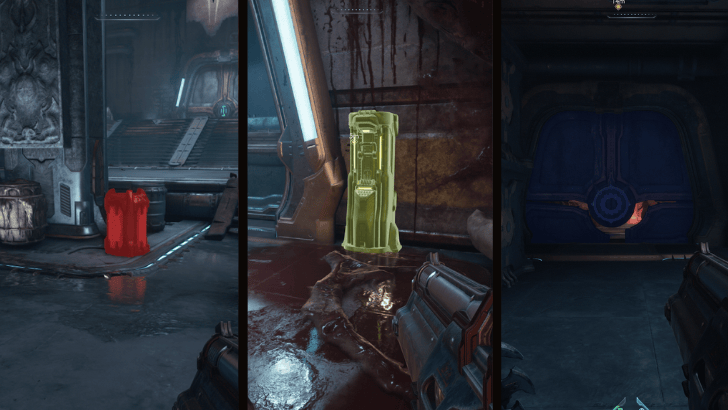
One particularly impactful setting is World Desaturation, found under the Game tab. This feature enhances visual clarity by highlighting important objects that can lead to secrets like breakable walls and interactable valves/levers. This can also make explosive barrels easier to spot during fights.
It is recommended to have Hazard, Interactable, and Shield Breakable on with an A color setting from 10% - 50% and the rest disabled.
Doom: The Dark Ages Related Guides

Beginner's Guide: All Tips and Tricks
All Tips and Tricks
Comment
Author
Controls and Best Settings

Please participate in our site
improvement survey
03/2026
improvement survey
03/2026
Would you assist in
improving Game8's site?
improving Game8's site?

×
We are listening to our users' valuable opinions and discussing how to act on them.
The information collected through this survey will be used for the purpose of improving our services. In addition, the information will only be disclosed a part of a statistic in a format that will not allow identification of personal information.
Begin Survey
Not Now
×
Please rate each item regarding Game8.co's Advertisements.
Amount of Ads
Very Dissatisfied
Somewhat Dissatisfied
Fine
Somewhat Satisfied
Highly Satisfied
Placement of Ads
Timing of Ad Display
Ad Loading Speed
Safeness of Ads
Content of Ads
×
Please rate each item regarding Game8.co's Quality of Articles.
Amount of information
Very Dissatisfied
Somewhat Dissatisfied
Fine
Somewhat Satisfied
Highly Satisfied
Frequency of updates
Speed of new information
Accuracy of articles
Understandibility of articles
Readability of sentences
×
Please rate each item regarding Game8.co's Usability of the Site.
Ease of finding information
Very Dissatisfied
Somewhat Dissatisfied
Fine
Somewhat Satisfied
Highly Satisfied
Loading Speed
Use of Color
Font Size
Visibility of Images
Easy to Understand Layout
×
Please rate each item regarding Game8.co's Message Boards, Comments.
Ease of Writing
Very Dissatisfied
Somewhat Dissatisfied
Fine
Somewhat Satisfied
Highly Satisfied
Readability
Ease in Finding Information
Comment Quality
Comment Quantity
Admin Response
×
Please rate each item regarding Game8.co's Site's new design.
Please rate our site's new design
Very Dissatisfied
Somewhat Dissatisfied
Fine
Somewhat Satisfied
Highly Satisfied
Do you think that the website's design change makes the site easier to use?
Has the new design made it easier for you to find information on the site?
Has the new design improved the overall visual appeal of the site?
How would you rate your overall satisfaction with the new design of the site?
×
How likely are you to recommend Game8 to someone you know?
Very Unlikely
0
1
2
3
4
5
6
7
8
9
10
Very Likely
If you have other opinions regarding potential improvement to the website, please share them with us. We would appreciate your honest opinion.
Note: This is a free response section, so you can proceed without entering anything.
Note: Please be sure not to enter any kind of personal information into your response.
Note: Please be sure not to enter any kind of personal information into your response.
×
Thank You
×
Thank you for participating in our survey! Your answers will help us to improve the quality of our website and services.
We hope you continue to make use of Game8.
We hope you continue to make use of Game8.
Close
Rankings
- We could not find the message board you were looking for.
Gaming News




![Monster Hunter Stories 3 Review [First Impressions] | Simply Rejuvenating](https://img.game8.co/4438641/2a31b7702bd70e78ec8efd24661dacda.jpeg/thumb)
Popular Games

Genshin Impact Walkthrough & Guides Wiki
Honkai: Star Rail Walkthrough & Guides Wiki
Umamusume: Pretty Derby Walkthrough & Guides Wiki
Pokemon Pokopia Walkthrough & Guides Wiki
Resident Evil Requiem (RE9) Walkthrough & Guides Wiki
Monster Hunter Wilds Walkthrough & Guides Wiki
Wuthering Waves Walkthrough & Guides Wiki
Arknights: Endfield Walkthrough & Guides Wiki
Pokemon FireRed and LeafGreen (FRLG) Walkthrough & Guides Wiki
Pokemon TCG Pocket (PTCGP) Strategies & Guides Wiki









Recommended Games
Diablo 4: Vessel of Hatred Walkthrough & Guides Wiki
Fire Emblem Heroes (FEH) Walkthrough & Guides Wiki
Yu-Gi-Oh! Master Duel Walkthrough & Guides Wiki
Super Smash Bros. Ultimate Walkthrough & Guides Wiki
Pokemon Brilliant Diamond and Shining Pearl (BDSP) Walkthrough & Guides Wiki
Elden Ring Shadow of the Erdtree Walkthrough & Guides Wiki
Monster Hunter World Walkthrough & Guides Wiki
The Legend of Zelda: Tears of the Kingdom Walkthrough & Guides Wiki
Persona 3 Reload Walkthrough & Guides Wiki
Cyberpunk 2077: Ultimate Edition Walkthrough & Guides Wiki










All rights reserved
© 2025 ZeniMax Media Inc. All Rights Reserved.
The copyrights of videos of games used in our content and other intellectual property rights belong to the provider of the game.
The contents we provide on this site were created personally by members of the Game8 editorial department.
We refuse the right to reuse or repost content taken without our permission such as data or images to other sites.